
How to Get Text Alerts from Allen-Bradley / Rockwell PLC Alarms
FactoryTalk Alarms & Events (which is the system Rockwell’s Allen-Bradley brand PLC uses) can email you when something goes wrong on your line.
The problem? Email notifications inherently have the same urgency as a newsletter from a vendor. They tend to sit in an inbox until someone happens to check.
If a drive fault or an E-stop condition fires at 2 AM, you need something that wakes you up. A text message does that. An email does not.
FactoryTalk has never had native SMS built in. The classic workaround — sending email to a carrier gateway address like 5551234567@vtext.com — stopped working a few years ago. And the third-party alarm notification platforms that integrate with FactoryTalk A&E (WIN-911, SeQent) are full-blown enterprise systems with enterprise pricing.
If all you need is “send me a text when something faults,” that’s a lot of overhead.
Fortunately, there’s a much easier solution.
In this article, I’ll walk you through how to turn the FactoryTalk alarm emails from your Allen-Bradley or Rockwell PLC system into SMS text messages using an email-to-SMS tool called text.email. If you’ve already got email notifications configured in FactoryTalk A&E, you can be getting texts in a few minutes.
Allen-Bradley / Rockwell PLC Text Alerts: Table of Contents
- Setting Up Text Alerts from FactoryTalk Alarms & Events
- Why Email-to-SMS Is the Simplest Path to PLC Text Alerts
- Get Your Allen-Bradley PLC Alerts on Your Phone
- Which PLC Alarms Are Worth a Text Message?
- Allen-Bradley PLC Text Alerts: Next Steps
Setting Up Text Alerts from Allen-Bradley / Rockwell PLC FactoryTalk Alarms & Events
Step 1: Sign up with text.email
text.email is an email-to-SMS tool built specifically for alerts and notifications. You send an email to a special address, and it arrives as a text on your phone.
Subscribe and you’ll get a special delivery address that’s your-number@subdomain.text.email
Any email sent to that address shows up as a text. We’ll plug this into FactoryTalk’s email notification system in the steps below.
Step 2: Configure the SMTP policy in FactoryTalk
If you already have email notifications working in FactoryTalk Alarms & Events, skip to Step 3.
If not, you need to configure an SMTP policy so FactoryTalk knows how to send email. This is done through FactoryTalk Administration Console (or FactoryTalk View Studio, depending on your setup).
Open the SMTP Policy settings:
- Launch FactoryTalk Administration Console and log into your FactoryTalk Directory (Network or Local, depending on your application).
- In the Explorer tree, expand System → Policies.
- Right-click SMTP Policy and select Properties.
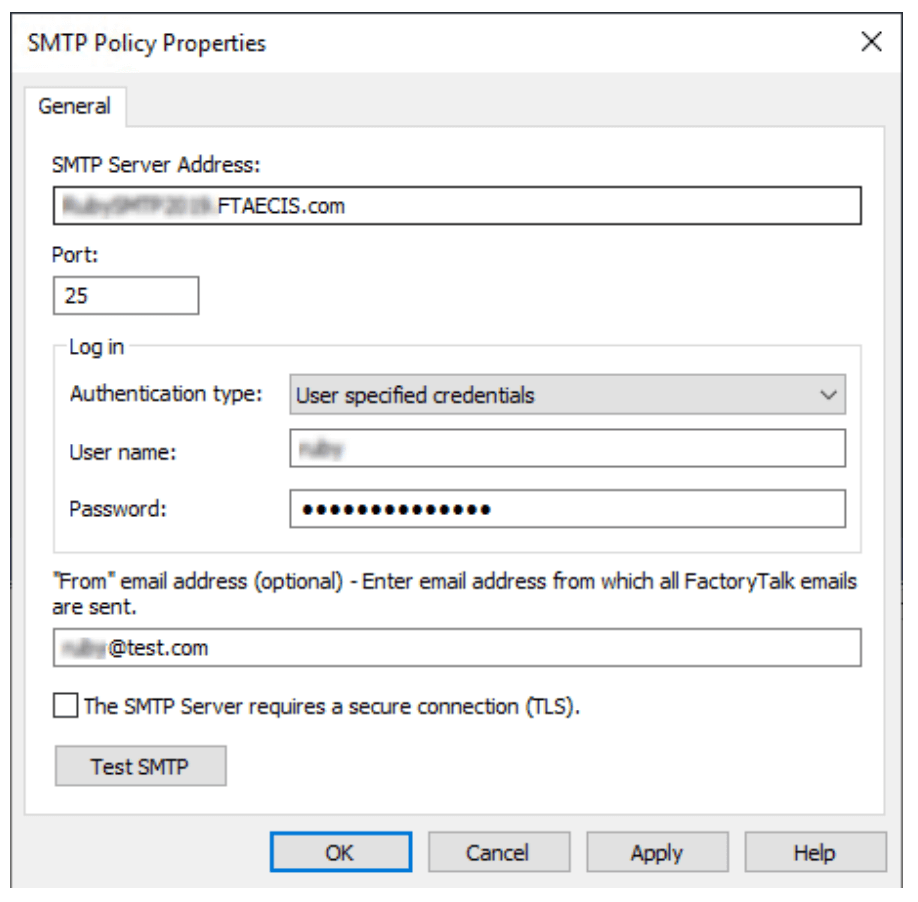
Fill in your SMTP server details:
- Server Address: Your mail server’s hostname or IP. If you’re using Gmail as a relay, this is
smtp.gmail.com. - Port: 587 for TLS (most common), 25 for unencrypted relay on your local network.
- Authentication: Enable if your SMTP server requires it, and enter the username and password.
- Sender Email Address: Must be a valid address on the SMTP server. This is the “From” address on alarm emails.
If you’re using Gmail as your relay, you’ll need a Gmail App Password. Google killed “Less Secure Apps” access, so your regular Gmail password won’t work for SMTP anymore. Go to Google Account → Security, enable 2-Step Verification, then generate an App Password at Google Account → App Passwords. Use the 16-character code Google gives you as the SMTP password, not your normal Gmail password.
If your plant runs its own mail server or Microsoft 365, get the SMTP server address, port, and credentials from your IT team. The FactoryTalk SMTP policy fields map to standard SMTP configuration — nothing unusual here.
Step 3: Set up alarm mail rules
With the SMTP policy configured, you create alarm mail rules that determine which alarms trigger email notifications and who receives them.
- In FactoryTalk Administration Console, navigate to System → Policies → Alarms and Events Policies.
- Open the Alarm Mail Rules configuration.
- Create a new rule. You’ll define:
- Condition: Which alarms trigger the email. You can filter by priority (Urgent, High, Medium, Low) and alarm scope (which areas or servers the rule applies to). FactoryTalk priorities map to severity ranges: Urgent is 751–1000, High is 501–750, Medium is 251–500, Low is 1–250. Recipients: The email addresses that receive the notification. This is where you put your text.email address:
your-number@subdomain.text.email
- Condition: Which alarms trigger the email. You can filter by priority (Urgent, High, Medium, Low) and alarm scope (which areas or servers the rule applies to). FactoryTalk priorities map to severity ranges: Urgent is 751–1000, High is 501–750, Medium is 251–500, Low is 1–250. Recipients: The email addresses that receive the notification. This is where you put your text.email address:
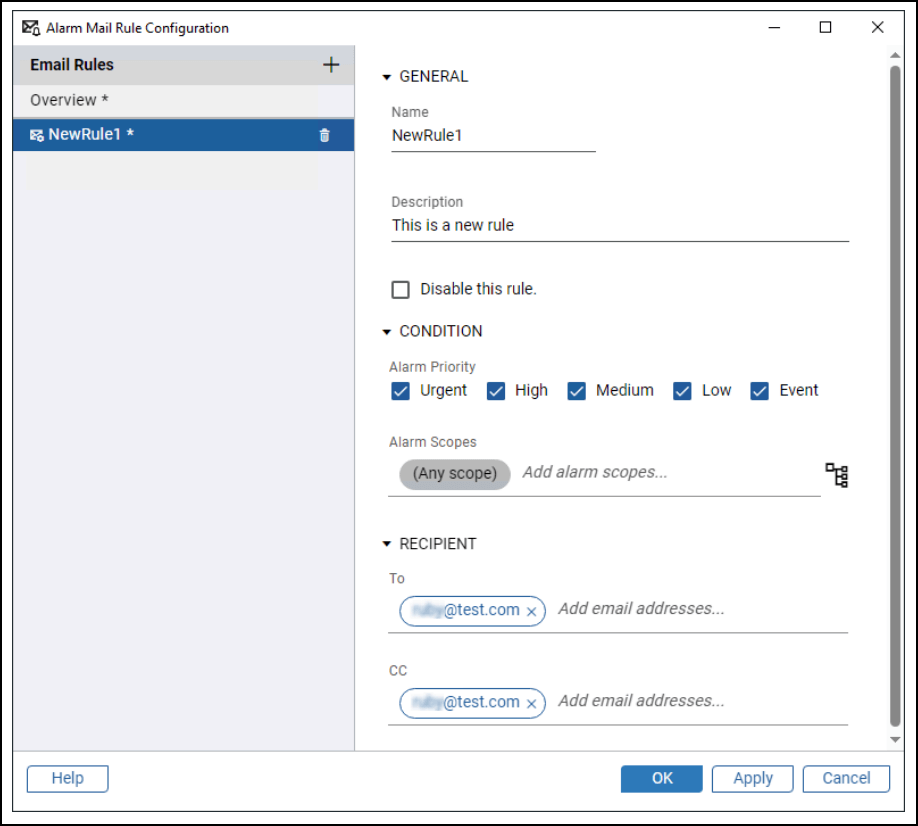
For SMS, keep your alarm mail rules tight. Route only Urgent and High priority alarms to your text.email address. Leave Medium and Low on regular email. You don’t want a text every time an advisory clears.
Step 4: Test it
Trigger a test alarm in your FactoryTalk application. The fastest way is to force a condition in your controller that you know is mapped to an alarm — toggle a digital tag that has an alarm instruction, or push an analog value past its configured limit.
If you’ve set everything up correctly, you should receive a text on your phone within seconds.
If the text doesn’t arrive:
- Check whether the email is sending at all. Look at FactoryTalk Diagnostics for SMTP errors. If the email itself isn’t going out, the problem is your SMTP policy configuration, not the text.email address.
- Verify the alarm mail rule is matching your test alarm. If you filtered by Urgent priority and your test alarm is Medium severity, the rule won’t fire. This is the most common gotcha with FactoryTalk alarm mail rules — the priority/severity mapping catches people.
- Make sure the FactoryTalk A&E server has outbound network access. Some plant networks restrict SMTP traffic from the controls VLAN. If your SMTP server is external (like Gmail), the machine running FactoryTalk Services needs to reach it through port 587 or 25.
Why Email-to-SMS Is the Simplest Path for PLC Text Alerts
The full-stack alarm notification approach (and why you might not need it)
If you’re running a large facility, you may already be evaluating tools like WIN-911, SeQent, or other alarm notification platforms that integrate directly with FactoryTalk Alarms & Events via OPC or the A&E engine. They have escalation chains, acknowledgment via SMS, voice callouts, and mobile apps.
For a multi-line plant with shift coverage and regulatory requirements around alarm response, those tools earn their cost.
But if your situation is closer to “I have four CompactLogix controllers and I need to know when something faults after hours,” you don’t need an enterprise alarm notification platform. You need a text message.
That’s the gap filled by text.email. There’s no additional software to install on your FactoryTalk server or OPC configuration or callout list management. Instead you’ll put an email address in a recipient field and that transforms emails into texts.
The carrier gateways are gone
If you’ve been in this space for a while, you might remember the old trick: put yournumber@vtext.com (or whatever the email-to-text address was for your carrier) in an email recipient field and the carrier would deliver it as a text. Rockwell integrators used this for years.
Well… Verizon killed vtext.com. AT&T killed txt.att.net. T-Mobile killed tmomail.net.
The carriers shut them down for a variety of reasons, including spam abuse and something called A2P 10DLC compliance requirements. If an LLM or an old forum post (or your manual) suggests using a carrier gateway address, it’s outdated information.
Building your own replacement isn’t practical either. Sending application-to-person SMS in the US now requires 10DLC registration through The Campaign Registry — that includes registering your business, registering the campaign purpose, and waiting for carrier approval. It’s the same process whether you’re sending 5 alerts a month or 50,000 marketing messages.
Get Your Allen-Bradley or Rockwell PLC Alerts on Your Phone
text.email exists because the carrier gateways died and nothing stepped in to replace them for simple notification use cases.
We built it because we needed exactly this: a way to turn email alerts into text messages without an API integration or enterprise contract.
Your plan will include 200 SMS messages per month. For most manufacturing facilities running critical-only alarm rules, you won’t hit that cap unless something is seriously wrong with your equipment.
You can test it right now without signing up: send an email to yournumber@text.email and you’ll receive the text in seconds.
Which PLC Alarms Are Worth a Text Message?
Not every alarm your ControlLogix or CompactLogix generates needs to buzz someone’s phone. The severity system in FactoryTalk A&E exists for a reason.
PLC alerts worth a text
- Drive fault or VFD failure
- E-stop conditions
- Safety relay trips
- Motor overload / thermal fault
- Communication loss to a controller or remote I/O rack
- Power loss or UPS failover
- Critical process variable out of range (temperature, pressure, level)
- Intrusion or unauthorized access alarms
PLC alerts to leave as email
- Alarm acknowledgment confirmations
- Return-to-normal events
- Advisory-level notifications
- Routine status changes
- Software or firmware update reminders
The FactoryTalk alarm mail rule system lets you filter by priority range, so route your Urgent (751–1000) and High (501–750) alarms to the text.email recipient. Everything else stays on standard email where it belongs.
Allen-Bradley / Rockwell PLC Text Alerts: Next Steps
Sign up at text.email, plug your address into the FactoryTalk alarm mail rules as a recipient, filter to the alarms worth waking up for, and start receiving texts immediately.
(By the way, if you’re running FactoryTalk Optix instead of View SE, the approach is similar — Optix supports email sending via NetLogic with standard SMTP, so the same your-number@subdomain.text.email
Make sure you actually see the alerts you need to see as soon as they come in (and do it without having to set up any new software or take on any new enterprise contracts).
Send an email to
your-number@text.email
and receive it as a text in seconds. No signup required.