
How to Get Text Alerts for Your Most Important Outlook Emails
Not every email can wait until the next time you check your email.
And as much as the Outlook app on our phones try to let us know whenever we get a new email, those notifications are easy to miss.
But we don’t miss text messages. Those notifications cut through the noise and get our immediate attention.
So if you could get SMS alerts about select emails, that would be a pretty good insurance policy against missing time-sensitive, important messages.
Well… you can. And it’s way easier than you think.
With text.email, you can have Outlook transform specific alerts into text messages. I’ll show you how to set this up below, step-by-step, whether you’re looking to forward all incoming email to text or (more wisely) only certain messages.
Outlook Text Alerts: Table of Contents
Setting Up Email-to-Text Forwarding in Outlook
When you subscribe to text.email, you’ll get a personal email address that’s your-number@your-subdomain.text.email. Any email sent to that address gets delivered to your phone as a text message. So if Outlook forwards an email there, you’ll get it as an SMS alert.
The whole setup takes about five minutes.
Step 1: Create your text.email account
Head over to the text.email website and create your account. Once you’re in, you’ll get an email subdomain; that’s the secret keyword that makes sure only you can send texts to your phone through text.email.
text.email assigns you a subdomain automatically, but you can change it to whatever you want in your account settings.
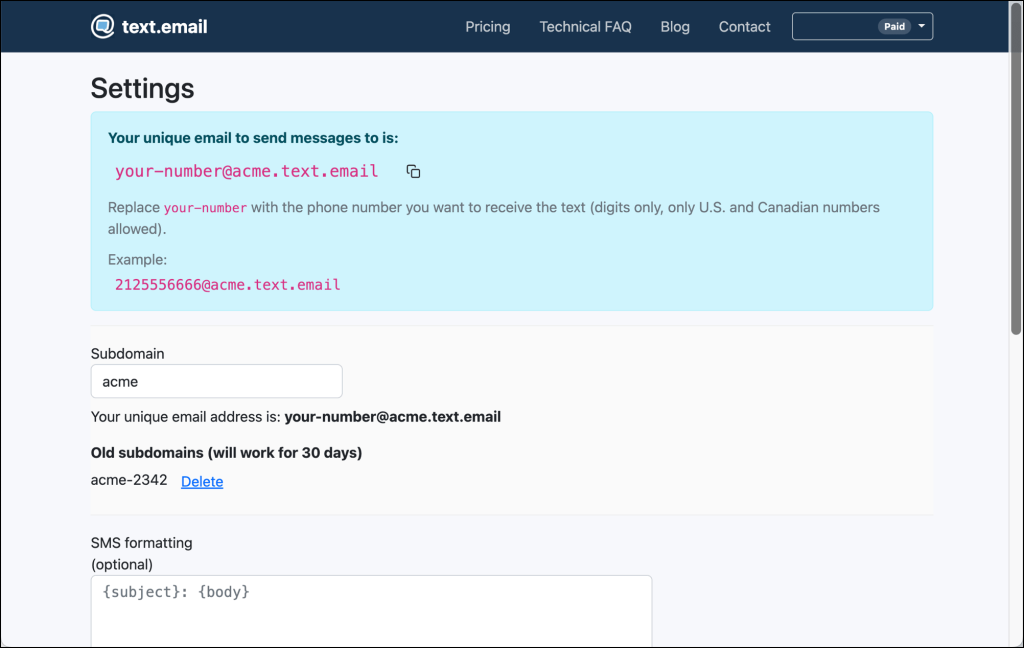
So if your phone number is 5551234567 and your subdomain is acme, your address would be 5551234567@acme.text.email. Copy that down, because you’ll need it in a second.
Step 2 (aka Option 1): Turn on forwarding for all messages in Outlook
If you want EVERY email to come to you as a text alert, here’s how to do it.
Go to Outlook in your browser. (Note: This is way easier to do on desktop than on your phone.)
Click the gear icon in the top-right corner to open settings. Select Mail, then click on Forwarding and IMAP.

Toggle the switch to Enable forwarding.
Then put your text.email address in the box.

You should also check the box to Keep a copy of forwarded messaes (without that, the emails that become texts won’t stay in your inbox).
Then click Save.
Note: if you don’t already have two-step verification turned on for your Microsoft account, Outlook will make you enable it before it lets you set up forwarding.
Step 3 (aka Option 2): Forward only specific emails with an Outlook rule
Now, if you actually do want every email triggering a text, you don’t have to do this.
But if you only want text alerts on selected messages, we’ll use an Outlook rule.
First, if you did the setup from the previous step back to Settings → Mail → Forwarding and toggle forwarding off (since we’re going to handle this with a rule instead).
Go to Settings by clicking the gear in the top right. Then click on Mail, and then Rules.

Click the + Add new rule button.
You can give your rule any name you want. And then, under Add a condition, choose the commonality between all the messages you want forwarded.
For instance, maybe they’re all replies to a certain sales email campaign, so you know they’ll all have the same words in the subject line or a specific keyword. Maybe you applied for a job, so you want alerts on emails with the recruiter’s address in the from field.
Whatever it is, figure out the common connection and make your rule.
You can add multiple conditions here to really fine-tune your forwarding.

Then, under Add an action, choose Forward to and put in your text.email address.

Then click Save.
You can create multiple rules if you need different forwarding criteria. And you can add exceptions too, like forwarding everything from alerts@monitoring.io except when the subject contains ‘resolved.’
Need some help figuring out the best forwarding rules? Ask an LLM. It will help you figure out how to dial in your rules so you’re only getting text alerts on the emails you want.
Step 4: Customize the SMS format
You likely don’t want the entire email forwarded word-for-word as a text message (or as a multi-part text message more likely). These are alerts, after all.
Good news: text.email has SMS formatting options that let you control which parts of the email become the text.
For instance, you might want something like: {subject}: {body}
Or: Alert from {from}: {subject}
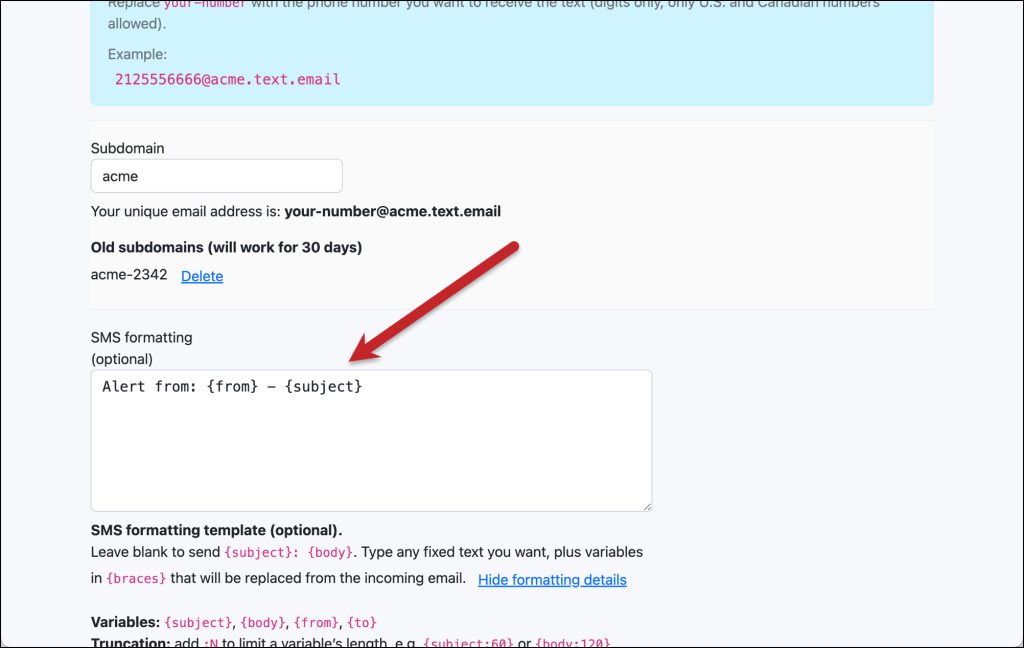
You can even use regex to get extra detailed about what text.email pulls out of your emails. The formatting guide I linked earlier has the details.
Ready to Start Getting Outlook Text Alerts?
As you can (hopefully) see from the article above, setting up email-to-SMS forwarding in Outlook is pretty simple.
Outlook is flexible but not complicated when it comes to filtering. text.email is a drop-in way to get text alerts. Together, that gives you a simple system where your most critical emails reach you as text messages with no code, API, or app to install.
So if there are Outlook emails you can’t afford to miss, this is one of the fastest ways to make sure they reach you instantly. Create your text.email account, get your new email-to-SMS address, set up a forwarding rule in Outlook, and you’re set.
You can have this running in about five minutes, and stop worrying about the important stuff getting buried in your inbox.
Send an email to
your-number@text.email
and receive it as a text in seconds. No signup required.