
How to Get Synology NAS Text Alerts (60-Second Setup Guide)
Synology NAS text alerts are the best way to find out when something’s wrong (or about to go wrong).
DSM (that’s DiskStation Manager, which is Synology’s operating system, if you don’t know) is pretty good about emailing you when things go sideways: disk health warnings, RAID degradation, backup failures, all that and more.
The problem is where those notifications end up.
Mine were going to one of my Gmail addresses for years. That’s fine, I’d get alerts on my phone — but I also get a ton of other email alerts on my phone. Which get condensed into one box on my lock screen. That makes them way too easy to miss.
DSM was sending alerts and I was missing them, because email isn’t a medium for urgent communication.
Text messages are.
So how could I get my Synology to send me SMS alerts when something breaks?
The fix is way simpler than you might think.
Synology NAS Text Alerts: Table of Contents
- How to Set Up Synology NAS Text Alerts — Fast
- Why the Old Methods for Text Alerts Don’t Work
- Ready to Get Set Up in 60 Seconds Or Less?
- Why Text Alerts Are Especially Useful for NAS
- Synology NAS Text Alerts: Next Steps
How to Set Up Synology NAS Text Alerts — Fast
Here’s how to set these up.
Sign up with text.email
text.email is the quickest way to get email-to-SMS alerts.
Head over to the site and sign up for the plan. You’ll get a special email subdomain to make sure no one else can start sending you email-to-text notifications. And your email address will then be your-number@subdomain
That’s all it takes: Any emails to that address will now be delivered as SMS messages to your phone.
Go to the DSM control panel
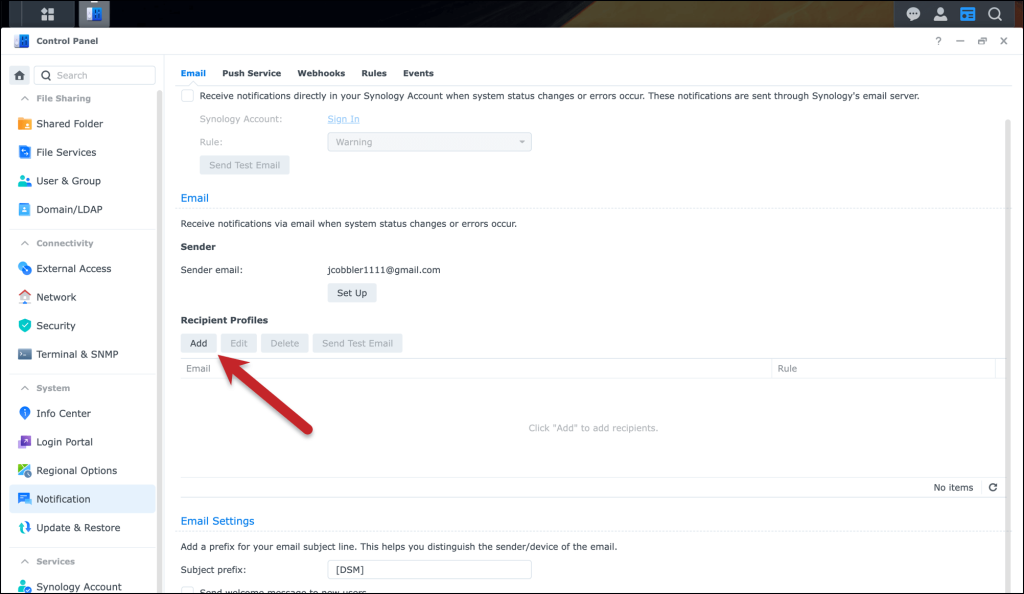
Head to Control Panel → Notification → Email. If you set up email notifications during initial NAS setup (and then, if you’re like me, immediately forgot about where and how you did that), this is where they live.
Note: If you haven’t set this up before, you’ll need to connect your email account. You can use OAuth to quickly connect your Gmail/Google Workspace account.
Now, if you came here in the past, you might remember that DSM had an option for “SMS.” But they removed that; more on why they removed it later.
For now, we’ll use text.email as the drop-in, reliable alternative.
Under Recipient Profiles, choose Add.
Then add your text.email address.
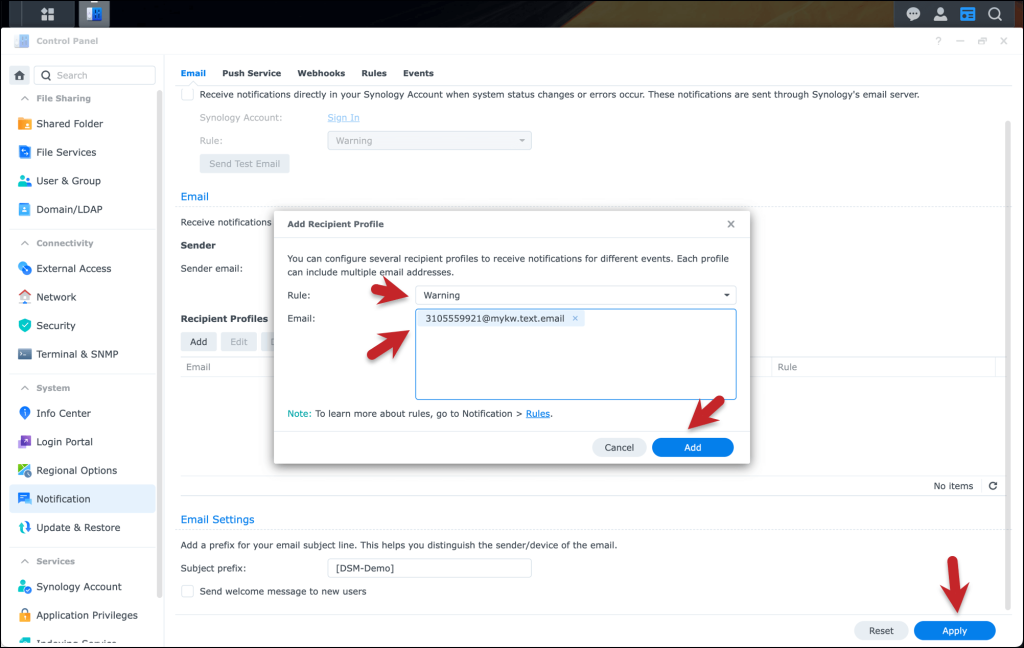
I chose Warning alerts here, because I feel like that’s ideal for NAS alerting (more on that shortly). But you can choose the tighter Critical option, or fine tune your own Rules on exactly which notifications you want.
Click the Add button. Then click the Apply button on the bottom right of the screen and you’ll start getting the alerts.
Why the Old Methods for Text Alerts Don’t Work
There used to be a few popular ways to get text message alerts from Synology.
Those are all gone. The above method is the only quick-and-easy way to get those alerts now.
Gone: The carrier gateways
If you’ve been running a Synology for a while, you might have configured SMS alerts through the old carrier email gateways (like 5551234567@vtext.com or 5551234567@txt.att.net).
Those are all dead now.
Verizon, AT&T, and T-Mobile shut them down over the past couple years as part of A2P 10DLC compliance.
What’s that? In one sentence: Text spam got out of control, lots of new compliance rules went into effect, so the carriers killed their gateways.
If your alerts were going to one of those addresses, they’ve been silently failing for months or years.
Gone: Synology DSM’s own native SMS alert feature
Synology killed their SMS alert feature for the same reason the cell carriers killed theirs. Without compliance, email-to-text messages won’t get delivered.
So now, the onus is on you to figure out your own method for SMS alerts.
(Note: Push notifications through services like Pushover still exist. But those require installing packages on the NAS and maintaining another account. They’re also notification apps rather than actual SMS, which means they’re competing with every other app on your phone for attention.)
The drop-in, compliance-compatible replacement
text.email is the only drop-in service that takes care of the compliance work so you don’t have to. (And I promise, you won’t want to. It’s a ton of paperwork, it costs money, and it’s an ongoing hassle.)
So if you want quick, easy email-to-text alerts from your Synology NAS, text.email is the solution for you.
Ready to Get Set Up in 60 Seconds Or Less?
We built text.email for exactly this situation: getting SMS alerts from systems that already know how to send email. The whole point is that there’s nothing to install or integrate. If it can send mail, it can send texts.
For Synology NAS, your existing notification setup stays exactly the same. Same SMTP config, same event rules — just a different recipient address.
We handle the carrier compliance stuff (A2P 10DLC registration) that would otherwise require jumping through regulatory hoops if you tried to roll your own SMS sending.
Your plan includes 200 messages per month. Most people sending just critical NAS alerts will use maybe 5-10 texts a month unless something’s going seriously wrong.
Curious? You can try it out right now, just send a sample “alert” email to yournumber@text.email.
Why Text Alerts Are Especially Useful for NAS
There’s a specific failure pattern with network-attached storage that makes SMS notifications unusually valuable: NAS problems tend to develop slowly, and you have a window to fix them before they become actual emergencies.
A disk throwing SMART warnings isn’t dead yet, but it might be in a week.
A volume at 92% capacity isn’t full yet, but it will be after tonight’s backup job runs.
These aren’t drop-everything situations, they’re handle-it-within-48-hours situations. Exactly the kind of thing that’s easy to miss in an overflowing inbox.
An SMS, though? You’ll see it. And you’ll probably order a replacement drive before you’re dealing with a degraded array.
But… DSM can generate a lot of notifications if you let it. Most of them don’t need to be texts.
What’s worth the SMS?
Disk health warnings, RAID degradation, volume nearly full, backup job failures, storage pool errors, UPS events, unauthorized login attempts.
In other words: Anything that threatens your data or suggests someone’s trying to access it.
Fine as email
Successful backup completions, DSM updates available, certificate renewals, storage analyzer reports.
The “everything worked” confirmations and the “whenever you get around to it” housekeeping items.
DSM lets you configure rules per event type in the Rules tab, and you can set different recipients for different categories. It’s worth spending ten minutes on this; the goal is making sure you actually notice the texts when they come, which means not getting texts about routine stuff.
Synology NAS Text Alerts: Next Steps
So that’s all you need to get SMS alerts from your Synology NAS.
Grab a text.email account here.
Then go to your DSM control panel, hit up the notifications session, enter your text.email address, and send a test.
You’ll get the text notification moments later. And now you’re all set up to get alerts whenever something goes wrong with your NAS — and before “warning” turns into “failure.”
Send an email to
your-number@text.email
and receive it as a text in seconds. No signup required.