
Use AI Summaries to Turn Complicated Emails Into Useful Text Messages
Automated alert emails (should) contain all the information you need. But when you’re using email to SMS, sometimes “all” the information from those emails isn’t good for an SMS message.
The important details might be buried in an HTML table, surrounded by boilerplate, placed in different parts of the email — or just flat out too long.
SMS alerts need to just get to the point so you can fix whatever is urgently wrong.
text.email already gives you tools to control your email to SMS alerts with SMS formatting. You can pick and choose variables, truncate the length, and/or use regex.
But now there’s an even better option for the longest, most complicated, or most unpredictably formatted email alerts: {aisummary}.
AI Summary: Table of Contents
- How AI Summaries Work in text.email
- When Should You Use AI Summaries Versus Standard SMS Formatting?
- Get Started Using AI Summaries in text.email
How AI Summaries Work in text.email
Go to the SMS Formatting section of the text.email settings page.
And in the formatting box, enter {aisummary}.
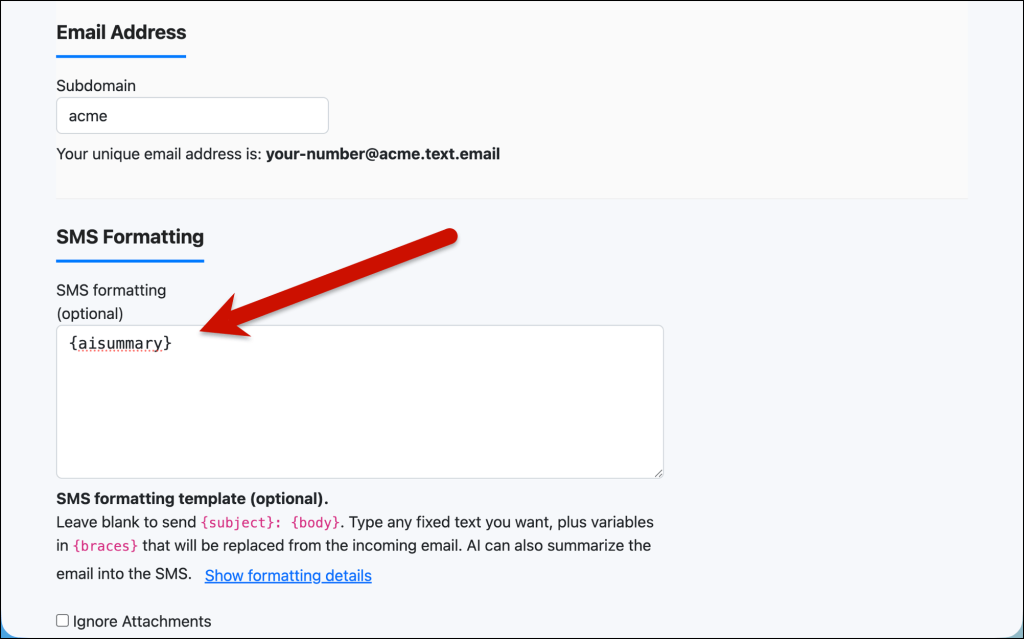
Now, when an email arrives, text.email will give you an AI-generated summary.
Can you use other formatting options as well?
Yes. The basic variables are still part of the SMS formatting landscape in text.email. So no worries: You haven’t lost variables like {subject} for the subject, or {body:120} to truncate the body to 120 characters.
You can use {aisummary} alongside those other SMS formatting variables, like {subject}: {aisummary}.
And you can also use {aisummary} alongside regular text. For instance, you could make the formatting “Alert: {aisummary}.”
How long will the AI summary be?
When {aisummary} is the only thing in the SMS Formatting box, text.email will generate a summary using up to 154 characters.
If you combine {aisummary} with other text or formatting variables, text.email automatically accounts for the space they use and makes the AI summary shorter.
For example, with this format: AI Summary Begins Now: {aisummary}, the phrase AI Summary Begins Now: uses 23 characters including the space, so the generated summary is sized to fit within the remaining allotment.
When you use {aisummary}, text.email attempts to keep the finished message to a single SMS segment. This applies even if your account settings allow more than one segment per message.
Example of a long email
Suppose text.email receives this server-monitoring email, which is more than 2,000 characters long:
Subject: CRITICAL ALERT - Production Application Health Check Failed

This is an automated notification from Northstar Infrastructure Monitoring.

An important health check has failed for a device in your production environment. Immediate investigation may be required.

ALERT DETAILS

Current status: CRITICAL
Server name: PROD-WEB-2
Service: Customer Portal
Environment: Production
Check type: HTTPS availability
First failure detected: July 23, 2026 at 3:42:18 PM EDT
Most recent check: July 23, 2026 at 3:47:18 PM EDT
Consecutive failures: 6
Escalation level: 2

TECHNICAL DETAILS

The monitoring agent attempted to connect to:

https://portal.example.com/account/login

The connection could not be completed within the configured 30-second timeout period. The most recent attempt ended with the following error:

Connection timed out while waiting for a response from 10.24.18.62 on TCP port 443.

DNS resolution completed successfully in 31 milliseconds. A TCP connection was initiated, but the remote server did not complete the TLS handshake before the timeout expired.

RECENT CHECK RESULTS

3:42 PM - Failed - 30.0 seconds - Connection timeout
3:43 PM - Failed - 30.0 seconds - Connection timeout
3:44 PM - Failed - 30.0 seconds - Connection timeout
3:45 PM - Failed - 30.0 seconds - Connection timeout
3:46 PM - Failed - 30.0 seconds - Connection timeout
3:47 PM - Failed - 30.0 seconds - Connection timeout

The server responded normally during the previous check at 3:41 PM, with an HTTP 200 response time of 842 milliseconds.

RECOMMENDED ACTIONS

Verify that PROD-WEB-2 is running and accepting HTTPS connections. Review the web server logs, application logs, firewall rules, and current CPU and memory utilization. If this outage is related to scheduled maintenance, you may temporarily pause this alert from the monitoring dashboard.

View the complete incident, acknowledge the alert, or modify notification settings in your Northstar dashboard.

Incident ID: INC-847291
Monitoring region: US-East
Notification policy: Production Critical Alerts

This message was sent automatically. Please do not reply to this email.
If the SMS Formatting box just contains {aisummary} then text.email could turn that entire email into a tighter text message:
PROD-WEB-2's customer portal has been down since 3:42 PM. Six HTTPS checks failed because the connection to port 443 timed out.The important information was spread across the subject, alert details, technical explanation, and recent-results table.
Truncating the body would have omitted key details, while extracting it precisely with regex would require creating and testing a pattern for several different fields. (And also, could break if anything in that template is ever missing or changed in the future.)
{aisummary} produces a useful alert in a single text without that setup.
When Should You Use AI Summaries Versus Standard SMS Formatting?
As I said before, AI summaries are the latest formatting option here in text.email — but certainly aren’t the only option.
Lots of text.email subscribers use our SMS formatting (which includes {to}, {subject}, {from}, and {body}). And for more advanced situations, regex is also available.
So when should you use those formatting options vs. the AI summaries?
- Use the basic variables when the email is simple. For instance, when you know the key info is always in the subject line or the beginning of the body.
- Use regex when the email is predictably templated and you want exact control over the result.
- And use AI summaries when there’s useful info scattered throughout the email, or the layout varies.
Rule of thumb: {aisummary} is designed for convenience. It saves you from having to inspect a complicated email, determine where every relevant value appears, and construct the exact regex needed to extract it.
Because it is AI-generated, however, the wording can vary. It’s not intended to guarantee an exact field order or identical output every time.
So if you need every SMS to look precisely the same (or you need to reliably extract particular fields), regex formatting is still the best approach.
Example 1: Server-monitoring alerts
Suppose a monitoring service sends an email containing:
- The affected server
- The failed check
- The current status
- The failure time
- Diagnostic values
- A table of recent results
- Dashboard and account links
- A standard notification footer
Using {subject} might produce:
Critical Problem DetectedThat tells you something is wrong… but not what happened.
Using {body:120} might capture the first 120 characters, but the important info could appear much later in the email.
A regex could extract the server, check, time, and error. But you would need to identify every field’s location and create the appropriate pattern. You might also need to change the regex if the monitoring service updates its template.
So using {aisummary} likely makes more sense. It could give you something like:
PROD-WEB-2 is down. HTTPS checks have failed since 3:42 PM. Last response: connection timed out.The AI finds the important details even when they appear in different parts of the message.
Example 2: Database backup reports
A backup system might send a large table listing every database, backup sizes, durations, destinations, and statuses.
A regex can work if the report always follows the same structure. It’s also the best approach if you need the SMS to contain fields in an exact format like:
CustomerDB | FAILED | Disk fullBut if the failed database could appear on any row… or several databases might fail at once… or the detailed error might appear under the table… or a bunch of other variations, then creating a regex is likely too tricky. Using {aisummary} is a better bet.
So a report that runs several screens long could come back as:
CustomerDB and BillingDB backups failed at 2:14 AM. Disk full on the backup target. The other 12 databases finished normally.Wherever the failed rows landed in the table, the summary finds them.
Example 3: Website form notifications
Website form emails can be difficult to format because different forms contain different fields.
A sales inquiry might include a name, company, phone number, budget, and message. A support request might instead include an account number, issue category, browser version, and technical description.
A regex designed for the sales form may not work for the support form. You could create different text.email addresses or formatting rules for each form, but that creates additional setup.
Using {aisummary} could turn a sales inquiry into:
New inquiry from Maria at Acme Corp. She wants pricing for 50 users and requested a call tomorrow afternoon at 937-555-0142.Or if someone puts something totally different into the form, {aisummary} is malleable and produces:
Customer 18492 cannot log in after resetting their password. The problem occurs in Chrome on Windows.Get Started Using AI Summaries in text.email
If you have a text.email account, good news: AI summaries are live.
To get started, just sign into your account, open the settings, and find the SMS Formatting section of the page.
Enter: {aisummary} in the box.
And the next time text.email receives a message at your email to SMS address, it will use AI to turn the email into a short SMS containing the information that matters most.
(Not a text.email subscriber yet? You can try it out for free with no signup. Just send an email to your-number@text.email and watch your phone for a text a few seconds later.)
Send an email to
your-number@text.email
and receive it as a text in seconds. No signup required.