
How to Get Text Alerts from Copeland CoreSense Refrigeration Diagnostics
Copeland CoreSense does a lot of smart things at the compressor level (tracking fault codes, logging trip and lockout history, flagging oil pressure and discharge temp before they escalate, and more).
And all of that diagnostic data flows up through Modbus to your E2, E3, or Site Supervisor, where it can trigger alarm emails. Yeah, it’s a bit of a game of telephone, but it works well.
That is… until the email sends.
Because if you’re in the back office or on-site near the dashboard, you’ll probably see the email and catch the problem.
But if you’re off-site, or it’s after hours, or you’re just dealing with the 40 other things competing for your attention, that compressor lockout email is sitting in the same inbox as vendor quotes, hi-larious email forwards, and spam. It’s too easy to miss.
We don’t miss text messages, though. And that’s why you’re here.
In this article, I’ll walk through how to route your CoreSense alarm emails to SMS so they hit your phone directly, using the same E3 or Site Supervisor interface you already have set up. Seriously, there’s no new hardware and you’ll be able to get this up and running in about five minutes flat.
Copeland CoreSense Text Alerts: Table of Contents
- How to Set Up Text Alerts from Your Copeland CoreSense’s E3 or Site Supervisor
- Why the Site Supervisor’s Built-In SMS Feature Stopped Working
- CoreSense Text Alerts: Get Started Now
- What CoreSense Alerts Are Worth a Text (and What Can Stay on Email)
- CoreSense Text Alerts: Wrap Up and Next Steps
How to Set Up Text Alerts from Your Copeland CoreSense’s E3 or Site Supervisor
The setup here has two parts: getting set up to convert emails to texts, and then pointing your Site Supervisor’s alarm emails in the right direction. Again, the whole thing should take about five minutes.
(Note: If you’re running a standalone Emerson E3 without CoreSense, we have a separate guide for that.)
Step 1: Sign up for text.email
text.email is an email-to-SMS service built specifically for this kind of setup: systems that already generate email alerts but need those alerts to land on someone’s phone as a text.
You’ll get an email address that’s yournumber@yourspecialkeyword.text.email, and any email sent to that address gets delivered as an SMS to your phone.
Sign up, pick your keyword, and you’ll have your text.email address ready to go.
Step 2: Open your Site Supervisor’s network settings and confirm SMTP is configured
Log into your E3 or Site Supervisor’s web interface.
From here, go to Main Menu → Configure System → General System Properties → Network Settings. You’re looking for the Internet TCP/IP section where your SMTP settings live.
If your controller is already sending email alerts, this should already be filled in. You’ll see your SMTP server address and sender email.
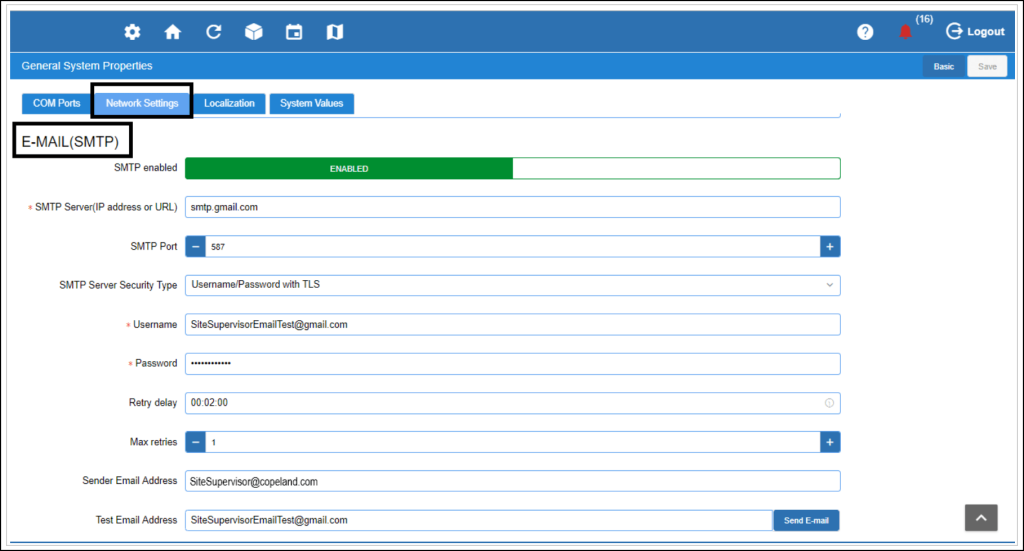
If it’s not configured yet, you’ll need your SMTP server’s IP or hostname from your IT admin. Make sure the Sender Email address is a valid address on that SMTP server.
Need an easy SMTP server just for these text alerts? text.email can provide one.
Step 3: Add a user with your text.email address
Go to Main Menu → Configure System → Manage Users. You can either create a new user for text alert delivery or edit your current profile.
In the user’s contact info, put your yournumber@yourkeyword.text.email address in the Email field. Now when the controller sends an alarm email to this address, text.email converts it and delivers it as an SMS to your phone.
You’ll notice there’s also a Mobile Phone (SMS) field — skip that one. It uses a different, and far, far, far less seamless delivery method that we’ll cover in the next section.
Step 4: Set up Alarm Communications for that user
Now you need to tell the controller which alarms should go to your new text alert user. Head to Main Menu → Configure System → Alarm Communications.
In the Group tab, you can filter which alarm groups get sent: compressor faults, case temperatures, refrigerant leak detection, whatever matters most to you. You’ll also set the alarm priority level here.
The controller uses a 0-99 priority scale (lower numbers = higher priority), and by default critical alarms sit at priority 20 and non-critical at 30.
Click over to the Recipients tab and you’ll see a list of users. Select your text alert user and check the Email box next to their name.
For most CoreSense setups, you’ll probably want to start by routing just the critical alarms (compressor lockouts, high case temps, refrigerant leaks) to text, and leaving the non-critical stuff on email. You can always change that up once you see how the volume feels.
Why the Site Supervisor’s Built-In SMS Feature Stopped Working
If you’ve poked around the Site Supervisor’s alarm settings before, you probably noticed it already has an SMS option. There’s a Mobile Phone (SMS) field in Manage Users, an SMS toggle in the network settings, even retry and delay configuration.
Copeland built this feature specifically so you could get text alerts.
And it used to work.
The way it worked was through cell phone carrier email-to-SMS gateways. You’d enter your phone number in a format like 5551234567@txt.att.net, and AT&T would convert that email into a text message. Verizon had @vtext.com, T-Mobile had @tmomail.net.
Copeland’s own setup guide still lists these carrier addresses as the way to configure SMS alerts. Like, I’m looking at it right now. See:
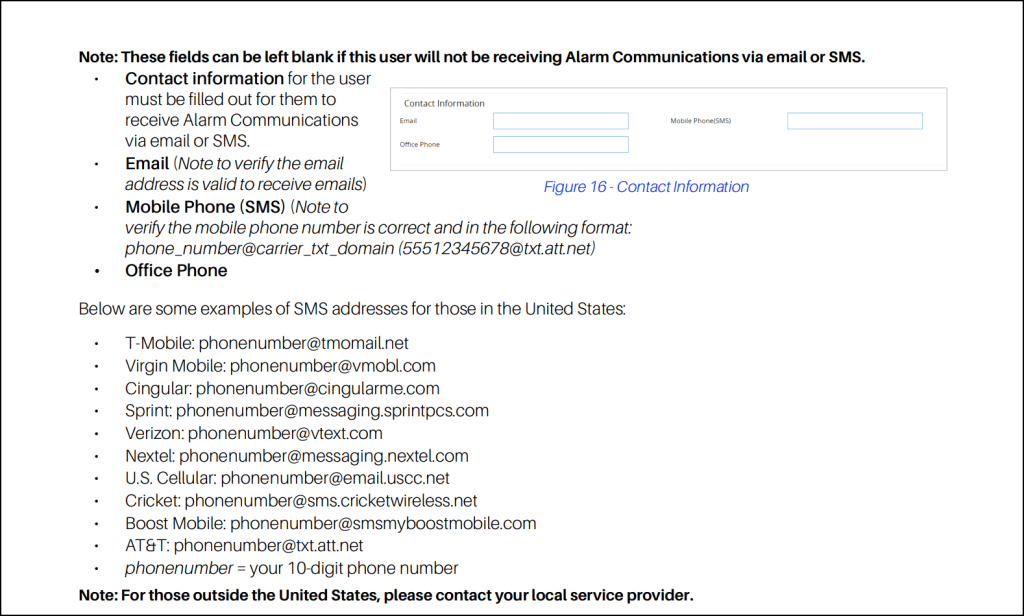
The problem is that all the major carriers have shut those gateways down. AT&T, Verizon, T-Mobile have all pulled the plug over the last couple of years. And also Cingular hasn’t existed since, like, the Paris Hilton era.
So if you followed Copeland’s documentation and entered your number in that @txt.att.net format, your texts just stopped arriving one day. The controller is still sending them. They’re just going nowhere.
This isn’t a Copeland thing. The carriers killed these gateways themselves. Officially, they did it because of spam; but also, there were some newer regulations around business-to-consumer text messaging that weren’t worth the hassle to them.
(It you really want to get deep into the weeds on the modern history of the telecommunications industry, the regulatory framework is called A2P 10DLC. Essentially, carriers now require any automated texting to be registered and approved.)
So what about building your own replacement?
Those regulations are a big reason why it’s tough to just fire up your own email-to-text replacement.
You’d need to register with the carriers, get a compliant phone number, set up an SMS API through something like Twilio, and maintain that infrastructure yourself.
For a controller that just needs to send a handful of critical alerts, that’s a massive amount of overhead. (Even dedicated alarm notification software like Win-911 can be more complexity than you need for straightforward compressor alerts.)
That’s the gap that text.email fills. Instead of routing through dead carrier gateways or building your own SMS pipeline, you use the controller’s existing email capability (which still works perfectly) and let text.email handle the email-to-SMS conversion on the compliant side.
Are those the only options?
There is one other path that Copeland offers. They have their Connect+ / ProAct cloud monitoring platform, which handles alarm notifications at the mega enterprise level.
It’s built for chains managing hundreds of stores — and also priced for chains managing hundreds of stores. If that’s not your situation, the process we’ve described in this article will get you there with a whole lot less overhead.
CoreSense Text Alerts: Get Started Now
Alright, alright. You’re ready to go. So what’s next?
Just follow the steps — and that means heading over to text.email to sign up.
For a CoreSense setup, 200 messages included in the text.email plans really should be more than enough. You’re not trying to text every routine defrost cycle. And really, what matters is that the one compressor lockout or high-temp alarm that happens on a Saturday night actually reaches someone’s phone.
If you want to test it out, send a sample email to yournumber@text.email and you’ll get the text in seconds. (You don’t need to sign up or anything to try that.)
And then get rolling, because you really are just a few minutes away from having this whole system set up and working.
What CoreSense Alerts Are Worth a Text (and What Can Stay on Email)
Your E3 or Site Supervisor can generate a lot of alarm traffic, and you definitely don’t want all of it hitting your phone. Here’s a starting point for splitting them. Your priorities will obviously vary, but here’s what I’d do if you hired me. (P.S. Do not hire me. I am not qualified.)
Route to text:
- Compressor lockout (any CoreSense red-flash fault)
- Case high temperature — critical priority
- Refrigerant leak detection alarm
- Compressor communication loss
- Power failure / UPS failover
- High discharge temperature lockout
- Low oil pressure lockout
Fine on email:
- Case temperature return-to-normal
- Compressor trip with auto-reset (CoreSense yellow/orange flash)
- Defrost cycle notifications
- Lighting schedule alarms
- Non-critical advisory messages (priority 30+)
The alarm priority system in your E3 or Site Supervisor makes this easy to set up.
In your Alarm Communications config, you can create separate communication groups: one for critical alarms routed to your text.email user, another for everything else routed to standard email recipients.
(Another note: If you’re also running Danfoss ADAP-KOOL controllers alongside your Copeland equipment, the same approach works there too.)
CoreSense Text Alerts: Wrap Up and Next Steps
So that’s really all I’ve got for ya: sign up at text.email, add your text.email address to a user in Manage Users, and configure Alarm Communications to route the alerts that matter. Five minutes, and your CoreSense compressor faults stop sitting unread in an inbox.
If you want to try it first, send any email to yournumber@text.email. It’s free with no signup required and you’ll see the text land on your phone in seconds.
Send an email to
your-number@text.email
and receive it as a text in seconds. No signup required.