
How to Get Emerson E3 Refrigeration Controller Text Alerts (the Manual Is Wrong)
Your Emerson E3 Refrigeration Controller can send you text alerts when something goes wrong.
Just not using the method in the manual.
And you need those text alerts for compressor faults, temperature excursions, refrigerant leak trips, high discharge pressure, and more. Setting up email alerts is easy and still works.
But nobody wakes up to an email. You wake up to a text.
As you know well, the gap between a 20-minute response and a shift-change discovery is the gap between a service call and writing off a warehouse of product.
(According to The Global Cold Chain Alliance, the average cost of a significant temperature excursion is north of $150,000 for product, disposal, regulatory response, and the operational mess that follows. That’s one event.)
In this article, I’ll walk you through how to turn your E3’s email alerts into SMS text messages on your phone. If you’ve already got SMTP configured, setup takes about a minute. (If you don’t, we’ll cover that too.)
We’ll also explain why the E3’s built-in SMS feature stopped working for you — and why the fix isn’t where you’d expect it to be.
Emerson E3 Refrigeration Controller Text Alerts: Table of Contents
- Setting Up Text Alerts on Your E3 / Site Supervisor / Lumity
- Why Your E3’s Built-In SMS Stopped Working
- Ready to Get Started?
- Which Alarms Are Worth the Text?
- Emerson E3 Refrigeration Controller Text Alerts: Next Steps
Note: If you’re running older Emerson E2 controllers — the ones without native SMTP — that’s a different setup entirely. The E2 requires a supervisory layer to send email in the first place. (That’s covered in a separate guide.)
Setting Up Text Alerts on Your E3 / Site Supervisor / Lumity
If you’ve had the E3’s built-in SMS working in the past (using the Mobile Phone field with carrier gateway addresses like @vtext.com), you may have noticed it stopped delivering. We’ll cover why that happened and what changed later in the article.
The short version: the carrier gateways that feature depended on have been shut down. The method below replaces it entirely.
Step 1: Sign up with text.email
text.email is a email-to-SMS service – and the only one that works immediately when you sign up.
You send an email to your special address, and it shows up as a text on your phone.
text.email handles A2P 10DLC carrier compliance (the registration requirement that makes creating your own SMS pipeline a disproportionate pain for simple alert use cases).
Sign up, pick a private keyword for your account, and your delivery address becomes: yournumber@yourkeyword.text.email
Any email sent to that address arrives as a text. We’ll plug this address into your E3’s notification settings in Step 3.
Step 2: Configure SMTP on Your E3
If you already have email alerts configured for your E3, skip to Step 3.
If not, you need to tell the E3 how to send email. The simplest path is using a Gmail account as your SMTP relay.
Log into the E3 web interface
Open a browser and enter the controller’s IP address. (Default is 192.168.0.250 for ETH0, 192.168.1.250 for ETH1.) Default credentials are username user, password pass — though if those haven’t been changed, you’ve got a bigger problem than alert configuration, especially post-Frostbyte10.
Navigate to Configure System → General System Properties → Network Settings → Advanced.
Using Gmail as your SMTP relay
First, set up DNS so the controller can resolve smtp.gmail.com.
On the same Network Settings page, enter valid DNS servers in the DNS Server 1 and DNS Server 2 fields. Google’s public DNS (8.8.8.8 and 8.8.4.4) works fine if your IT team doesn’t have a preference.
Then, generate a Gmail App Password. This is the part that trips people up. Google killed “Less Secure Apps” access in 2024; you can’t just use your regular Gmail password for SMTP anymore.
Instead, you need an App Password, which is a 16-character code that Google generates specifically for devices like controllers and scanners that can’t do OAuth.
To get one:
- Enable 2-Step Verification on the Gmail account first. Go to Google Account → Security and turn it on if it isn’t already. You can’t generate App Passwords without it.
- Go to Google Account → App Passwords. (If you don’t see this option, 2-Step Verification isn’t enabled yet.)
- Enter a name like “E3 Controller” and click Create.
- Google gives you a 16-character password. Copy it now, they won’t show it again.
Now configure the SMTP section on the E3:
- SMTP Server: smtp.gmail.com
- Port: 587
- TLS/SSL: Required (yes)
- Username: Your full Gmail address
- Password: The 16-character App Password you just generated (not your regular Gmail password)
- Sender Email Address: Same Gmail address
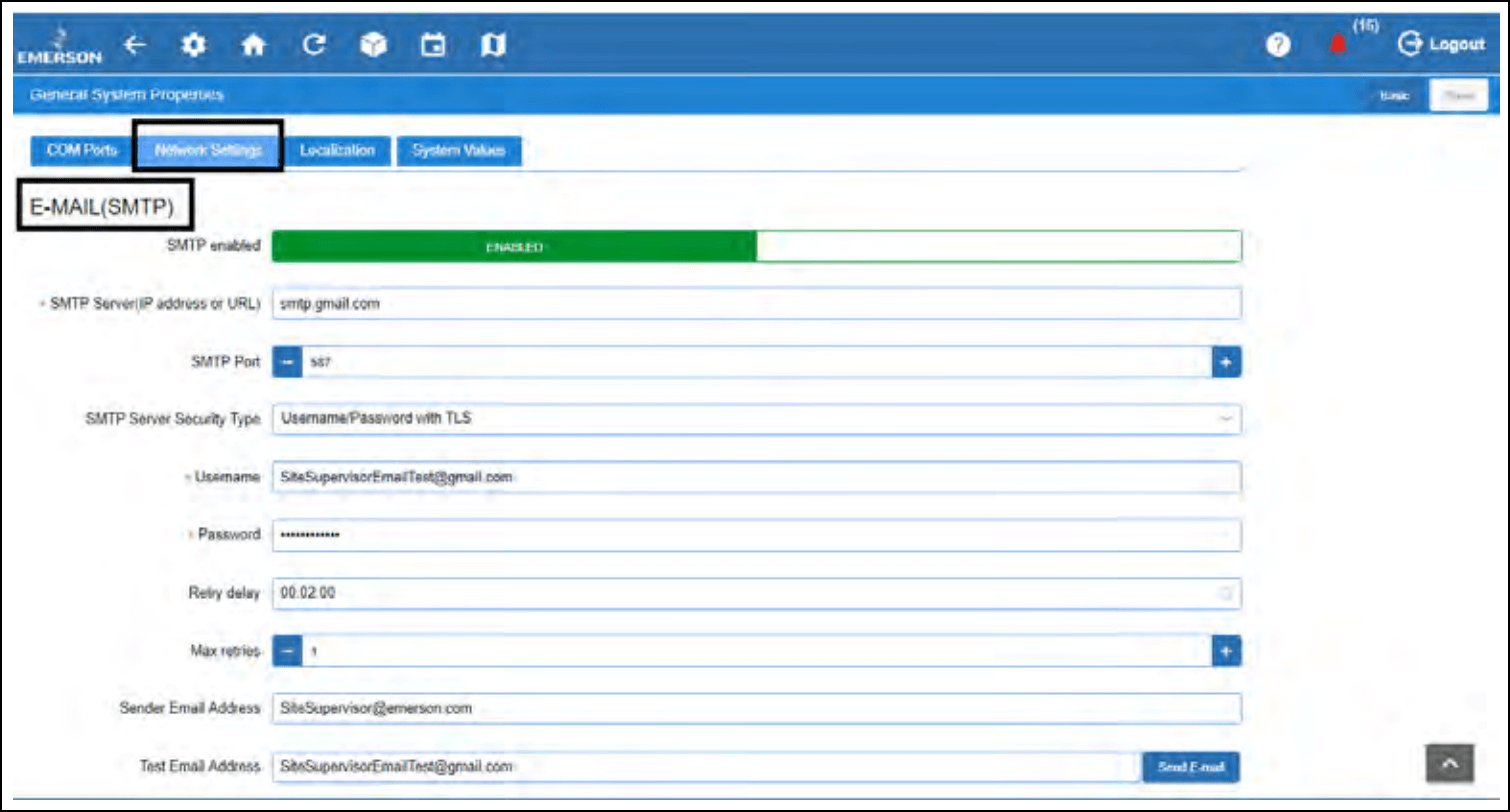
Test the connection. Once SMTP is enabled, use the Test Email Address field on the same page to send a test. Make sure it arrives before moving on.
Using a different SMTP server
If you’re not using Gmail (maybe your facility runs its own mail server or uses Microsoft 365) the fields are the same, but you’ll need the SMTP server address, port, and authentication details from your IT team. Set the Authentication Type based on what your local server requires.
The one thing to watch: the sender email address must be a valid user on the SMTP server. If it isn’t, the controller will accept the settings but emails won’t actually send.
Step 3: Add your text.email address as a notification recipient
Here’s where you connect the E3’s email system to SMS delivery.
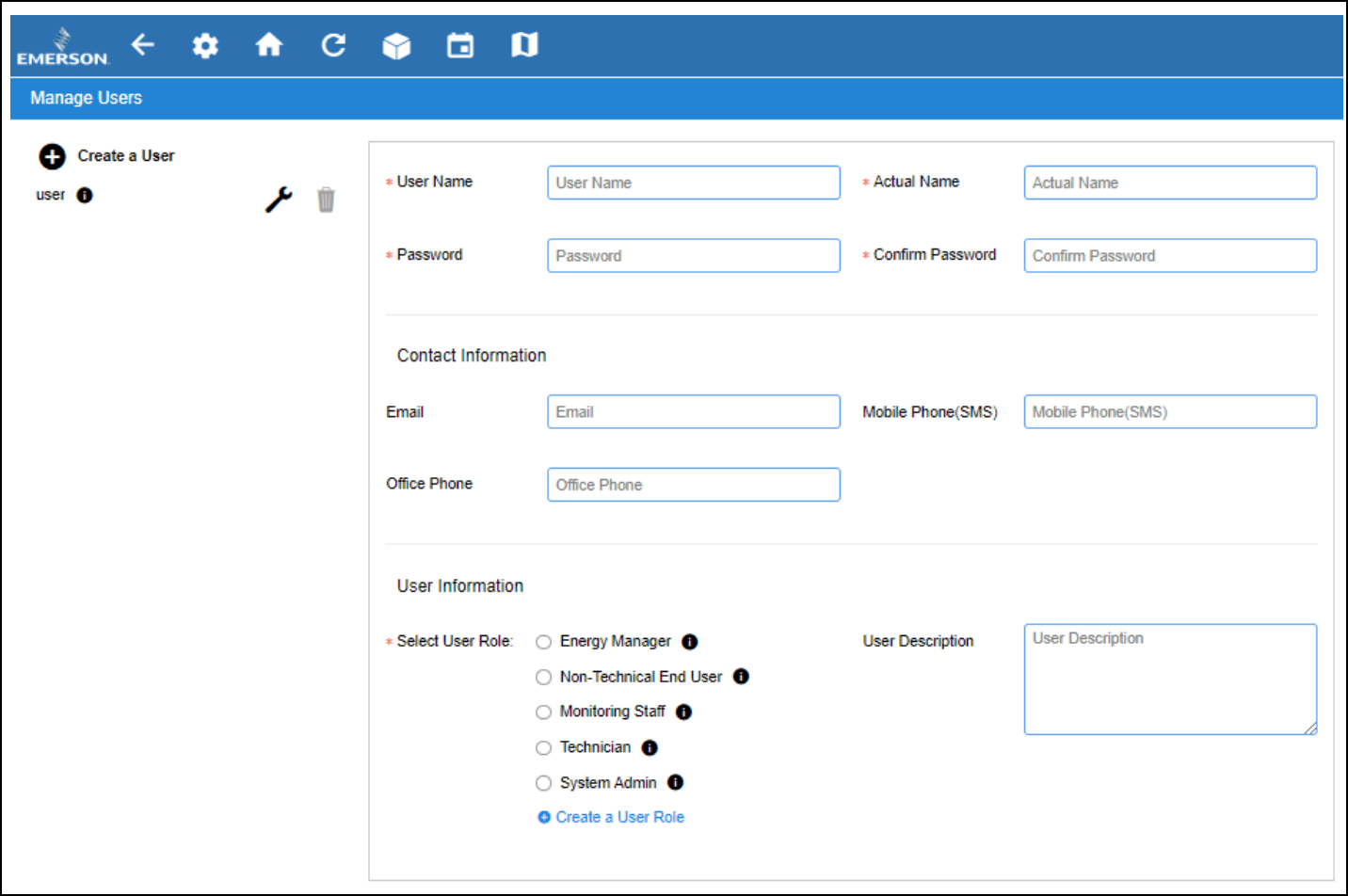
- Go to Configure System → Manage Users.
- Click the plus sign to Create a User (or edit an existing one).
- Fill in the user details. In the Email field, enter your text.email address:
yournumber@yourkeyword.text.email - Leave the Mobile Phone (SMS) field alone. That field uses the old carrier gateway format (phonenumber@vtext.com) which no longer works. Your SMS delivery is going through the email field now.
- Save the user.
Step 4: Set up alarm communications
Now tell the controller which users should receive which alerts.
- Navigate to Alarm Communications in Configure System.
- Click the Recipients tab.
- Select the user you just created or edited.
- Check the Email box to enable notifications for this user.
- Use the alarm filter options to control what gets sent. You can filter by:
- Category (refrigeration, HVAC, lighting, etc.)
- Alarm Type (alarm, fail, notice)
- Resolution (active, returned to normal, acknowledged)
This filtering matters. You don’t want a text for every advisory — just the things that cost you product or compromise safety. We’ll give you some suggestions on what’s worth texting vs. what’s fine as email later in this article.

Step 5: Test it
Send another test email from the SMTP settings page. This time, it should arrive as a text on your phone within seconds.
If it doesn’t:
- Does the basic SMTP test email work? If the test email doesn’t send at all, the problem is your SMTP settings, not the text.email address. Go back to Step 2.
- Is the text.email address correct? Typos are the most common issue. Double-check the format:
yournumber@yourkeyword.text.email - Can the E3 reach the internet? The controller needs outbound network access to send email. Some facilities have restrictive firewall rules that block SMTP traffic from the controller’s VLAN. Talk to your network admin if you suspect this.
Once you’ve confirmed a test text arrives on your phone, you’re set. Every alarm that passes your filter settings will now hit your phone as an SMS.
Why the E3’s Built-In SMS Stopped Working
If you configured SMS on your E3 a while back and it quietly stopped delivering texts, you’re not going crazy. It broke, and it broke at the cell phone carrier level — not on your controller.
What happened?
The E3’s “Text Messaging (SMS)” feature — the one in Network Settings with the SMS enabled toggle and From SMS address field — was built on top of carrier email-to-SMS gateways.
When you set up a user’s mobile phone number, the manual (P/N 026-4049) told you to enter it in this format: phonenumber@carrier_txt_domain.
The documentation lists examples like 5551234567@vtext.com and walks you through the carrier domains for each US provider.
Wellllll… those gateways are dead.
Verizon killed vtext.com. AT&T killed txt.att.net. T-Mobile killed tmomail.net.
The carriers shut them down because of A2P 10DLC compliance requirements and spam abuse. Plus, the gateways weren’t exactly generating significant (or any?) revenue, so when the regulatory burden increased, every major carrier pulled the plug.
Emerson’s documentation hasn’t been updated to reflect this. If you’re following the manual, you’re configuring a system that points at infrastructure that no longer exists. Seriously, I’m looking at the manual right now and it’s filled with advice about using the carrier gateways.
(If ChatGPT recommended you use @vtext.com — same problem, different source. It’s working off outdated training data.)
Why building your own fix isn’t worth the effort
The obvious next thought: set up your own email-to-SMS pipeline.
But sending application-to-person (A2P) SMS in the US now requires 10DLC registration with The Campaign Registry. That means registering your business, registering the purpose of your messages, and waiting for carrier approval.
Yes, even for something as straightforward as “my compressor faulted, tell me about it.”
The compliance overhead is completely out of proportion to the use case. It’s the same registration process whether you’re sending 5 alerts a month or 50,000 marketing messages.
So what is the right fix?
Skip the E3’s SMS fields entirely.
Follow the instructions from earlier in this article to route your alerts through the email notification system and put a text.email address in the Email field in Manage Users.
Ready to Get Started?
text.email exists because the carrier gateways died and nothing replaced them. It’s not for marketing or for mass messaging.
It’s for exactly this: pretty much all systems can email when something breaks and this is the best way to make sure you don’t miss those alerts.
The first step is getting signed up for text.email. Plans include 200 SMS messages per month.
For a facility routing critical refrigeration alarms only, most months you won’t come close to that cap. (And if you’re consistently burning through 200+ alert texts a month, um… the alerting setup might not be the thing that needs attention.)
You can test it right now without signing up: send a sample alert email to yournumber@text.email and you’ll receive the text in seconds.
Which Alarms Are Worth the Text?
Not every alarm your E3 generates deserves to buzz someone’s phone. Making SMS alerts useful means keeping them reserved for the things that matter — otherwise you get alert fatigue, and the texts get ignored the same way the emails did.
Always text: the ones that cost you
- Temperature excursion above critical threshold. Walk-ins, blast freezers, holding rooms. Every minute counts, and this is the scenario for which the entire alerting chain exists.
- Compressor fault or failure. Especially on systems without N+1 redundancy. A single compressor going down on a summer afternoon can cascade fast.
- Refrigerant leak detection. RLDS or MRLDS sensor trips. In ammonia systems, this isn’t just an equipment event, it’s a safety event with potential OSHA implications and evacuation protocols.
- Power loss or UPS failover. The product loss clock starts immediately.
- High discharge pressure. This can indicate imminent compressor failure. Worth the text before it becomes a compressor fault alarm.
Consider texting: the ones that escalate if ignored
- Condenser fan failure. Not an immediate crisis, but if it’s 95 outside and the condenser can’t reject heat, you’ve got hours, not days.
- Repeated defrost overrun. One time is a glitch. Three consecutive is coil icing, and coil icing is heading somewhere expensive.
- Door alarms. This is when dock doors or walk-in doors are left open. Depends on your facility, but a dock door left open for 30 minutes in August moves temperatures faster than most people realize.
- High suction pressure trending. Early warning sign for compressor issues worth catching early.
Leave on email: the routine noise
- Scheduled defrost completions
- Normal setpoint adjustments
- Sensor calibration reminders
- Firmware update availability
- Advisory-level notifications that don’t require immediate action
The E3’s alarm filtering by Category and Alarm Type maps well to this breakdown.
Route your critical and fail-level alarms to the text.email recipient. Leave advisory and notice-level events on standard email where they belong.
Emerson E3 Refrigeration Controller Text Alerts: Next Steps
Time to set up your text alerts — either the ones that stopped working or brand new ones.
Sign up at text.email, plug your address into the E3’s user management email field, filter your alarms to the things worth waking up for, and start getting alerts immediately.
Send an email to
your-number@text.email
and receive it as a text in seconds. No signup required.