
How Foundries Can Get SMS Alerts from Their SCADA and PLC Systems
Most foundry SCADA systems already send email when things go sideways.
Furnace ground fault, cooling water pressure drop, AOD blow sequence abort — the emails fire, they land in an inbox, and they sit there until someone happens to check.
The problem isn’t detection. Your PLCs and SCADA layer are doing their job. The problem is the last mile: getting the alert to the person who can do something about it before disaster strikes.
In this article, I’ll walk you through how to turn your existing SCADA email alerts into SMS text messages on your phone.
It doesn’t matter whether you’re running Ignition, FactoryTalk, WinCC, AVEVA, or something more bespoke. If your system can send email, you can start gettng text alerts in under a minute.
Foundry SCADA and PLC SMS Alerts: Table of Contents
- Setting Up SMS Alerts from Your SCADA System
- Why Email Alerts Aren’t Enough (And Why the Old SMS Workaround Died)
- Foundry SMS Alerts: Pricing and Getting Started
- Which Foundry Alarms Deserve a Text
- Foundry SCADA and PLC SMS Alerts: Next Steps
Setting Up SMS Alerts from Your SCADA System
The approach is the same regardless of your SCADA platform: route your alarm emails through text.email, which converts them to SMS and delivers them to your phone. No API integration, no code changes to your PLC logic, no additional modules to license.
Step 1: Sign up with text.email
text.email is an email-to-SMS tool that converts incoming emails into text messages. It handles A2P 10DLC carrier compliance automatically, which matters more than you’d think (more on that below).
Sign up, pick a private keyword for your account, and your delivery address becomes yournumber@yourkeyword.text.email. Any email sent to that address arrives as a text on your phone.
Step 2: Make sure your SCADA system can send email
This is the prerequisite. If your SCADA or HMI layer is already emailing alarm notifications, skip to Step 3. If not, you’ll need SMTP configured.
The good news: virtually every modern SCADA platform supports SMTP email notification. Here’s where to find it in the major platforms:
Ignition (Inductive Automation): Go to the Gateway web interface → Config → Alarming → Notification. Create an Email Notification Profile with your SMTP server details.
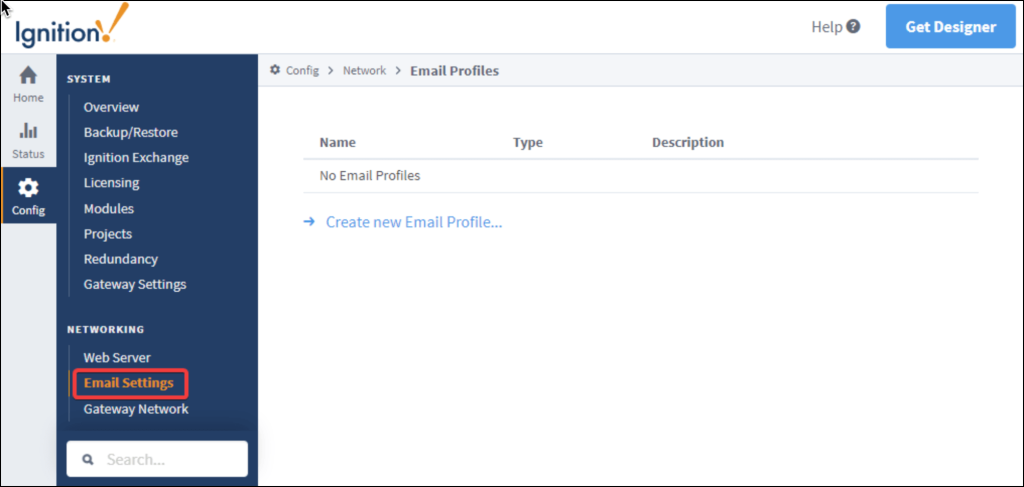
Ignition also lets you configure a gateway-wide SMTP profile under Config → Email Settings that any notification profile can reference.
FactoryTalk View SE (Rockwell Automation): As of FactoryTalk View version 15, email notifications are built in. Configure SMTP policies through the FactoryTalk administration tools, then set up alarm mail rules that use priority and scope as criteria for which alarms trigger emails.
Earlier versions require a third-party add-on like WIN-911 or SeQent.
Siemens WinCC: WinCC supports email notification through its alarm logging and notification module. Configure the SMTP relay under the WinCC project settings. WinCC Unified (the newer TIA Portal variant) handles this through its notification system.
AVEVA (formerly Wonderware): The System Platform alarm notification is configured through the IDE. SMTP settings live in the alarm notification object configuration.
VTScada: Go to Edit Properties → Alarms tab → Outgoing Email section. VTScada supports OAuth 2.0 authentication if your email provider requires it.
If you’re using Gmail as your SMTP relay, you’ll need an App Password since Google killed “Less Secure Apps” access.
Enable 2-Step Verification on the Gmail account first, then generate an App Password at Google Account → App Passwords. The 16-character code Google gives you goes in your SMTP password field.
Step 3: Add your text.email address as a notification recipient
This is the step where email alerts become text alerts.
In your SCADA system’s alarm notification configuration, add yournumber@yourkeyword.text.email as an email recipient. How you do this depends on your platform:
Ignition: Add the text.email address as a user’s contact email in your User Source, then include that user in the appropriate On-Call Roster.
When alarms fire through your notification pipeline, that roster member gets the email, and text.email converts it to SMS.
FactoryTalk View SE: Add the text.email address to the email recipients list in your SMTP policy’s alarm mail rules.
WinCC / AVEVA / VTScada: Add the address to your alarm notification recipient list, wherever email recipients are configured for alarm groups.
PLC-level email (Allen-Bradley, Siemens, etc.): Some PLCs can send email directly via SMTP instructions (like the MSG instruction on CompactLogix). If your PLC is sending email-based alerts without a SCADA layer, just change or add the text.email address as a recipient in the instruction parameters.
Step 4: Filter what gets texted
This is critical. Don’t just forward every alarm to SMS. Route your critical and high-priority alarms to the text.email recipient. Leave advisory and routine notifications on standard email. (Later in this article I’ll get into the real specifics of waht does and doesn’t need a text.)
Most SCADA platforms let you filter by alarm priority, category, or source.
Ignition’s alarm pipelines are particularly good at this — you can use the Selection block to send different alarm types to different notification profiles. FactoryTalk uses alarm scopes and priority ranges.
The goal: only the alarms that need a human response within minutes should generate a text. Everything else stays in the inbox.
Step 5: Test it
Trigger a test alarm (or use your SCADA platform’s built-in notification test feature — Ignition has one under Notification Profiles, FactoryTalk has a test option in the alarm configuration). The text should arrive on your phone within seconds.
If it doesn’t:
- Is the SMTP test email sending at all? If not, the issue is your SMTP configuration, not text.email. Check credentials, port settings (587 for TLS, 465 for SSL), and whether your network allows outbound SMTP from the SCADA server’s subnet.
- Can the SCADA server resolve DNS? Industrial networks sometimes isolate control systems from external DNS. Your server needs to resolve
smtp.gmail.com(or whatever SMTP host you’re using). Google’s public DNS at8.8.8.8is a common fix if IT doesn’t have a preference. - Is a firewall blocking outbound traffic? Some foundries have restrictive firewall rules on the OT network. Your SCADA server needs outbound access on the SMTP port. Talk to your network admin.
Why Email Alerts Aren’t Enough (And Why the Old SMS Workaround Died)
You know why email isn’t enough — that’s why you’re here. Emails get buried, phones don’t buzz for them, and in a foundry environment nobody’s staring at their inbox between pours.
The carrier gateway workaround that used to work
For years, you could send a text to any US phone by emailing addresses like 5551234567@vtext.com (Verizon), 5551234567@txt.att.net (AT&T), or 5551234567@tmomail.net (T-Mobile).
Some foundry control engineers had this configured in their SCADA systems for years.
Every major US carrier has now shut those gateways down. Verizon killed vtext.com. AT&T killed txt.att.net. T-Mobile killed tmomail.net.
The carriers pulled the plug because of A2P 10DLC compliance requirements and spam abuse. If you’ve got a legacy SCADA configuration pointing at one of these carrier addresses, it’s sending into a void.
Why building your own replacement isn’t practical
The next logical thought: set up your own email-to-SMS pipeline. But sending application-to-person SMS in the US now requires 10DLC registration with The Campaign Registry.
That means registering your business, registering the purpose of your messages, and waiting for carrier approval.
The compliance overhead is the same whether you’re sending 5 alerts a month from a single furnace controller or 50,000 marketing messages. It’s wildly out of proportion to the use case.
Foundry SMS Alerts: Time to Get Started
We built text.email because the carrier gateways died and nothing filled the gap for simple alert use cases. It’s not a marketing platform, not a mass-texting service, and not an incident management system with features you don’t need.
Plans include 200 SMS messages per month. For a foundry routing only critical alarms to SMS, you’re unlikely to hit that cap in a typical month. And if you’re consistently burning through 200+ alert texts, the alerting configuration might not be the thing that needs attention.
You can test it right now without signing up: send a sample alert email to yournumber@text.email and you’ll receive the text in seconds.
Which Foundry Alarms Deserve a Text
Not every alarm your SCADA system generates needs to wake someone up. The foundry floor generates a lot of noise, and if your phone buzzes for all of it, you’ll start ignoring it the same way you ignore the emails.
Always text
- Furnace ground fault / lining leak detection
- Cooling water flow or pressure loss
- AOD blow sequence fault or abort
- Induction furnace power supply fault (over-voltage, over-current)
- Salt bath temperature excursion beyond critical threshold
- Hydraulic system failure on tilt or charge mechanisms
- Baghouse or emissions system trip
- Power loss / UPS failover
Consider texting
- Refractory thermocouple drift trending toward limits
- Grinding station motor overload
- Mold line stoppage
- Sand system temperature or moisture alarms
- Metal chemistry out of spec (spectrometer integration)
Leave on email
- Scheduled maintenance reminders
- Shift report generation
- Sensor calibration due notices
- Non-critical advisory alarms
- Data logging confirmations
Foundry SCADA and PLC SMS Alerts: Next Steps
Configure your SCADA system’s SMTP settings (if you haven’t already), sign up at text.email, add your text.email address as an alarm notification recipient, filter down to the alerts that matter, and start getting texts.
The whole setup takes less time than reading this article did.
Send an email to
your-number@text.email
and receive it as a text in seconds. No signup required.