
How to Get Text Alerts for Important Gmail Messages
Some emails are too urgent, important, or both to trust to, well, email.
Maybe it is a “server is down!” alert. Or a payment notification, a reply from a lead, a message from your kids’ school, or an urgent issue from a customer. You don’t want to keep checking Gmail all day just to make sure you see it.
Problem solved.
With text.email, you can have Gmail forward important emails to your special text.email address, and those emails will arrive on your phone as SMS alerts. Which is good, since texting is still the most urgent medium and the hardest to miss.
The setup is pretty simple. And in this article, I’ll show you how to:
- forward all incoming email
- forward only certain messages using a filter
Gmail Text Alerts: Table of Contents
Getting Started with Email-to-Text Forwarding
text.email gives you a special email address like: your-number@subdomain.text.email.
Whenever any email goes to that address, text.email converts it into a text message and delivers it to your phone.
So if you forward any email from your regular Gmail account to that address, you’ll get it as an SMS alert.
Step 1: Create your text.email account
The first step here is creating your text.email account. (Which you can do on the text.email website.)
After you create your account, you’ll get your email subdomain. You need that so text.email knows you’re authorized to send email-to-text messages.
(Without it, anyone could send messages to your phone — and obviously we don’t want that. In fact, that’s why AT&T, Verizon, T-Mobile, and all the rest of the cell phone carriers stopped offering email-to-text services.)
text.email will automatically assign you a subdomain, but you can change it in your account settings.
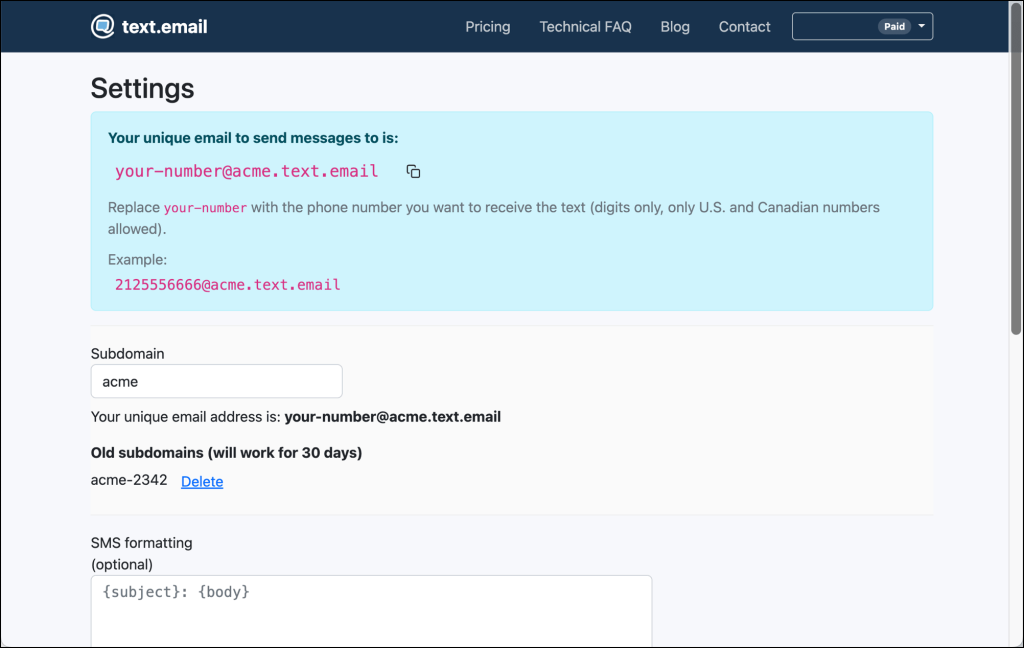
So if your phone number is 5551234567 and you make your subdomain acme, your address would be: 5551234567@acme.text.email.
Copy down your address, since we’ll need that for Gmail.
Step 2: Add your text.email address as a forwarding address in Gmail
Head to Gmail (this is much easier to do in the desktop version than on mobile, so I’ll show the instructions that way).
- Click the gear icon.
- Click See all settings
- Open the Forwarding and POP/IMAP tab
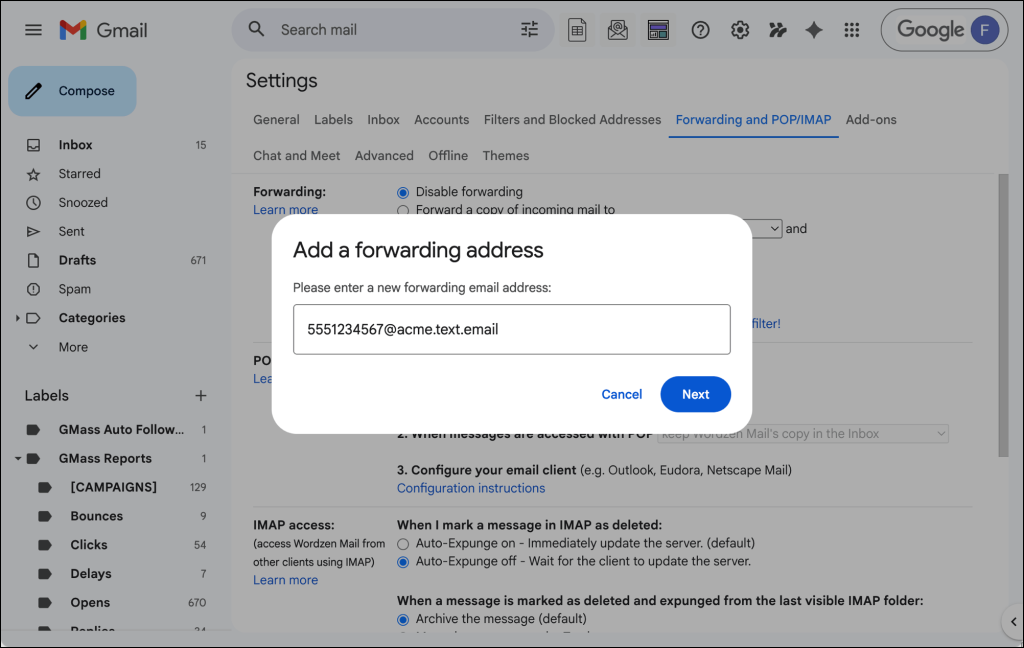
- Click Add a forwarding address
- Enter your
your-number@subdomain.text.email
Step 3: Confirm the forwarding address
After you add the forwarding address, Gmail sends a verification message to that address before it lets you forward mail there.
When Gmail sends that verification message, text.email receives it and turns it into a text message to your phone. The text contains Gmail’s confirmation link. You tap the link, confirm ownership, and that part is done.
Step 4: Finish setting up the forwarding in Gmail
After confirming the address, go back to Gmail:
- Return to Settings
- Go back to Forwarding and POP/IMAP
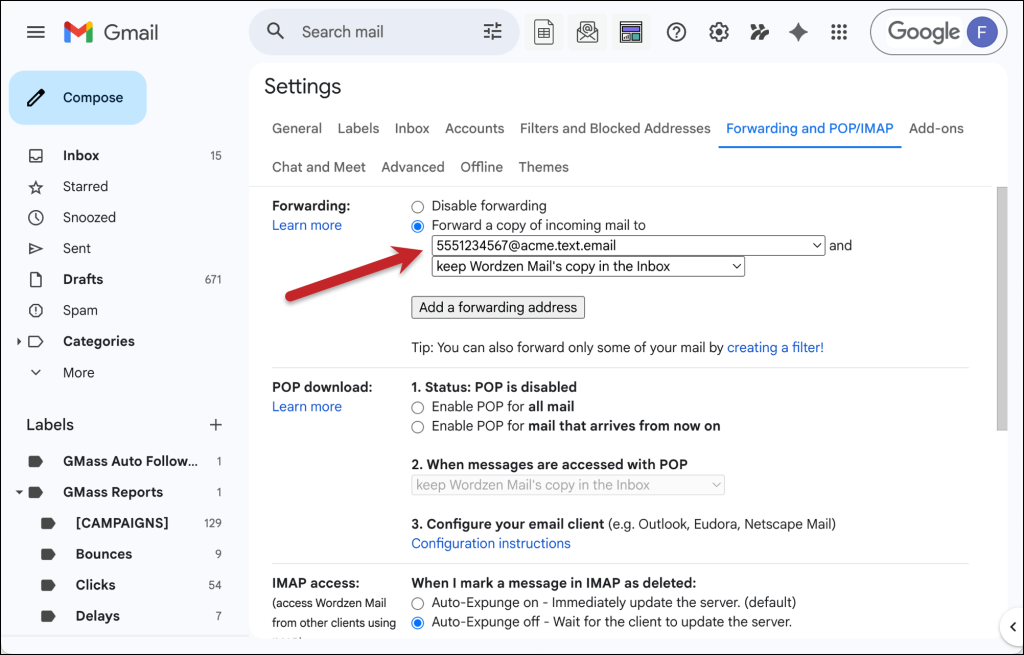
- Choose Forward a copy of incoming mail to
- Select your text.email forwarding address
- Choose what Gmail should do with its own copy
- Click Save Changes
At that point, you have two choices.
Option 1: Forward all incoming Gmail messages
If you want every email to trigger a text, you can stop here. Every new Gmail message will be forwarded to your text.email address and turned into an SMS alert.
Now… we really wouldn’t recommend this unless your inbox is:
- a dedicated alert inbox
- a work inbox with only high-priority mail
- an inbox that only receives email so valuable you must have all of it come in as text messages
Otherwise, you’re going to go WAY overboard on texts.
Option 2: Forward only important emails with a Gmail filter
For most people, you’ll want to set up a filter so only specific emails are transformed into text messages.
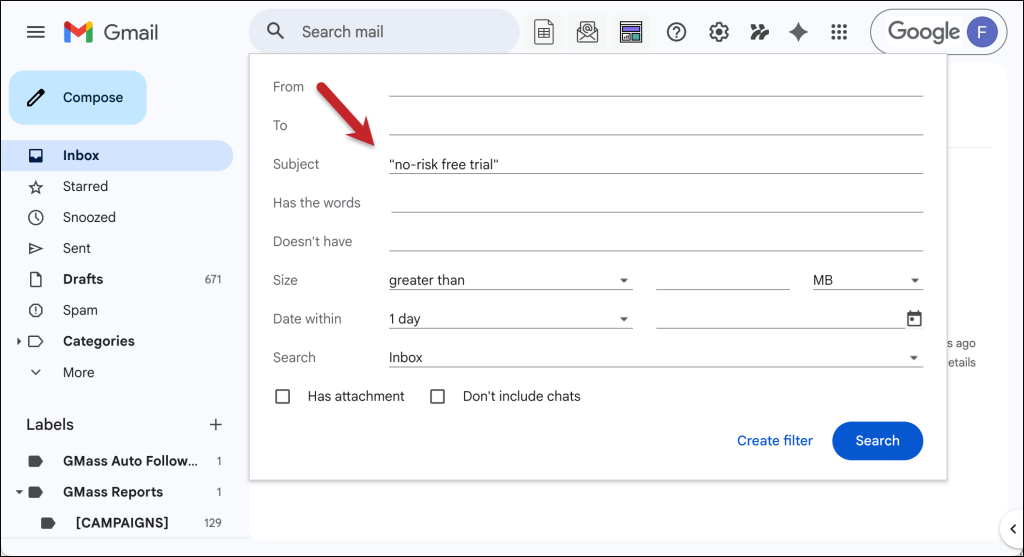
So on the main page in Gmail, click the little slider buttons next to the search bar.

That will bring up the filtering settings. Set up the filter you want. For instance, in the screenshot below, I wanted to only get messages where someone replied to my message offering them a no-risk free trial.
Then click Create filter.
That will bring up a new set of options for what you want to do with email that matches your filter.
Check the box next to Forward it to and choose your text.email address from the dropdown. (If you don’t see that address, go back through the earlier steps where we set up the forwarding address to make sure they all worked correctly.)
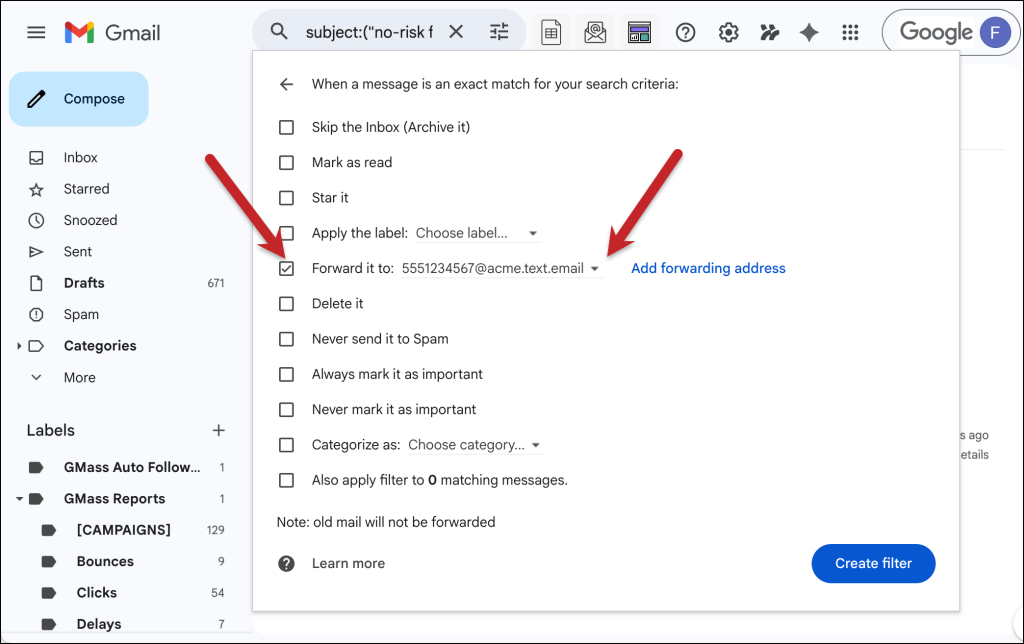
Now click the Create filter button.
You’ll have to give Google another round of permissions (they’re pretty precious about filtering), but that’s the last step. Your filter is all set.
(Optional) Step 5: Customize the SMS format
Now… you don’t have to have your entire emails forwarded word-for-word as text messages.
text.email offers special SMS formatting options so you can choose which parts of an email are actually turned into the text message.
For example, you might want: {subject}: {body}
Or: Alert from {from}: {subject}
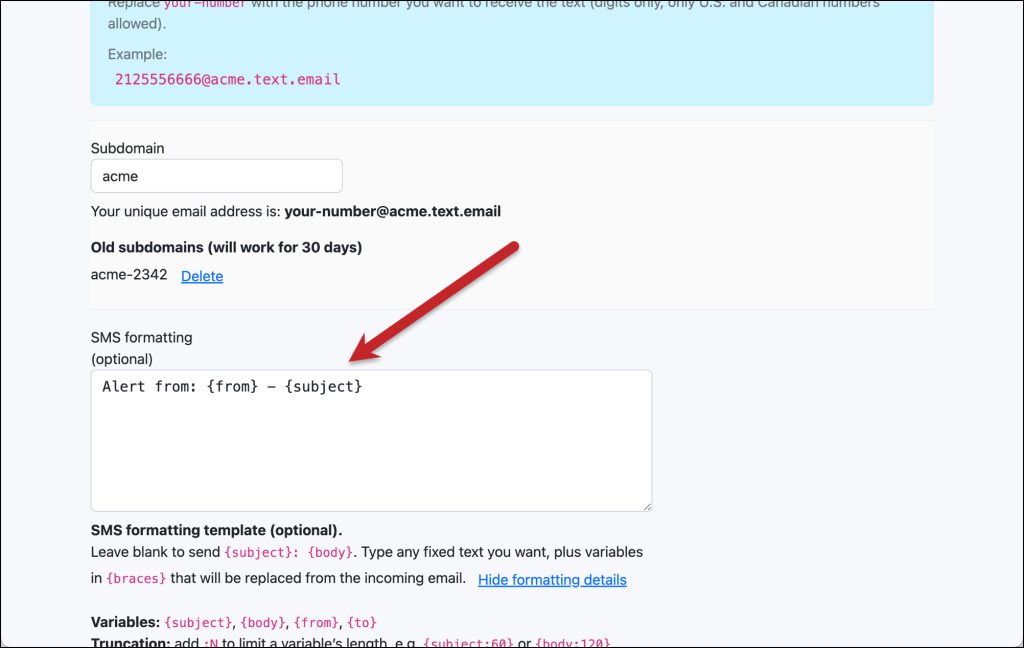
You can use regex to really get nuanced about what text.email pulls out of your emails; check out the guide I linked above (and then, consult your favorite LLM) to put one of those together.
Ready to Get Started with Gmail-to-Text?
Gmail can help you filter out your most urgent emails — and now, text.email can turn them into real-time SMS alerts.
Together, that gives you a simple, no-code system where:
- Gmail filters the messages
- Gmail forwards them
- text.email converts them to SMS
- you see important alerts right away
So if there are emails you absolutely cannot afford to miss, this is one of the easiest ways to make sure they reach you instantly.
Create your text.email account, get your subdomain, add your text.email address as a forwarding address in Gmail, and then set up your filter.
You can knock all this out in about 10 minutes (or less) so you never have to worry about missing critical emails again.
Send an email to
your-number@text.email
and receive it as a text in seconds. No signup required.