
SMS Formatting: Customize How text.email Converts Emails into Texts
If you’re using text.email to turn emails into text messages, when we convert an email into text, the default format works like this:
{subject}: {body}
Sometimes that’s all good. But sometimes, well, the emails that your systems generate can get a little (or a lot) wordy. (Give the machines a break. They’re lonely. They need someone to talk to.)
The messages will often include timestamps, headers, footers, status codes, account metadata, and more — and your phone buzzes with all of it crammed into one long SMS. Or, even worse, split across multiple texts.
SMS formatting in text.email gives you control of exactly what shows up in the text.
You write a short template, and text.email uses it instead of the default. And with regex extraction feature, you can go a step further and pull one specific value out of the email body.
Here’s how it works.
SMS Formatting: Table of Contents
- How to Create a Basic text.email Email-to-SMS Formatting Template
- How to Create an Advanced SMS Formatting Template with Regex
- Getting Started with SMS Formatting in text.email
How to Create a Basic text.email Email-to-SMS Formatting Template
Head to your text.email Settings page.

Scroll down and you’ll see the SMS formatting section.
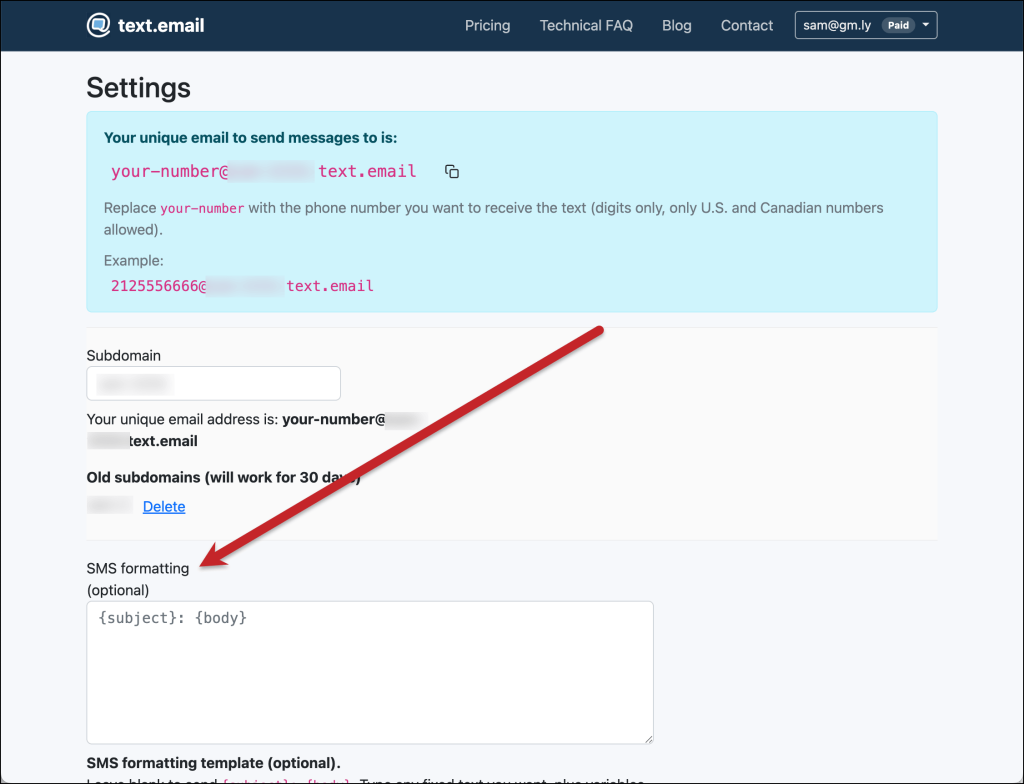
If you leave this box empty, you’ll just get the default {subject}: {body} formatting for your messages.
But when you enter your own template, that takes over…
Using the text.email variables
There are four main variables you can use in your template, and they’re the four most fundamental elements of an email. They are:
{subject}{body}{from}{to}
So if you type: Message from {from}: {subject} and the incoming email is from alerts@example.com with subject Server down and body The web server is not responding, the text you’ll receive becomes:
Message from alerts@example.com: Server down
The redundant email body text gets dropped entirely because you didn’t include {body} in your template.
Some examples of the text.email SMS formatting variables in action
Basing all of this off the example (email from alerts@example.com to 2165559999@greenteamalerts.text.email with subject Server down and body The web server is not responding)…
Subject only
Formatting: {subject}
Text message: Server down
Prefix plus subject
Formatting: ALERT: {subject}, {body}
Text message: ALERT: Server down, The web server is not responding
Sender and subject
Formatting: From {from} — {subject}
Text message: From alerts@example.com — Server down
Including the To
Formatting: To {to} - {subject}
Text message: To 2165559999@greenteamalerts.text.email — Server down
What if you need to include actual braces?
Need an actual { or } in your message? Double them up: {{ and }}.
Formatting: Raw value: {{subject}} Actual value: {subject}
Text message: Raw value: {subject} Actual value: Server down
Automatically truncating longer messages
Sometimes your system will send messages where the subject or body is too long for a clean text (or one that fits in a single message). And usually, you can get the picture of whether or not you need to dig in just from a small piece of the message.
You can cap the length of any variable by adding :N after the variable name.
For instance, {subject:60} gives you the first 60 characters of the subject. Anything beyond that gets cut off.
Let’s say your system sends the email with the subject: Server down in us-east-1 (code AWS-1231-12nas-342) and the body: Alert: Web server is not responding after multiple health checks failed Location: Easton, Virginia Time: 23:43:57:123 Failure code: 1231-12nas-342-base If you believe this is in error, head to https://aws-12.amazserver.net/123123adasaasdas.
Formatting: {subject:25}: {body:95}...
Text message: Server down in us-east-1: Alert: Web server is not responding after multiple health checks ...
Those are the basics of SMS formatting in text.email… now let’s cover the pro move.
How to Create an Advanced SMS Formatting Template with Regex
When you want templates that get a little more sophisticated plucking out pieces of your email to turn them into texts, you’ll need to use regex.
Here, instead of grabbing an entire field like {body}, you can automatically dig inside the subject or body and pull out just the piece you care about.
Regex formatting in text.email
The syntax looks like this: {subject:/pattern/flags} or {body:/pattern/flags}.
Your regex pattern needs named capture group(s) like ?<callback>... as it parses through the email, otherwise the first capture group is used. (And if there are no capture groups in the regex, the whole match is used.)
The supported flags are:
i(ignore case)s(dot matches newline)m(multiline)x(ignore pattern whitespace).
Multiple regex matches are joined with a ; — and multple captured groups are joined with a |.
Examples of regex formatting with text.email
Let’s say we got this email:
Subject: Unit A1NH-Emerg B1-Cafe down
Time: 2026.03.25 06:49:28 - EDT
Callback: 212-555-2394
Account Name: 8X8
Name: A1NH-Emerg B1-Cafe
You don’t need all of that in a text. You need the callback number. So your template is:
Formatting: Callback: {body:/Callback:\s*(?<callback>[0-9x+\- ]+)/i}
Text message: Callback: 212-555-2394
Extracting multiple fields with regex
Want the callback number and the account name? You can do that as well.
Formatting: Callback: {body:/Callback:\s*(?<callback>[0-9x+\- ]+)/i} — Account: {body:/Account Name:\s*(?<account>.+)/i}
Text message: Callback: 212-555-2394 — Account: 8X8
More regex extraction examples
These are all copy-paste-and-adapt starting points. (If you’ve never written a regex before, I highly recommend pasting all the info from this section into your LLM of choice, telling it what you want to extract from texts, and having it write the regex for you. Your ability to handcode regex patterns from scratch will not be on the test.)
Order number from an email containing Order Number: 58422193:
Formatting: Order {body:/Order Number:\s*(?<order>\d+)/i}
Text message: Order 58422193
Tracking number from Tracking: 1Z999AA10123456784:
Formatting: Tracking {body:/Tracking:\s*(?<tracking>[A-Z0-9]+)/i}
Text message: Tracking 1Z999AA10123456784
Ticket ID from a subject like Ticket #84721 has been escalated:
Formatting: Ticket {subject:/#(?<id>\d+)/}
Text message: Ticket 84721
Temperature reading from Sensor Temp: 84.2 F:
Formatting: Temp {body:/Sensor Temp:\s*(?<temp>[0-9.]+\s*[A-Z])/i}
Text message: Temp 84.2 F
IP address from Source IP: 10.24.8.19:
Formatting: IP {body:/Source IP:\s*(?<ip>\d+\.\d+\.\d+\.\d+)/i}
Text message: IP 10.24.8.19
Combining all the formatting skills into a single template
Yes, you can combine the basic variables, truncation, and regex all into one template.
For example…
Concise incident alert
Formatting: INCIDENT — {subject:50} — Callback: {body:/Callback:\s*(?<callback>[0-9x+\- ]+)/i}
Text message: INCIDENT — 911 Call Alert — Callback: 342-983-2394
Sender plus extracted account
Formatting: From {from} | Account: {body:/Account Name:\s*(?<account>.+)/i}
Text message: From dispatch@example.com | Account: 8X8
(One limitation note: You can’t combine truncation and regex inside the same token. So this won’t work:{body:50:/Callback:\s*(?<callback>.+)/}. Use the regex to extract what you need since that already limits the output), or structure your template to handle length with separate tokens.)
Getting Started with SMS Formatting in text.email
If you’re new to this, start simple, like just sending {subject} or {subject}: {body:80}.
Once you’ve got a feel for which emails are too noisy as texts, pick one and enlist AI to help you write a regex template for it.
And if you aren’t using text.email yet — give it a try and see just how easy these alerts are to create and just how much peace of mind they give you. You can sign up for an account and even try out this SMS formatting as part of your 10-message free trial.
Send an email to
your-number@text.email
and receive it as a text in seconds. No signup required.