
How to Get Text Alerts from Veeder-Root TLS Tank Monitoring
The Veeder-Root TLS-450PLUS can email you when something goes wrong at your fuel site.
Whether it’s leak detection failures, overfill alarms, high water warnings, fuel-outs, or anything else. Pretty much every alarm the console generates can trigger an email to whoever you want.
But are they — or YOU — going to see that email?
That’s the problem with alert emails. They land in the same inbox as your other hundreds of daily messages. And a Sudden Loss Alarm sitting unread for three hours is a very different situation than one you catch in three minutes.
A text message fixes that. Your phone treats a text differently than an email (harder to miss those alerts), and so do you (we’re still wired to notice and respond to texts fast).
The good news is: We can turn your Veeder-Root TLS alarm emails into instant text messages using a simple process that only takes a few minutes to set up with zero engineering help.
I’ll show you exactly how in this article.
Veeder-Root TLS Text Alerts: Table of Contents
- Setting Up SMS Alerts From Your Veeder-Root TLS-450PLUS
- Why Your TLS-450PLUS Couldn’t Text You Before
- Getting Started with Veeder-Root TLS Text Alerts
- Which TLS Alarms Are Worth a Text vs. an Email?
- Get Your Veeder-Root TLS Alerts on Your Phone
Setting Up SMS Alerts From Your Veeder-Root TLS-450PLUS
Here’s the 5 minute setup guide to getting these text alerts going.
Step 1: Sign up for text.email
We’re going to use text.email, which is an email-to-text tool. Any email sent to your text.email address shows up as a text on your phone within seconds. It was built specifically for situations like this, where a system can send email alerts but not texts.
Sign up, pick a private keyword, and you’ll get an address like yournumber@yourkeyword.text.email. That’s what you’ll plug into your TLS console’s Address Book in the next step.
Step 2: Add your text.email address to the TLS Address Book
On your TLS-450PLUS console, go to Menu > Setup > Automatic Events > Address Book.
Tap Actions > Add Contact. Enter your name and your text.email address in the Email field. That’s the only contact info the console needs.
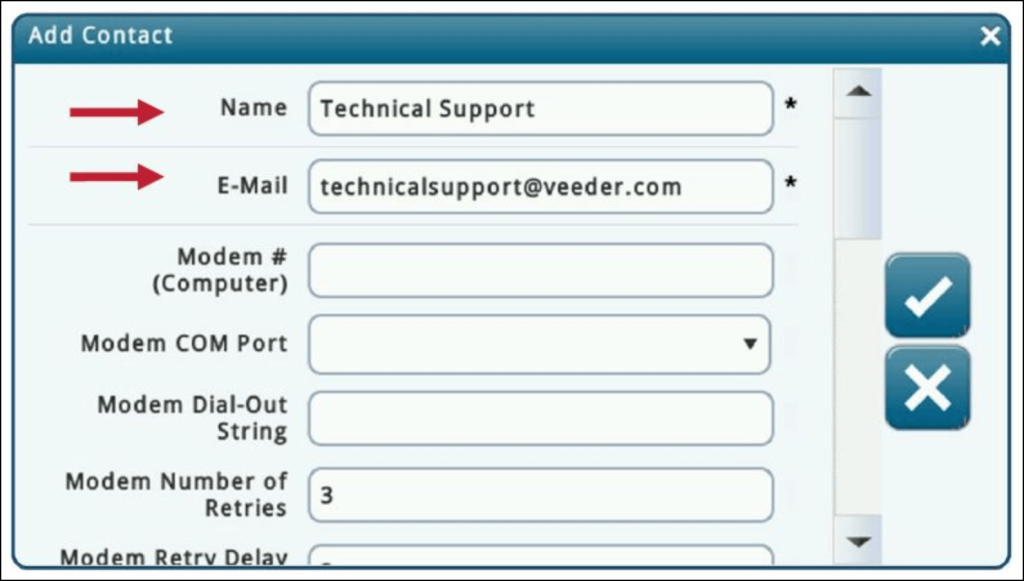
If you want alerts going to multiple people, add each person’s text.email address as a separate contact. You can assign different contacts to different alarm types later.
Step 3: Create an Autoconnect Task for alarm-triggered emails
This is where you tell the console what to email you about and when.
Go to Menu > Setup > Automatic Events > Autoconnect Tasks and tap Actions > Add Task.
Here are the key settings:
- Connection Mode: Set this to Email
- Reports: Select the alarm and report types you want sent as texts
- Contacts: Pick the contact you just added
- Trigger: Set this to On Event, then select the specific alarms you care about
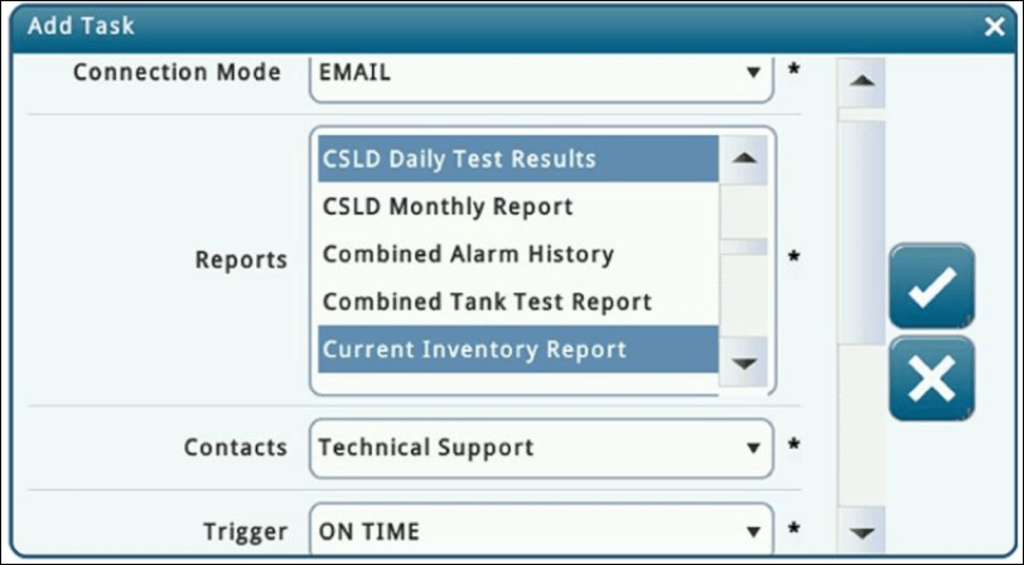
The “On Event” trigger is the one you want for alerts. (There’s also “On Time” for scheduled reports like daily inventory — useful, but not what you need for catching emergencies.)
Step 4: Make sure your network and DNS are set up
The console sends email over your site’s Ethernet connection, so it needs working network access. Go to Menu > Setup > Communication > Ethernet Port and check that:
- A CAT5 cable is connected and the port shows green lights
- Primary and Secondary DNS are filled in. If you’re not sure what to put here, Google’s public DNS (8.8.8.8 and 8.8.4.4) works fine.
If your site network blocks outbound email (which is common), you’ll also need to set up an SMTP relay. Go to Menu > Setup > Communication > SMTP Relay and enter your mail server details. (If you need a quick one, text.email can provide that SMTP relay for you.)
Step 5: Send a test
Before you walk away from the console, send a test email to make sure everything’s connected. On the SMTP Relay screen, there’s a Send Test Email button at the bottom. Enter your text.email address and hit send.
You should get a text on your phone within a few seconds. If it doesn’t come through, check Menu > Setup > Automatic Events > Task Log to see if the console recorded an attempt.
And if you’re on an older software version that doesn’t have the Send Test Email button, you can trigger a test alarm manually through the console’s diagnostics to see if the email fires.
Why Your TLS-450PLUS Couldn’t Text You Before
So why do we need to use this process? It’s because sending texts is tricker than it seems (and way tricker than sending emails).
The TLS console’s own notification options
The TLS-450PLUS has a few ways to get alarm data off the console… but not text messages.
Veeder-Root makes two free mobile apps: The Plus View and The Remote View. Plus View isn’t real-time, and requires opening the app to check your alerts. Remote View is designed to run on a tablet mounted at the counter.
There’s also InSite360 and the newer Veeder-Root Device Management dashboard, which are cloud platforms for managing fleets of gauges across multiple sites. That’s overkill if you just have a handful of locations and just want a quick text if something is leaking.
The console itself has a beeper and LEDs, which are great if someone’s standing in front of it. But I’m guessing you aren’t always standing in front of it.
So the TLS can email. It can beep. It can show you data in an app if you check. But it can’t send you a text.
The old cell phone carrier gateways are dead
So… maybe you have a vague memory of being able to send an email to a Verizon or AT&T email and get a text back.
And you’re right. That used to exit.
Verizon, AT&T, T-Mobile, and every other cell phone carrier offered email-to-SMS gateways for years, and plenty of people plugged those addresses into their notification configs.
But… all those gateways are now shut down. If you’ve got a @vtext.com or @txt.att.net address sitting in your TLS Address Book right now, those emails aren’t just disappearing silently into the void.
What about building your own system?
Yes, you could build your own text alert system — after all, anything’s possible in the vibe coding era according to everyone thirsting for likes in my LinkedIn feed.
To set that up, you’d need a Twilio integration and then to set up and test the code until you can reliably trust it to email you at that moment of crisis.
But there’s another surprise waiting for you. You’ll need to deal with something called A2P 10DLC. That’s a registration process that’s now required for any application sending texts in the U.S. (It’s actually a big reason why the cell phone carriers all shut down their email-to-text gateways.)
It’s not hard, per se, it’s just paperwork, delays, and then ongoing maintenance for the system. Basically, it’s reinventing the wheel and putting reliability at risk. And based on the cost savings, all that is to save, at most, a couple of bucks a month.
Getting Started with Veeder-Root TLS Text Alerts
Alright. Ready to implement the email-to-text system I laid out?
The first step is to get signed up with text.email.
The packages include 200 messages but for most fuel sites, 200 messages is way more than you’ll need. You’re not doing this to send 200 texts a month — you’re signing up so that the one critical Sudden Loss Alarm or Overfill Alarm actually reaches you.
Want to see it in action? Send a sample email test to yournumber@text.email. It should hit your phone a few moments later.
(And yes, all that regulatory compliance stuff we talked about is handled for you automatically.)
Which TLS Alarms Are Worth a Text vs. an Email?
I can promise you that you don’t want every single alarm the TLS generates hitting your phone. Here’s a rough split to start with — you can always change it up once you see how the volume feels.
Text-worthy (set these as On Event triggers):
- Sudden Loss Alarm
- Overfill Alarm
- Gross Test Fail Alarm
- PLLD Shutdown
- High Water Alarm
- Fuel Out Alarm
- Probe Out Alarm
- High Liquid Alarm
Fine as email or daily report:
- Delivery Needed Warning
- No CSLD Idle Time Warning
- Setup Data Warning
- Periodic Test Needed Warning
- Printer Out of Paper
The Autoconnect Tasks screen lets you set up separate tasks for different triggers, so you can route the critical stuff to text.email and leave the routine warnings on a scheduled daily email to your regular inbox.
Get Your Veeder-Root TLS Alerts on Your Phone
The whole setup really just takes a few minutes: sign up at text.email, add the address to your TLS Address Book, create an Autoconnect Task with an On Event trigger, and send a test.
Next time your TLS-450PLUS catches a leak, an overfill, or a fuel-out, you’ll know about it right away… and not whenever you happen to check your email.
Send an email to
your-number@text.email
and receive it as a text in seconds. No signup required.