
How Water Treatment Operators Can Get SMS Alerts from VTScada
VTScada’s Alarm Notification System is one of the better-designed callout systems in the SCADA world.
But getting it to send text messages to your phone involves either a physical SMS appliance tethered via serial port, a Twilio account with API credentials, or a VoIP setup with SIP configuration.
For now. We’re about to change all that.
Because for a utility that just needs the on-call operator’s phone to buzz when a lift station hits high-high level, that’s a lot of infrastructure for a notification.
There’s a simpler path.
VTScada already sends email notifications, and you can turn those emails into text messages without touching your ANS hardware configuration at all. I’ll walk you through the setup — if you’ve already got outbound email working in VTScada, you’re about five minutes away from SMS alerts on your phone.
We’ll also cover why VTScada’s built-in SMS options have gotten harder to implement (not easier) and which alarms in a water or wastewater operation are worth routing to someone’s phone at 2 AM versus leaving in the alarm history.
VTScada SMS Alerts for Water Treatment: Table of Contents
- Setting Up SMS Alerts from VTScada via Email
- Why VTScada’s Built-In SMS Options Are More Complex Than They Need to Be
- What text.email Costs and How to Set It Up
- Which Water and Wastewater Alarms Are Worth the Text?
- VTScada SMS Alerts for Water Treatment: Next Steps
Setting Up SMS Alerts from VTScada via Email
VTScada supports five contact methods in its Roster tags: Voice, Pager, Email, Text Message, and Compact Email.
The “Text Message” option requires an SMS Appliance tag (a physical cell modem connected via RS-232, Bluetooth, or USB). The “Compact Email” option was designed around the old carrier email-to-SMS gateways — addresses like 5551234567@vtext.com — which no longer exist.
The method below uses the standard Email contact method in your Roster, pointed at a text.email address. VTScada sends the alarm notification as an email. text.email converts it to SMS and delivers it to your phone.
Step 1: Sign up with text.email
text.email is an email-to-SMS service built specifically for alert and notification use cases like this one — not marketing, not mass messaging.
You send an email to a special address, and it arrives as a text on your phone. That’s the entire product.
text.email handles A2P 10DLC carrier compliance automatically (the registration process that makes rolling your own SMS pipeline a disproportionate headache for operational alerting).
Sign up, choose a private keyword for your account, and your delivery address becomes: yournumber@yourkeyword.text.email.
Any email sent to that address shows up as a text message on your phone. We’ll plug this address into your VTScada Roster in Step 3.
Step 2: Confirm your VTScada email configuration
If you already have email alarm notifications working — messages arriving in operators’ inboxes when alarms go unacknowledged — skip to Step 3. Your SMTP setup is fine.
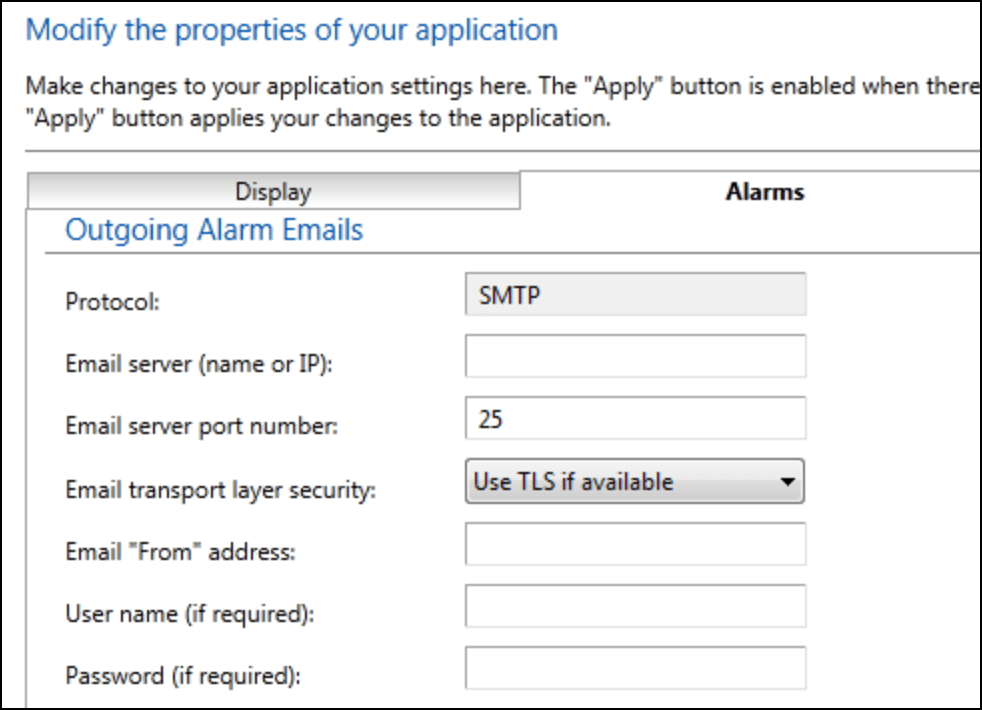
If you don’t have outbound email configured yet, you’ll need to set it up in the VTScada Application Configuration dialog:
- Open Application Configuration → Edit Properties (Basic mode).
- Navigate to the Alarms tab. Scroll to the Outgoing Email section.
- Enter your SMTP server details:
- SMTP Server: Your mail server address (e.g.,
smtp.gmail.comor your organization’s mail server) - Port: 587 for TLS (most common), or 25 for unencrypted local servers
- Email From Address: A valid email account on the SMTP server
- Username and Password: Authentication credentials for the email account
- SMTP Server: Your mail server address (e.g.,
If you’re using Gmail or Microsoft 365: VTScada supports OAuth 2.0, and both Google and Microsoft now require it (basic username/password authentication was deprecated in 2022). You can also use a Gmail App Password as an alternative — generate one at Google Account → App Passwords and use it in place of your regular password.
If your facility runs its own mail server, you may not need to worry about this at all — use your internal SMTP server address and credentials from your IT team.
Test it by sending a test email from VTScada before proceeding. Check the Alarm History if emails aren’t arriving — VTScada logs SMTP errors there.
Step 3: Add your text.email address to a Roster contact
This is where VTScada’s alarm notification connects to email-to-SMS delivery.
- Open the Tag Browser and locate the Roster tag you want to modify (or create a new one).
- Go to the Contacts tab.
- Click [+] Add Contact to create a new contact row.
- Set the Method to Email.
- In the Phone Number / Email Address field, enter your text.email address:
yournumber@yourkeyword.text.email - Fill in the Name field (e.g., “Operator SMS — Joe”).
- Optionally, enter the operator’s User Name (their VTScada security account name) if you want to enable alarm acknowledgment by email reply.
- Save the Roster tag.
Important: You’re using the Email method, not “Text Message” or “Compact Email.” The Email method only requires a working outbound SMTP configuration.
Step 4: Configure alarm notification behavior
VTScada’s ANS only sends notifications for alarms that go unacknowledged past a configurable delay. Make sure the notification behavior matches what you want:
- In Application Configuration → Edit Properties → Alarms tab, review the Alarm Notification section.
- Confirm that DialOnActive is enabled (alarms added to the notify list when they go active).
- Set your notification delay — how long an alarm must remain unacknowledged before the ANS starts contacting operators. For critical water/wastewater alarms, 2-5 minutes is typical.
- Review DialCancelOnAck and DialCancelOnNormal — these control whether the notification stops when the alarm is acknowledged or returns to normal.
The Roster’s Area field matters here. VTScada ties Rosters to alarms by matching the Roster’s Area to the alarm’s Area. If your alarms are organized by functional area (e.g., “Lift Stations,” “WTP,” “Distribution”), make sure your Roster’s Area matches the alarms you want routed to SMS.
Step 5: Test it
Trigger a test alarm (or wait for one — in water treatment, you usually don’t have to wait long) and let it go unacknowledged past your notification delay.
The alert should arrive as a text on your phone. VTScada sends alarm emails using the AlarmSMSTemplate format for compact emails or the AlarmEmailTemplate for standard email — both work fine with text.email, though you’ll want to keep the message concise since SMS has character limits.
If the text doesn’t arrive:
- Is the basic email notification working? Send a test email from the SMTP configuration page. If that fails, the problem is upstream of text.email — check your SMTP settings and the Alarm History for error messages.
- Is the Roster active? Only one Roster per Area can be active at a time. Make sure the Roster containing your text.email contact is the active one. Check this in the Tag Browser or through your Make Active widgets.
- Can VTScada reach the internet? SCADA servers in hardened network environments may have outbound SMTP blocked at the firewall. Talk to your network admin about allowing traffic on port 587 (or whichever port your SMTP server uses).
Why VTScada’s Built-In SMS Options Are More Complex Than They Need to Be
VTScada isn’t doing anything wrong here. The ANS is genuinely well-designed: roster escalation, area-based routing, acknowledgment by reply, configurable delays. It’s one of the reasons VTScada is popular in water and wastewater.
But the SMS delivery options all carry overhead that’s disproportionate to “tell me when a pump fails”:
SMS Appliance: physical hardware you probably don’t want to maintain
The Text Message contact method requires a physical cell modem connected to your VTScada workstation via RS-232, Bluetooth, or USB, conforming to the ETSI TS 100 585 GSM standard. Man, that’s a whole lot of acronyms.
In 2026, maintaining a tethered cell modem on a SCADA server — along with the SIM card, the cellular plan, and the GSM compatibility requirements — is a lot of maintenance burden for a feature that sends a few dozen messages a month.
Twilio: capable but complex
VTScada added Twilio integration as an alternative to physical modems — it works and removes the hardware dependency.
But Twilio is a programmable communications platform designed for developers sending thousands or millions of messages. For a water utility that needs to text five operators when something trips, the pricing, account management, and API complexity are disproportionate to the job.
Compact Email: the carrier gateways are dead
The “Compact Email” contact method in VTScada’s Roster was built for carrier email-to-SMS gateways — addresses like 5551234567@vtext.com for Verizon, 5551234567@txt.att.net for AT&T, and 5551234567@tmomail.net for T-Mobile.
Every major U.S. carrier has shut those gateways down. If you had Compact Email contacts configured with carrier addresses, they silently stopped delivering. VTScada’s documentation still references this method, but the infrastructure it depended on no longer exists.
The compliance problem if you DIY
The natural next thought: set up your own email-to-SMS pipeline. But sending application-to-person (A2P) SMS in the U.S. now requires 10DLC registration with The Campaign Registry — registering your organization, registering the purpose of your messages, waiting for carrier approval.
The compliance overhead is the same whether you’re sending 5 alerts a month or 50,000 marketing messages. For a municipal utility or a small water district, that’s a bureaucratic rabbit hole that has nothing to do with keeping your plant running.
Getting Set Up with text.email and VTScada Email Alerts
text.email exists because the carrier gateways died and the remaining SMS options for systems like VTScada are more complex than the use case warrants.
It’s not for marketing. It’s not for mass messaging. It’s for exactly this: your VTScada system already emails when something breaks, and you need those alerts on your phone, not buried in an inbox.
The first step is signing up for text.email. Plans come with 200 text alerts per month. And for a water utility routing critical alarms only — pump failures, high-high levels, compliance exceedances — most months you won’t come close to the 200-message cap.
You can test it right now without signing up: send a sample email to yournumber@text.email and you’ll receive the text in seconds.
Which Water and Wastewater Alarms Are Worth the Text?
VTScada’s alarm priority system (Critical, High, Medium, Low) maps well to deciding what gets texted versus what stays in the alarm history. By default, the ANS only sends notifications for Critical and High priority alarms — and for water and wastewater, that’s probably the right starting point.
The goal is keeping the text alerts useful. The moment operators start ignoring them because most are routine noise, you’ve defeated the purpose.
Always text: the ones with regulatory or safety consequences
- Lift station high-high wet well level.
- Pump fail alarms.
- Chlorine residual out of range.
- Plant power failure / UPS failover.
- Intrusion or unauthorized access alarms.
- High wet well level at the WWTP headworks.
Consider texting: the ones that escalate if you wait
- Pump runtime alarms.
- Chemical feed system faults.
- Generator fail-to-start.
- Communication failure to remote sites.
- Elevated turbidity at the source intake.
Leave on email (or in the alarm history): the routine operational data
- Scheduled pump alternation events.
- Normal tank level fluctuations within setpoints.
- Successful backup completion notifications.
- Telemetry heartbeat confirmations.
- Low-priority advisories and informational events.
- Setpoint changes logged by operators during normal operations.
Use VTScada’s alarm priority configuration to route Critical and High priority alarms to your text.email Roster contact. Leave Medium and Low priorities on standard email or in the alarm history where they belong.
VTScada SMS Alerts for Water Treatment: Next Steps
Set up takes about five minutes if your VTScada email notifications are already working: sign up at text.email, add your text.email address as an Email contact in your Roster tag, and configure your alarm priorities to route the things worth waking up for.
If you’re starting from scratch with email, budget an extra 15-20 minutes for the SMTP configuration — and test the email path before you add the text.email address.
Your VTScada system already knows when something’s wrong. The ANS already knows who to tell. The only missing piece is making sure that notification reaches your phone instead of your inbox.
Sign up at text.email and start getting alerts on your phone from your VTScada system today.
Send an email to
your-number@text.email
and receive it as a text in seconds. No signup required.