
Distribution Lists: Send a Single Email to a Group of Phone Numbers
Sometimes you just need to set up an email-to-text alert to yourself. That’s simple in text.email.
But what happens when you need a text alert to go out to several people? And especially, what happens when that list of people is always changing?
That’s what text.email’s distribution lists are here for.
For example, let’s say you need the entire on-call team to get alerts when there’s a server outage. Now you can set up a list address (something like oncall@acme.text.email) and everyone on the list will get a text.
You can also send an alert directly from the text.email website. Choose one or more of your lists, type your message, and click Send text. That gives you a quick way to send a manual update to the same teams that receive your automated alerts.
Each distribution list now supports up to 200 members. You can see member counts at a glance and remove several members at once when a roster changes.
Here’s how to set up your lists, send to them, and keep them up to date…
Distribution Lists: Table of Contents
- How to Set Up a Distribution List in text.email
- How to Send a Text to Distribution Lists from the Website
- Managing Your Distribution Lists
- Scheduling When Distribution List Members Receive Texts
- Ready to Get Started with Email-to-Text Distribution Lists?
- Why Distribution Lists for Email-to-Text Are Even More Valuable Than You Might Think
- Some Ways You Can Use Distribution Lists
- Start Using Distribution Lists Today
How to Set Up a Distribution List in text.email
Here’s how to set up a distribution list so you can text multiple people with a single email.
#1. Go to the Distribution Lists settings in text.email
You can access the Distribution Lists settings from your account menu in the top right.
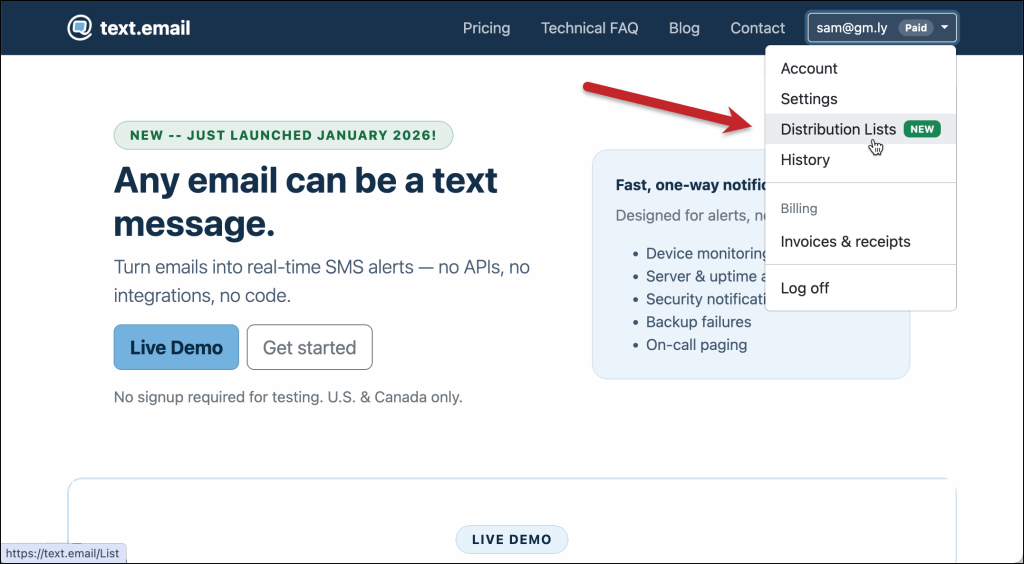
You’ll see any current distribution lists you have set up, and you can also create a new list on this screen.
#2. Create a new distribution list
Click on the Create new button in the top right.
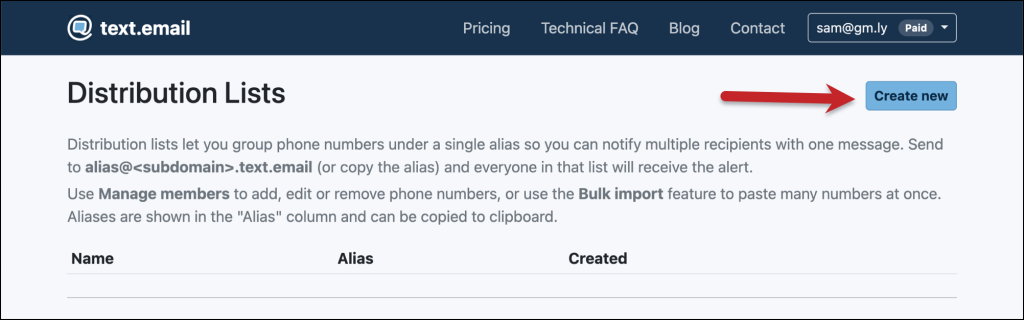
On the next page, give your distribution list a name (something descriptive, so it’s easy for you to remember what the list is later). Also give it an alias — that’s what you’ll use as part of the distribution list email address.
Aliases are saved in lowercase. For example, an alias entered as OnCall is saved as oncall. Use the Copy button whenever you need the full list address.
For instance, I’ll set up the distribution list here for all of the on-call technicians on our team.
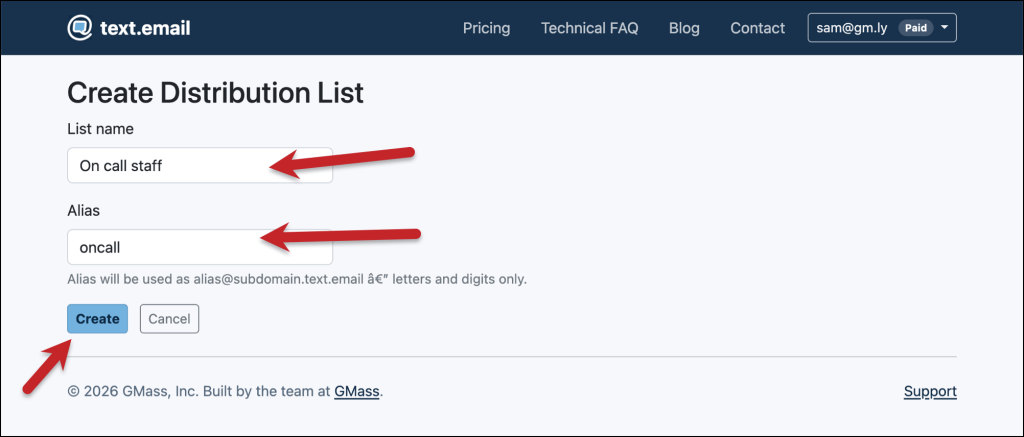
Then click Create.
#3. Add members to your distribution list
You’ll now see your new list on the main Distribution Lists screen.
Click on the Manage members button to add members (or, in the future, to manage who’s on the list).
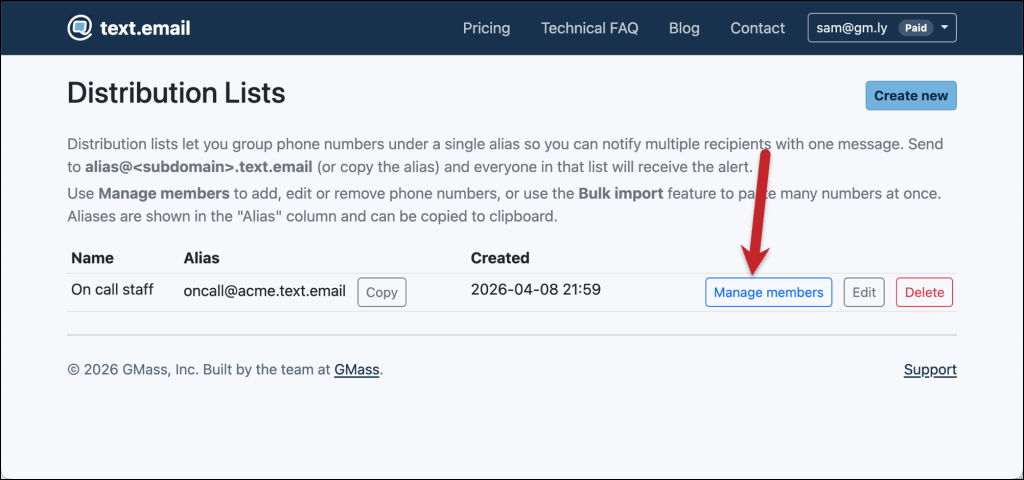
Now you can add members to your list one at a time with the Add phone button, or bulk import your list with the Bulk paste option.
You can add up to 200 members to each list, double the previous 100-member limit. If you need a larger list, contact support.
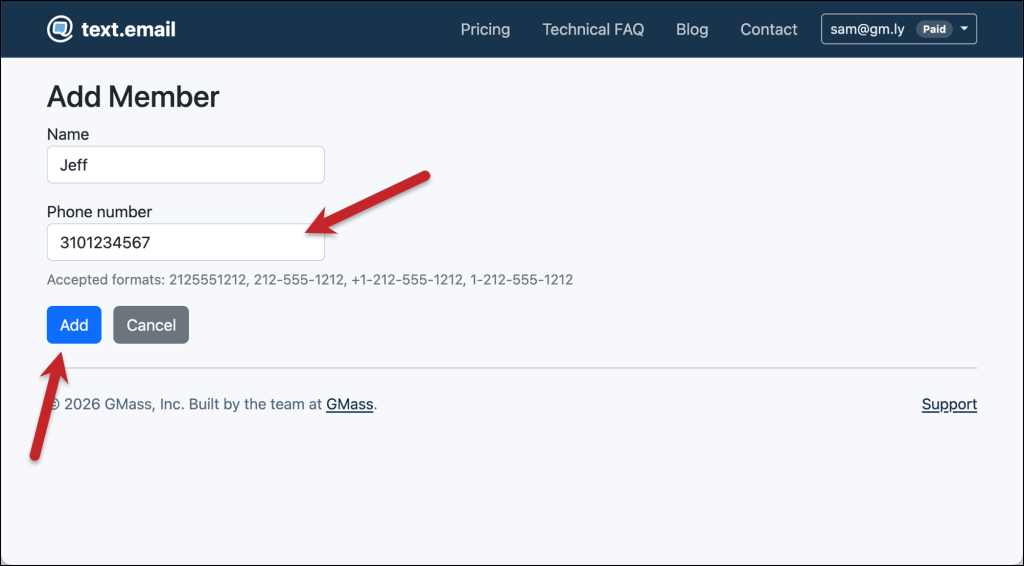
Here I’ll add a single phone number with Add phone (and also, the optional name so you can remember whose number is whose)…
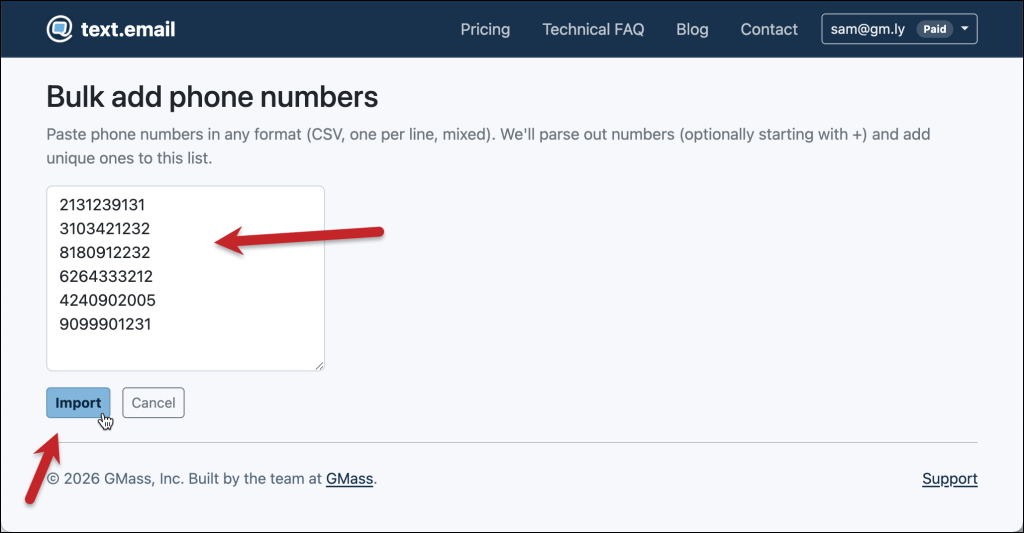
And here I’ll bulk import several numbers. I just pasted them in, though you can import a CSV as well.
(You can always go back and edit a phone number and/or add a name.)
#4. Copy your distribution list address
Your list is all set. You can copy the address and drop it any place you’re setting up your group alerts.
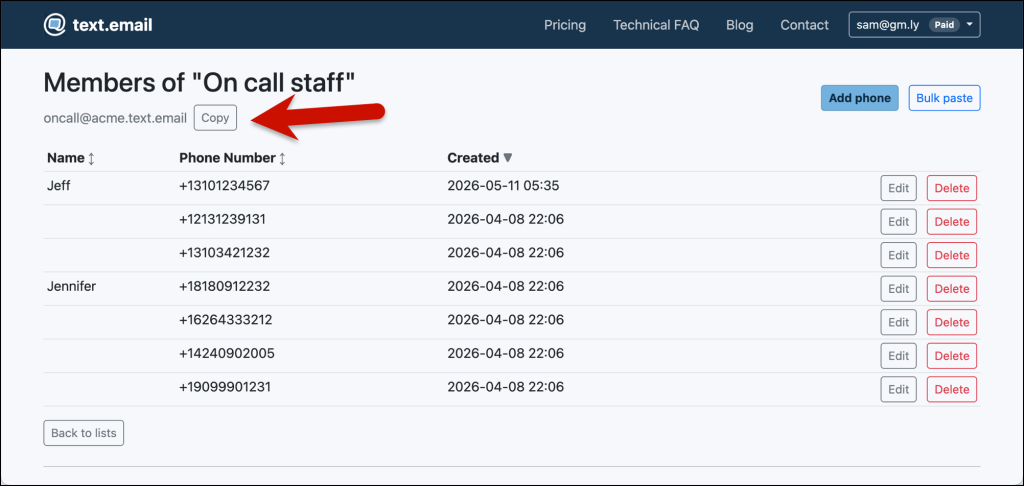
And if and when you need to change who’s on your distribution list, head back to this page to manage your members.
You can also sort the member table by name, phone number, or date added.
How to Send a Text to Distribution Lists from the Website
An automated system can keep emailing your list address as usual. When you need to send a manual alert, you can now do it right from your text.email account.
For example, your monitoring system might notify the on-call technicians about an outage. Once you’ve investigated, you can use the web form to send an update to those technicians and the facilities team together.
#1. Open the Send text form
Go to Distribution Lists and click Send text next to the list you want to contact.
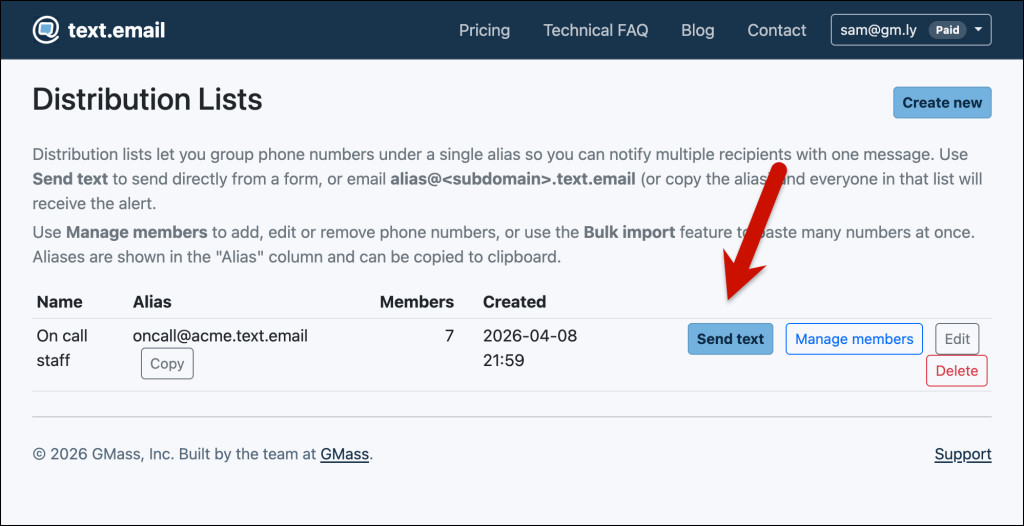
You can also click Send text from that list’s Manage members page.
#2. Choose one or more lists
The list you started from is already selected. In Distribution list addresses, type another list’s name or email address and choose it to add that list. You can also remove a selected list before sending.
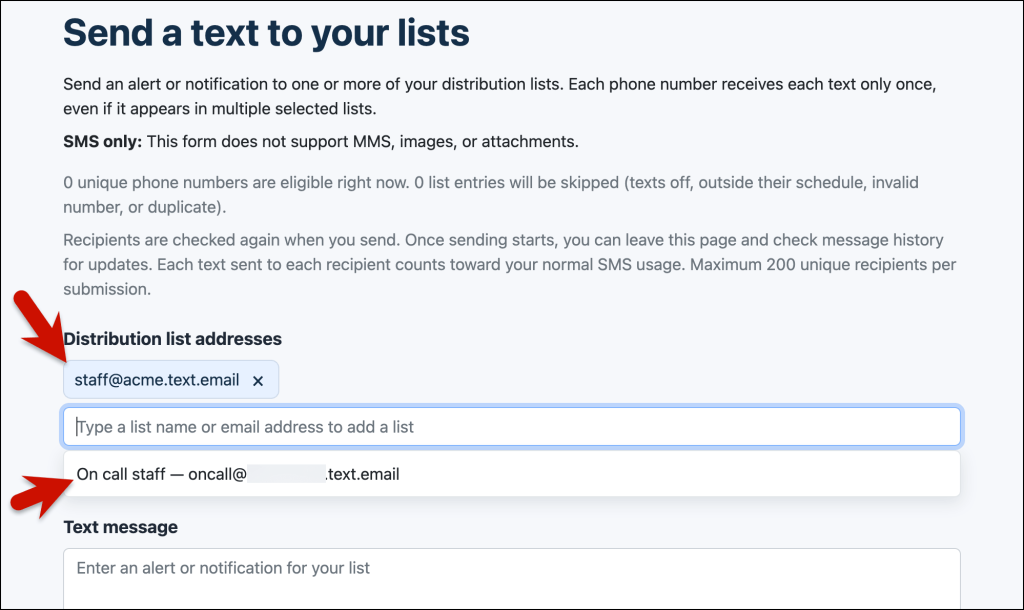
A phone number included in more than one selected list receives each text only once. For example, if a technician belongs to both your on-call and facilities lists, selecting both lists in the same submission will not send that technician duplicate copies.
The form shows how many unique phone numbers are eligible right now and how many list entries will be skipped. It respects members’ sending settings and schedules. Members with texts turned off or outside their receiving schedule are skipped, along with invalid numbers and duplicate entries.
You can send to up to 200 unique phone numbers per submission, even when you select multiple lists. That is separate from the 200-member limit for each individual list.
#3. Write your alert
Type your message in the Text message box.
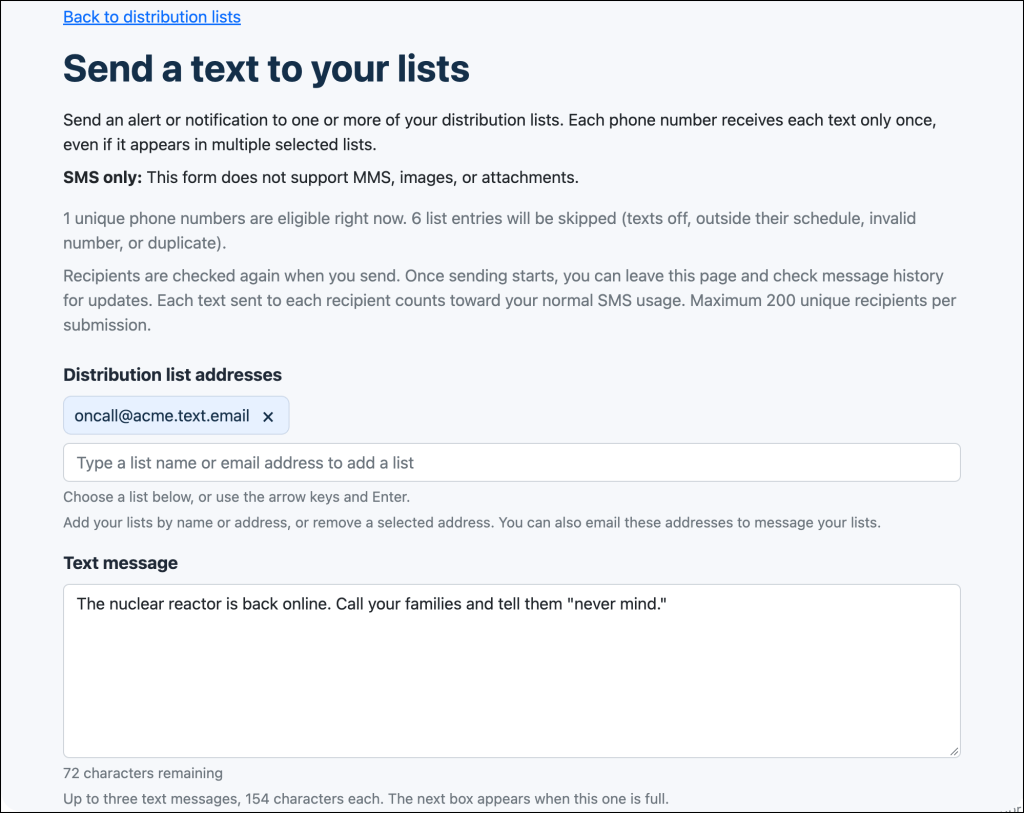
The form supports up to three texts, with up to 154 characters in each. As you fill a box, the next one appears so you can continue your message.
The form keeps words together when moving content between boxes. Review the text in each box and the character counters before sending. If your message cannot fit within three texts, shorten it.
Each filled box sends one text per recipient. For example, a two-text alert sent to 25 eligible phone numbers uses 50 messages. The form displays a usage summary as you compose.
If you have required acknowledgement turned on in your account, the texts will continue to send at your specified cadence until it receives the ACK code.
#4. Send and check your message history
Click Send text. Once the page confirms that sending has started, you can leave the page while text.email sends the messages in the background.
Check your message history for updates. The initial confirmation means the send has started; it does not mean every recipient has already received the alert. Wait for the current list send to finish before starting another one.
Managing Your Distribution Lists
As teams change, you can keep the same list address and update the people behind it. The Distribution Lists screen and member-management page now make that easier.
See member counts without opening each list
The Members column on the main Distribution Lists screen shows how many members each list contains. This helps you check list sizes without opening every roster.
The number eligible for a particular send can be smaller because of receiving schedules, members with texts turned off, or duplicate phone numbers across selected lists.
Remove several members at once
Open Manage members, check the boxes beside the members you want to remove, and click Delete selected. You can use Select all to select every member in the table. Review the selection count and confirm the deletion.
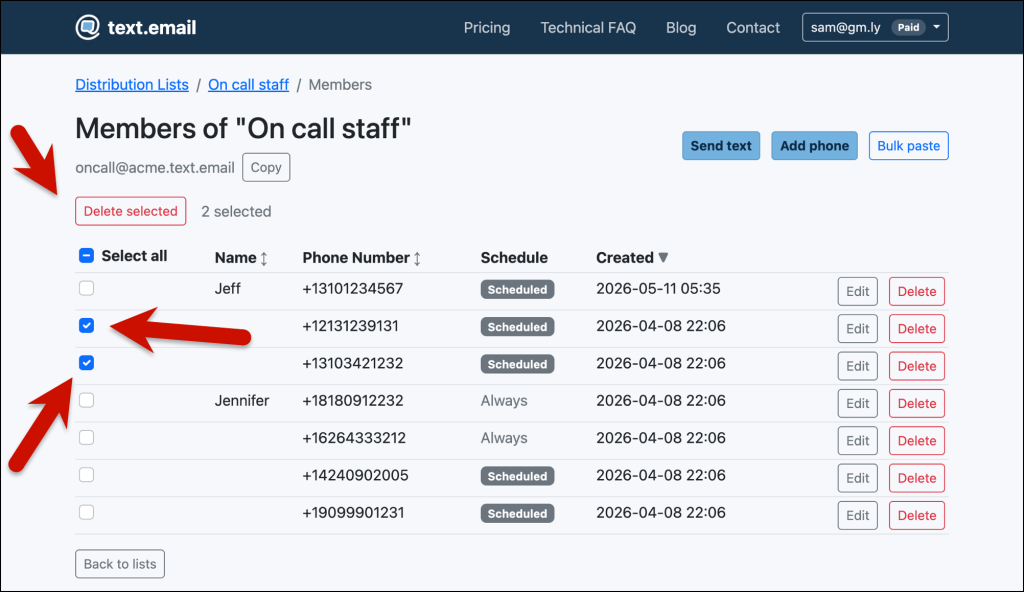
The distribution list itself and its email address remain in place, so your alerting system can continue using the same address. If you just want to pause messages for someone, edit the member and turn texts off instead.
Scheduling When Distribution List Members Receive Texts
It’s possible that not everyone on your distribution list needs to get every email at every moment.
For example, if it’s your “on call” list… not everyone is on call at all times.
text.email offers scheduled SMS routing for distribution lists for this exact situation.
You can set the days and times each member of your list should receive texts (in their time zone). You can also have some members of the list receive every alert at all times.
To set up scheduling, click Edit in a distribution list member’s row.
Then toggle on Limit when this member receives texts, pick their timezone, and set their schedule.
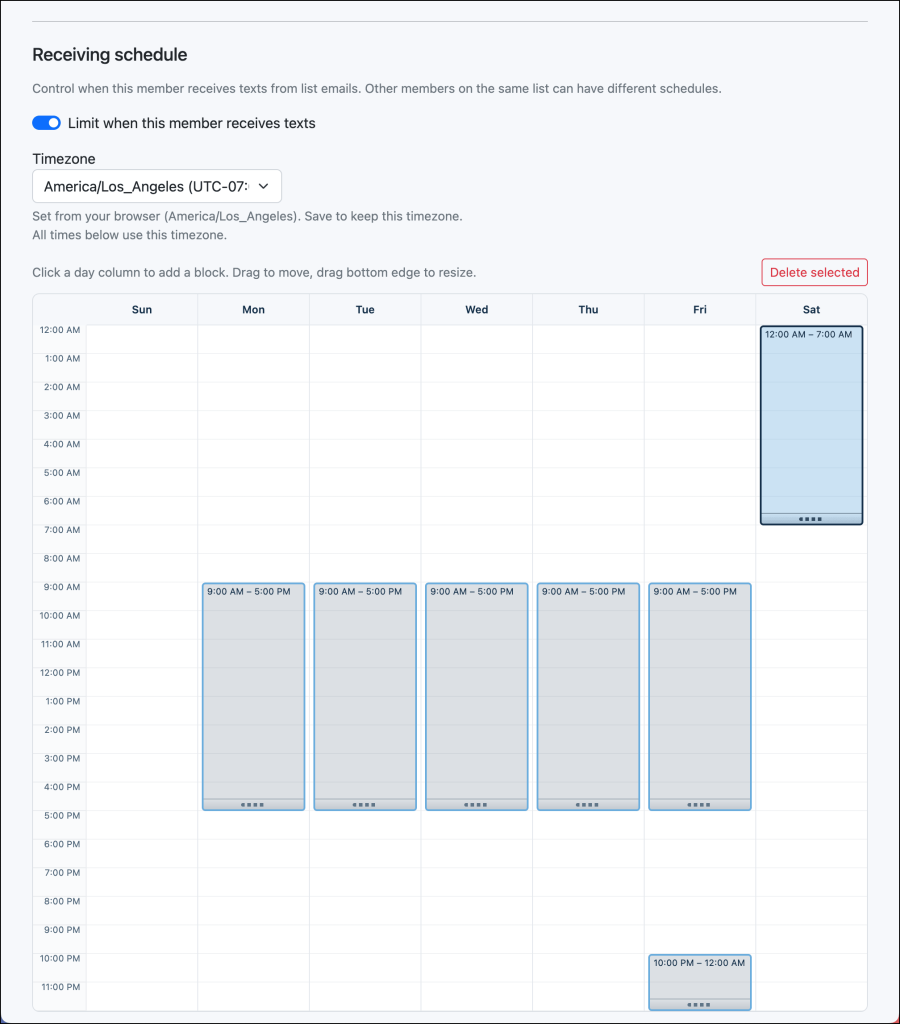
For more info, check out our full guide to scheduled SMS routing.
Ready to Get Started with Email-to-Text Distribution Lists?
Our goal is really simple at text.email: We want to make it as easy as possible for you to turn emails into texts without APIs, software integrations, regulatory paperwork, or any of the other things other texting solutions require.
Distribution lists help you turn critical alerts into can’t-miss texts, whether your software emails the list or you send an update directly from the website.
Distribution lists are included on all text.email plans.
You can sign up for an account at text.email — and you’ll be able to start dropping in your email-to-text address (and email-to-text distribution list addresses) in a matter of minutes.
Why Distribution Lists for Email-to-Text Are Even More Valuable Than You Might Think
text.email’s drop-in, no-code email-to-text process is easy.
But most of the systems where people use text.email are NOT so easy. Whether it’s a SCADA controller, a Prometheus system, or any of the other hundreds of monitors and platforms — it’s never quite that easy to change alert recipients.
The “recipient” field on those systems is usually buried three menus deep. And you pretty much always need to look up how to find all three layers of those menus.
Meanwhile, the people who need the alerts change constantly. Techs rotate on and off call. Contractors get added. Somebody quits. A new facilities manager wants to be in the loop for compressor lockouts.
Every one of those personnel changes used to mean editing things at the source.
Distribution lists separate the two. The controller points at one address, forever (in this case, the distribution list). The people list is where the churn happens.
Plus, with scheduling, you can make sure everyone on your list is getting messages only at the right times.
Why we built distribution lists
We built distribution lists just a few months into text.email because we kept seeing users manually CC’ing four or five @text.email addresses on the same alert.
That works, but it’s fragile. Miss one in the config and somebody stops getting paged. And, of course, who needs to be included is always changing (and, as I just talked about, making those changes is far more cumbersome than it looks).
The more we thought about it, the more it felt like the feature that makes text.email fit how alerting actually works in the real world. The source of the alert is the hardest thing to change. The list of people who care about it is the thing that changes most often.
Some Ways You Can Use Distribution Lists
Here are just a few of the scenarios that make sense for distribution lists:
- On-call rotations where the list changes every week or two
- Facility teams where the lead tech, the backup tech, and an off-site manager all need the same compressor alarm
- After-hours contractor coverage where you want your refrigeration vendor’s on-call number on the list without giving them access to your controller
- Home monitoring alerts from systems such as a leak detector or temperature monitor.
- Multi-site ops with a shared response team
- Escalation coverage without a full, expensive paging tool like PagerDuty. For instance, primary + secondary + supervisor all notified at once instead of setting up actual escalation logic.
- Compliance/audit observers — a QA manager or compliance officer who needs the same alert the operator gets for logging purposes, even if they’re not responding.
Start Using Distribution Lists Today
If you’re already on a paid plan, choose Distribution Lists, create a new list, and add your numbers. You can add the list address to your alerting software, or click Send text to send an alert directly from the website.
If you’re not on text.email yet and this is the feature that makes it click for you, welcome aboard! You can sign up right here on the website (or, if you want to see it in action first, send a test email to yournumber@text.email to see how delivery works).
Send an email to
your-number@text.email
and receive it as a text in seconds. No signup required.