
Scheduled SMS Routing for Distribution Lists: Text Alerts to the Right Person at the Right Time
text.email’s distribution lists make it so you can send one email and have it go out as individual text messages to an entire group.
But what if you’re dealing with on-call rotations or other situations where not every person needs every alert at every hour of the day?
Now, you can schedule individual members of a distribution list so alerts only go to the people who are supposed to receive them at that specific time.
That means your alert system can keep sending to the same simple address (something like oncall@acme.text.email), but behind the scenes, text.email will manage who should actually get the text based on the current day, time, and time zone.
This is perfect for on-call rotations, after-hours coverage, facilities teams, emergency response, IT alerts, and any situation where “who needs this text?” depends on the schedule.
Scheduled SMS Routing: Table of Contents
- How Scheduled SMS Routing Works in text.email
- Why and When to Use Scheduled SMS Routing
- Start Using Scheduled Routing for Distribution Lists
How Scheduled SMS Routing Works in text.email
With scheduled routing, you still create a regular distribution list in text.email.
That list gets its own email address, like oncall@acme.text.email.
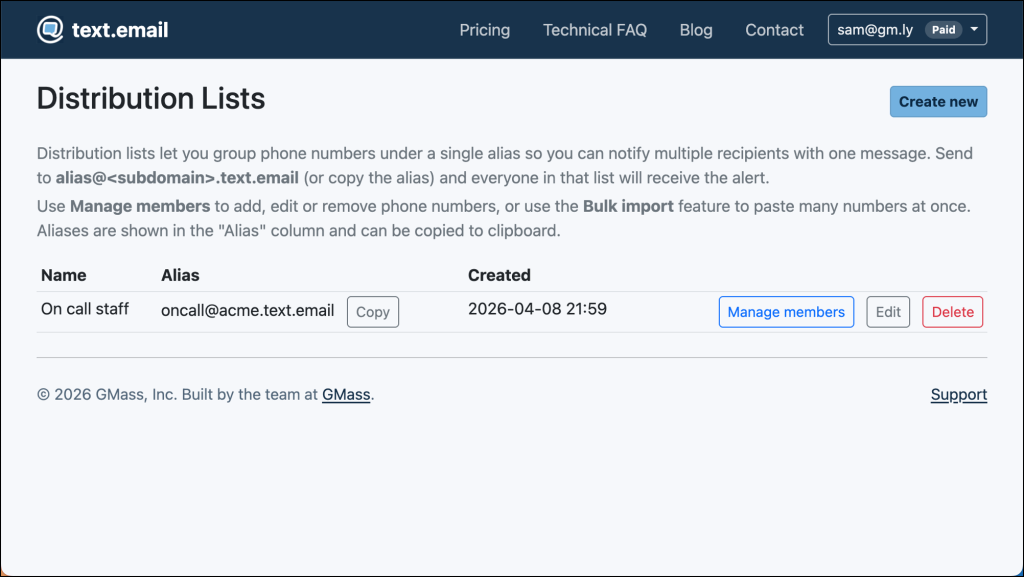
Then you add members to the list.
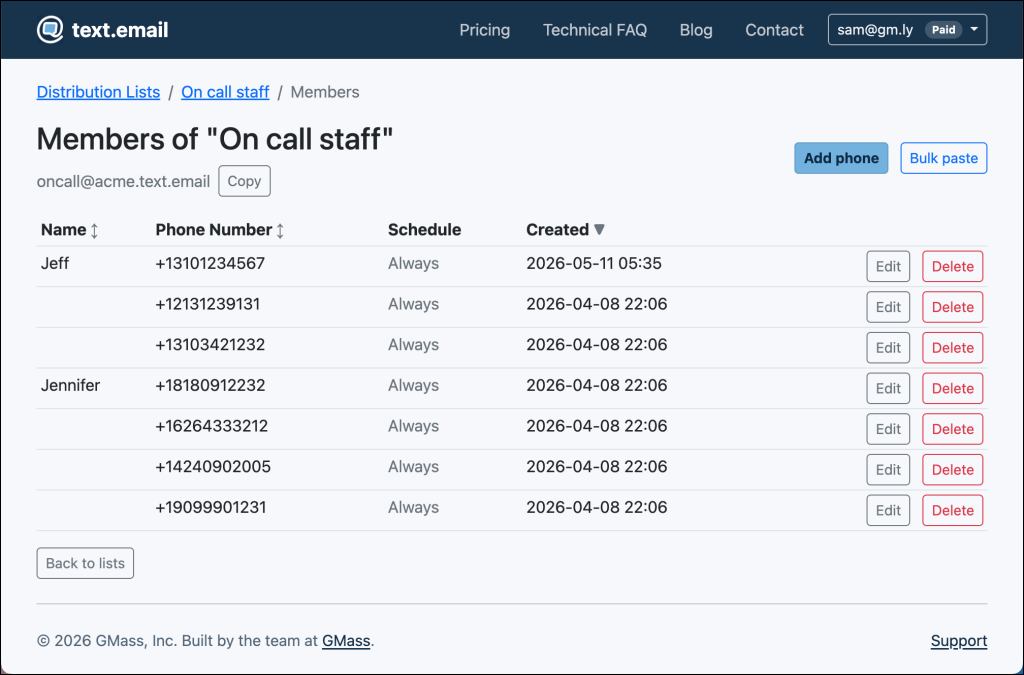
But now, for each member, you can decide whether that person:
- Should always receive messages
- Or only receive messages during certain scheduled times
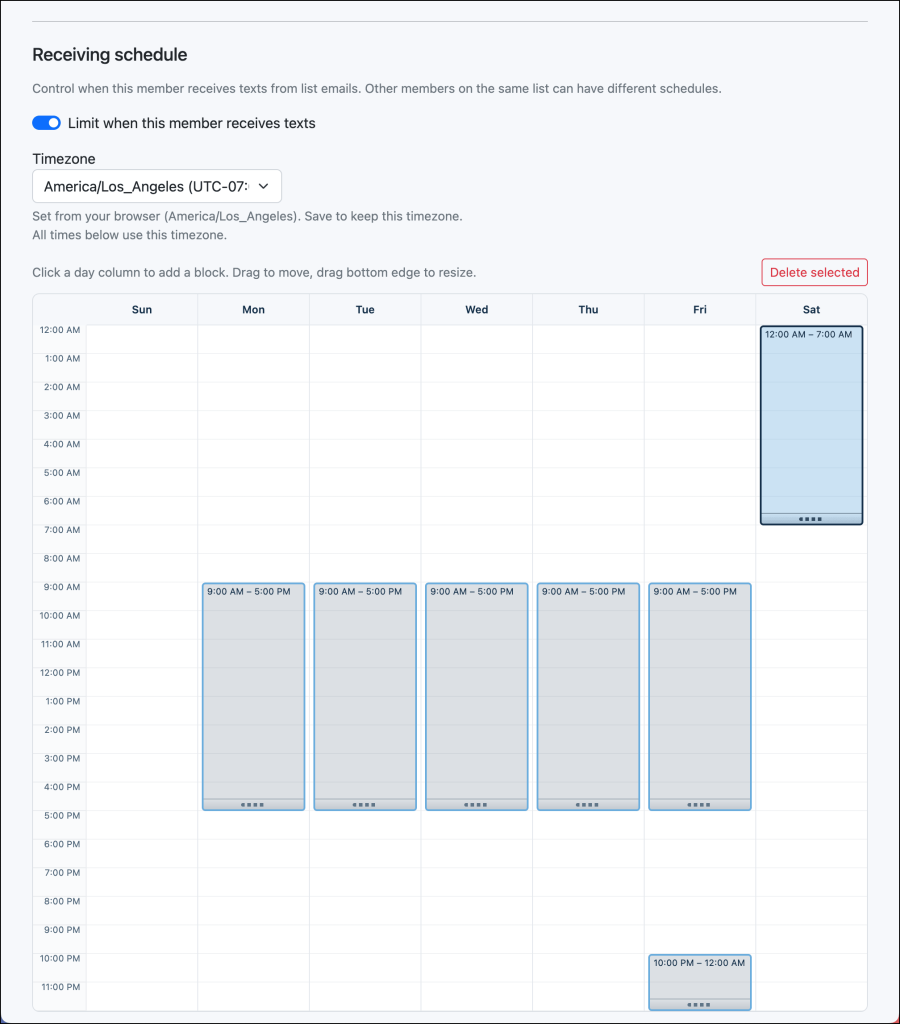
To do so, click the Edit button in the member’s row. Then toggle on the Receiving schedule for that member and set their time zone and receiving hours.
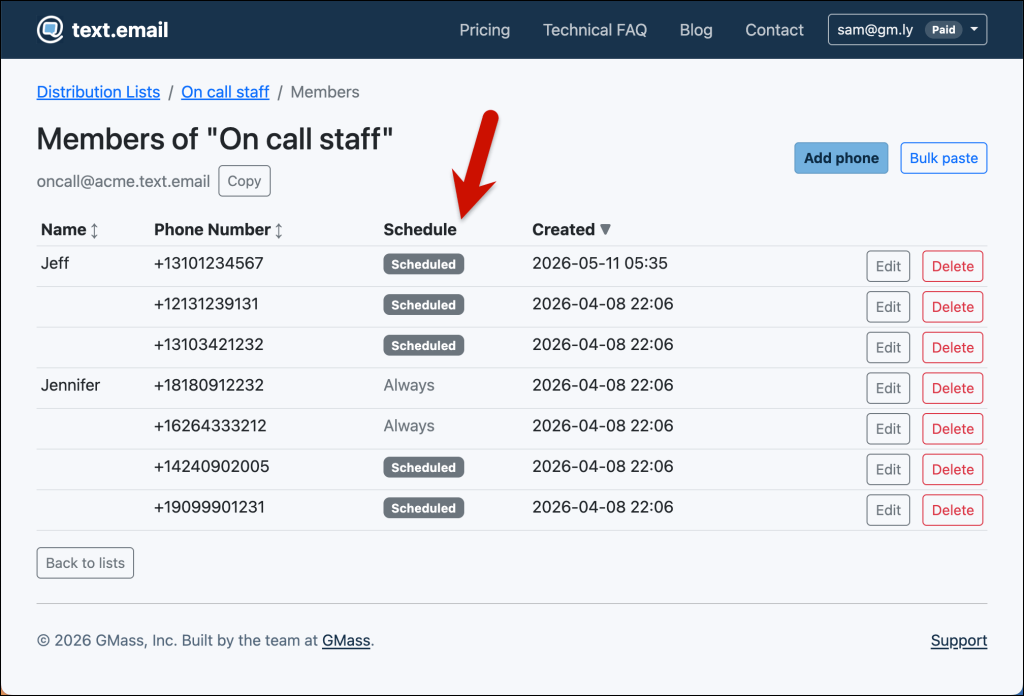
And now, from the main distribution list screen, you can see who will always receive the text and who’s scheduled to receive it only at certain times.
When an email is sent to the distribution list address, text.email checks the schedules, and only sends the text to the members who should receive the SMS alert at that moment.
This means your monitoring system, controller, or alerting platform never has to change; it always sends to the same email address, and text.email handles the routing.
Different members can have different time zones
One especially useful part of scheduled routing is that it’s time zone aware; each member can have their own time zone.
So if your operations team has three people (one in New York, one in Chicago, one in Los Angeles), you don’t have to convert everything to one company-wide time zone or mentally calculate offsets every time you edit the schedule.
This makes the schedules easier to understand, easier to maintain, and far less likely to be wrong.
Send to one person, part of the list, or the whole list
A scheduled distribution list does not have to mean only one person receives each alert. You can use it in several ways…
- You can route to one person at a time for a clean on-call rotation.
- You can route to a primary and backup during the same window.
- You can route to an entire team during business hours, then only the on-call tech after hours.
- You can include a manager during daytime alerts but leave them out overnight.
- You can include an outside contractor only on weekends.
- You can also leave some members unscheduled so they always receive the message, while other members only receive it during their assigned windows.
That flexibility makes scheduled routing useful for both simple and complex alerting setups.
Why and When to Use Scheduled SMS Routing
Without scheduled routing, you either send every alert to everyone, or you have to keep changing the text.email distribution list address inside your monitoring system.
Both options are annoying.
Sending everything to everyone creates alert fatigue. People start ignoring texts that are not really for them, which defeats the entire purpose of text alerts.
Changing the alert recipient inside the original system is even more cumbersome. We’ve dug into a ton of monitoring systems, controllers, dashboards, and legacy tools as we’ve developed text.email, and most of them bury the email recipient setting deep in an admin panel.
So when the schedule changes again next week, you have to go back and edit it again.
Examples of scheduled routing
- On-call IT rotations. Only send texts to engineers when they’re on call (which they’ll especially appreciate in the middle of the night).
- Facilities and maintenance alerts. You’re probably dealing with a legacy system that’s hard to update. With scheduling you can make sure the day shift technician gets alerts during their shift, the evening and overnight technicians get alerts during theirs, the weekend technician during theirs, and the facilities manager gets them all.
- Medical, dental, and veterinary offices. Make sure the right people get emergency alerts, especially after hours.
- Property management. You could create different distribution lists for things like different buildings or different maintenance tasks, and then schedule within those lists.
- Schools, churches, and other buildings. Different people have responsibilities at different times; now you can manage all of those changing schedules in one easy place.
Why this is better than editing the original alert system
The biggest advantage of scheduled SMS routing is separation.
Your alert system really only needs to know one thing: Where should I send the alert?
With text.email scheduled routing, the answer can stay the same forever: Send it to the distribution list address.
Then text.email handles the ever-evolving human side:
- Who is on call?
- Who is off duty?
- Who covers weekends?
- Who covers nights?
- Who is in which time zone?
- Who should be included temporarily?
- Who should no longer receive alerts?
This is so much cleaner than editing every source system every time the schedule changes.
It also helps reduce mistakes. You’re less likely to forget an old phone number buried inside a controller, monitoring dashboard, or alerting rule.
Start Using Scheduled Routing for Distribution Lists
Ready to get started with scheduled routing in text.email?
Create a distribution list, add your members, and set schedules for the people who should only receive texts during certain days and times.
You can also set each member’s time zone, so their schedule is based on their own local time.
That means you can now set up email-to-text alerts that match how your team’s schedules actually work.
If you’re new to text.email, before you subscribe, you can try it out for free. (No credit card or signup required.) Just send a message to your-number@text.email and you’ll get it as a text.
And while you won’t be able to use distribution lists or scheduled routing when you try it, you’ll see how the system works — and quickly start to see the potential for alerting your entire team.
Send an email to
your-number@text.email
and receive it as a text in seconds. No signup required.