
How to Get an Email to Trigger an Alarm That Must Be Acknowledged (ACK’d)
There are a handful of things that can go wrong that are so critical and so urgent that they can’t wait until the morning. Or until that movie lets out. Or that wedding ends.
When those happen, they need to trigger an alarm that’s known in the crisis management world as Alarms That Must Be Acknowledged (or ACK’d).
In other words: An alarm you can’t miss — and one that someone on duty must confirm they’ve received and are handling immediately.
Like… if I need to know if GMass goes down, regardless of the time or what I’m doing, so I can fix it.
So several years ago, I set up a system using an Android app called FireAlert 2:
- If anyone on my team texts me a specific keyword, it sets off an alarm so loud that it will wake me up (and, well, everyone else in my house).
- That alarm overrides silent mode, do not disturb, volume set on 0, or anything else that might stop an alert from sounding.
- The alarm only stops when I acknowledge it.
- I fix the problem, apologize to my family, go back to sleep, and get yelled at in the morning. In that order.
But there are a few scenarios where this particular setup falls a little bit short:
- I want some of my systems to automatically send me an alert (like my server monitoring system), and most of them can’t send SMS messages (they can only send emails).
- But… emails can wind up in different folders (spam, promotions) so I can’t rely on receiving emails to trigger alerts — too risky. Also, emails wouldn’t go through if there’s an internet outage, but texts would.
- Some people in the team aren’t U.S.-based and can’t send me an SMS.
- As the team grows, there are now a few people who should get the alarm, not just me, and that list changes.
In all cases, it makes the most sense for a system or teammate to send me an email and have my phone receive it as a text to trigger the alarm.
So in this article, I’ll walk you through my new, and ideal, solution: Using email-to-SMS to set off alarms that must be ACK’d.
Email to Alarm That Must Be Acknowledged: Table of Contents
- How to Set Up the Email-to-Alarm System on Android
- How to Set Up the Email-to-Alarm System on iOS
- Ready to Set Up Your Email to Alarms Pipeline (in 10 Minutes or Less)?
How to Set Up the Email-to-Alarm System on Android
Here’s how we’ll set up the pipeline to go from an email to a critical alert. We’ll start with an email-to-text conversion, then set up an app that takes the text and triggers the alarm.
Set up email-to-SMS
We’ll use text.email for email to SMS here.
This scenario is actually one of the main reasons I built text.email. I wanted to make the easiest possible email-to-text option without requiring you to connect APIs, fill out regulatory paperwork, or pay a fortune for a monitoring platform like PagerDuty.
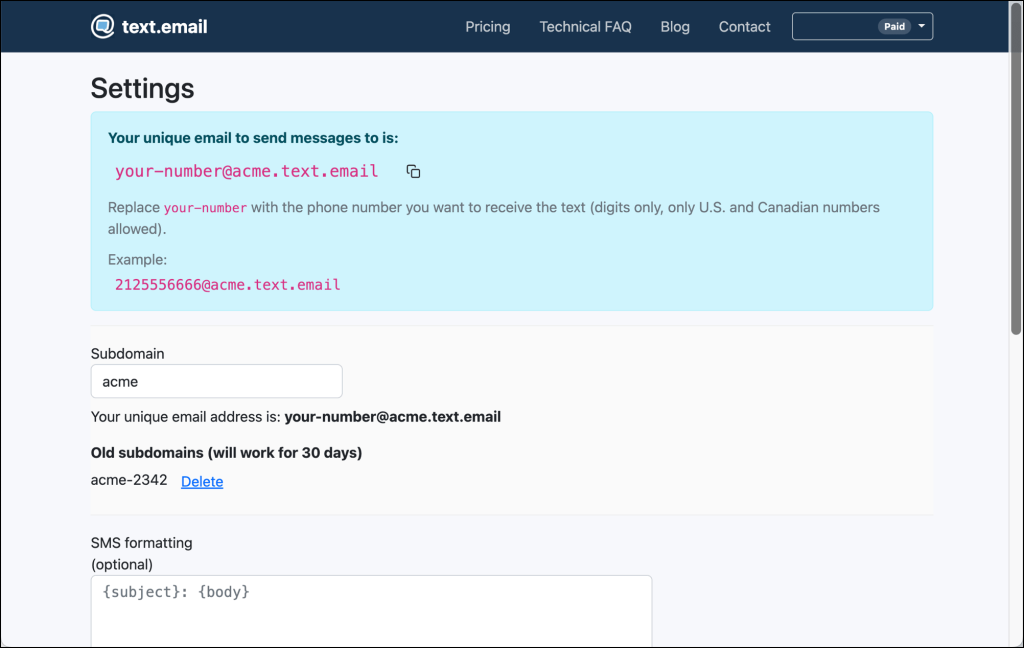
Head over to text.email and sign up for an account. You’ll get a special email-to-SMS address (your-number@your-subdomain.text.email).
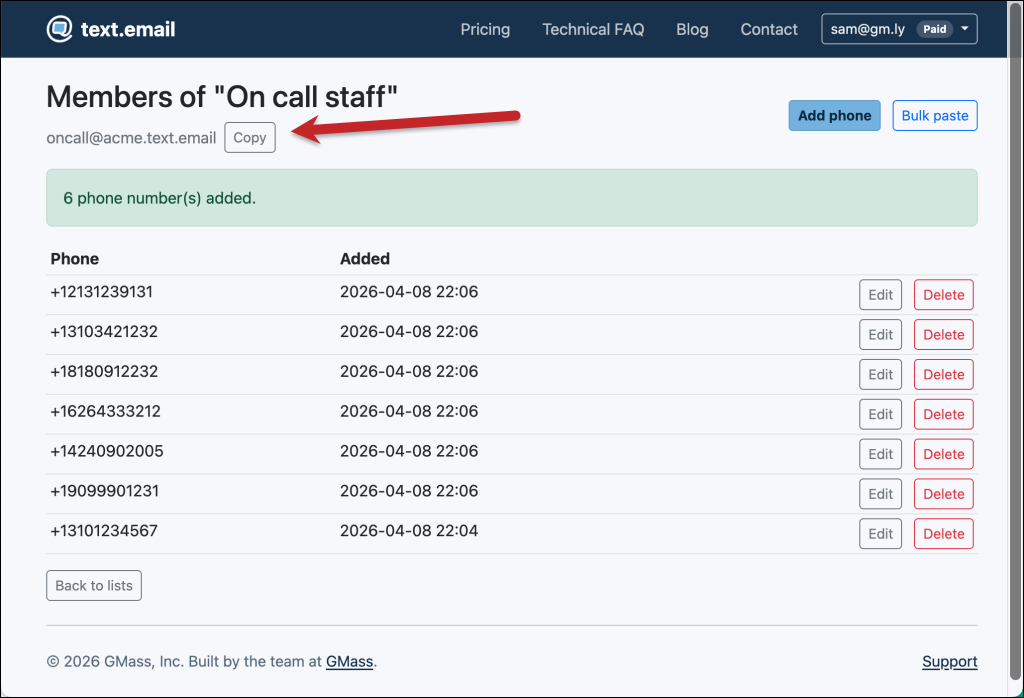
You can also set up a distribution list if you want to send an email that goes out as an SMS to several people.
Install FireAlert 2 (even though Android really doesn’t want you to)
I’ve used FireAlert 2 for years. It’s a German app designed for firehouses since, you know, their alerts that must be ACK’d are arguably more urgent than a web server briefly going down. Arguably.
FireAlert 2 can detect an SMS message with a special keyword and then blast an alarm at a billion decibels that won’t stop until you slide to dismiss it.
And now… the bad news. FireAlert 2 is deprecated and no longer maintained. Android doesn’t really want apps that watch SMS messages anymore, so the developer can’t update it. And when you try to install it, you’ll have to dismiss about six different messages from Android telling you “don’t do this.”
I can’t tell you to plow through all of Android’s stop signs to put a potentially insecure app on your phone. That’s your choice. I’ll just tell you that (1) I did and (2) I’m not worried. Your mileage may vary, as they say. Or, since this is a German app, your kilometrage may vary.
Why am I still centering this guide around a deprecated app? Because it’s still the only one that can both read SMS messages and override silent/do-not-disturb mode with a full-volume alert.
And hey, it’s free.
Set up SMS triggers in FireAlert 2
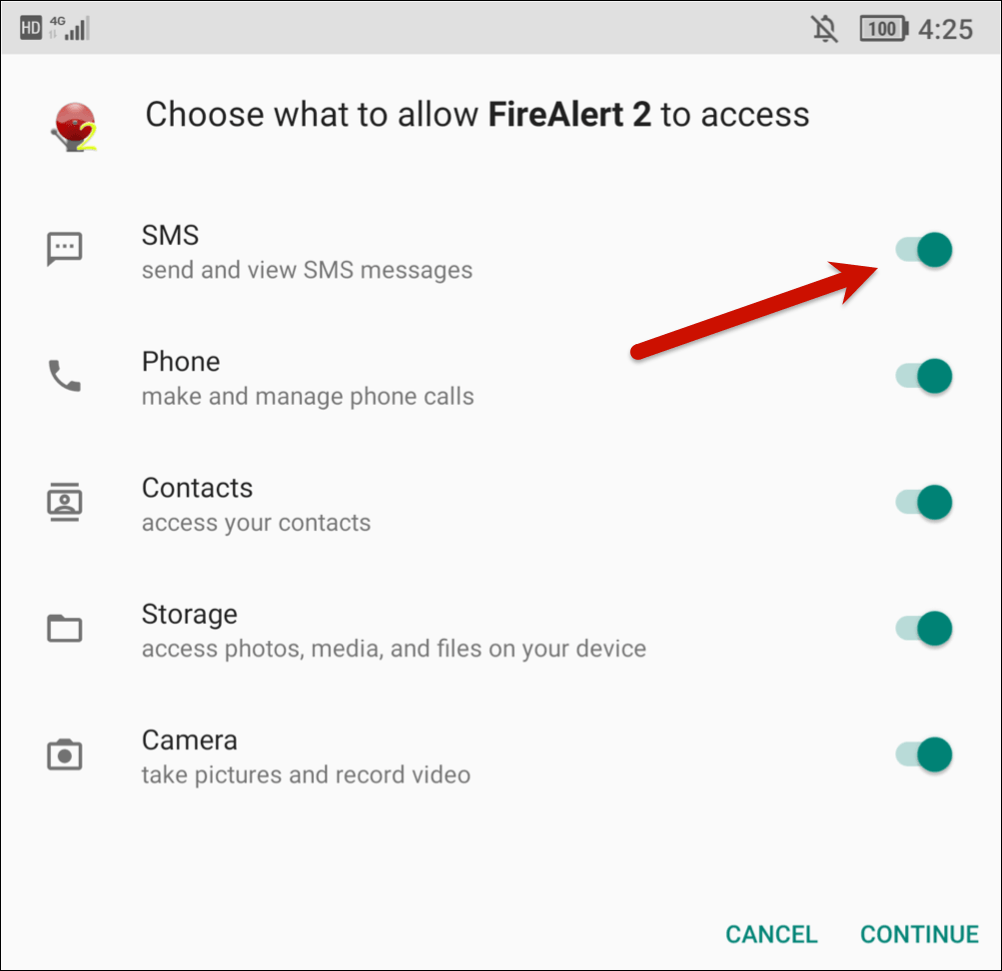
First up, make sure you give FireAlert 2 permission to monitor your SMS messages.
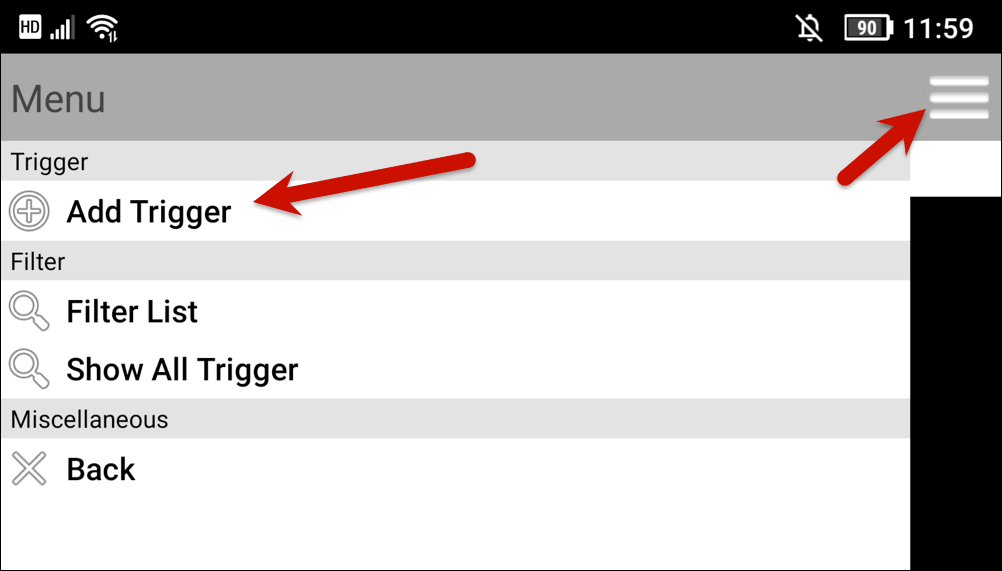
In FireAlert 2, open the menu in the top left. Choose Trigger Settings. Then open the top left menu again and choose Add Trigger.
Set up the following:
- A trigger name, which can be whatever will help you remember this.
- Trigger include, which is a unique keyword that you want your trigger alerts to have.
- Priority 1, which is high.
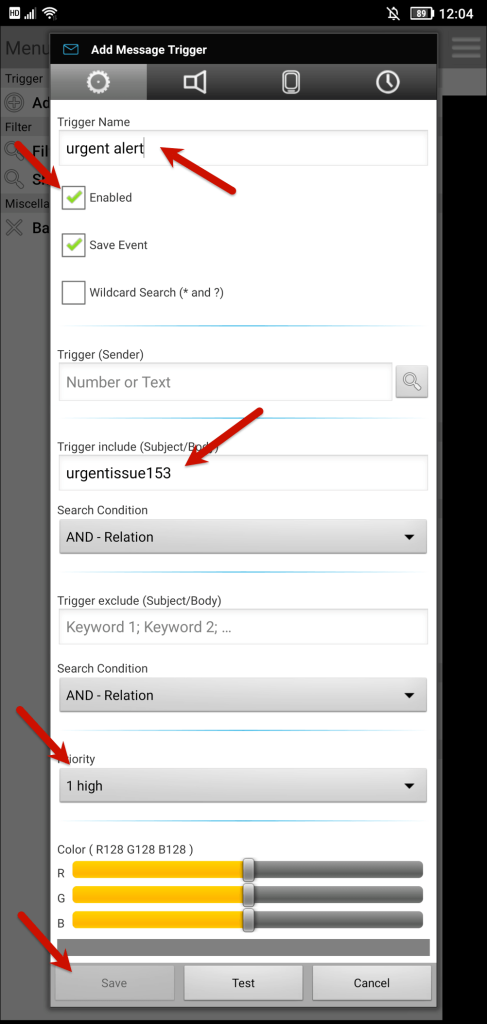
Now tap the sound icon on top.
Make sure Device Settings is unchecked. Then turn Volume up to 100% and make Sound in silent mode checked on. And set Duration to Endless.
Everything else is optional, including the scheduling tab. But go ahead and tweak those however you need.
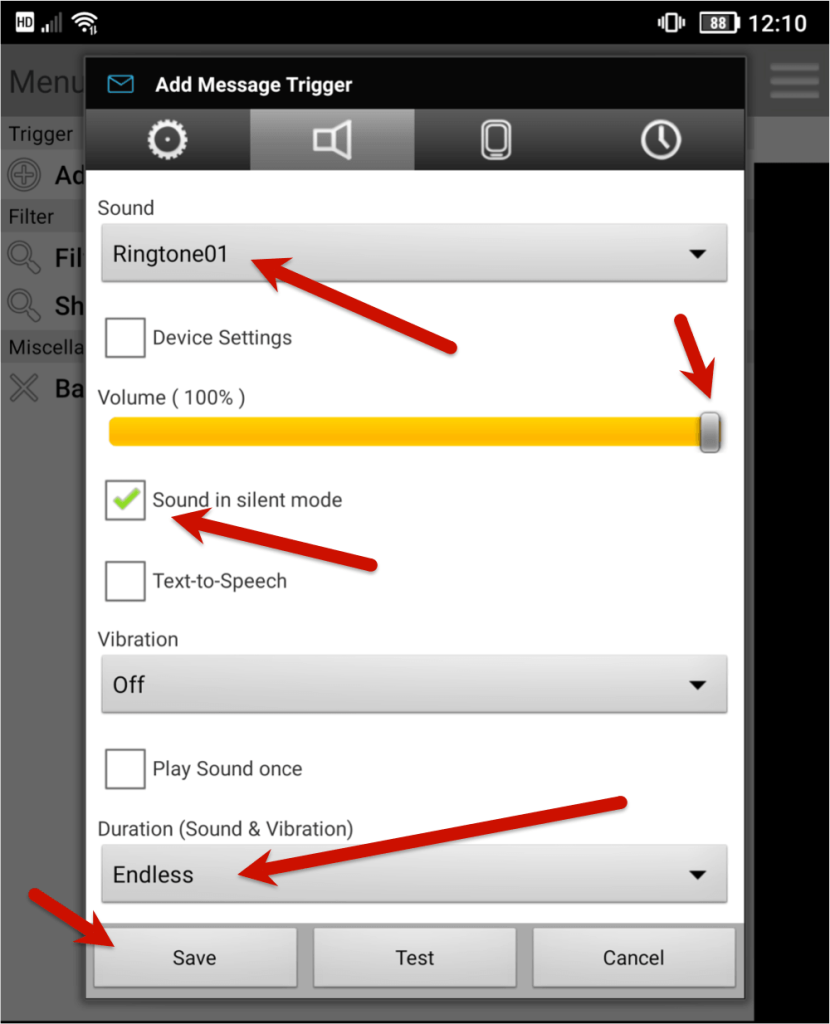
Then tap Save.
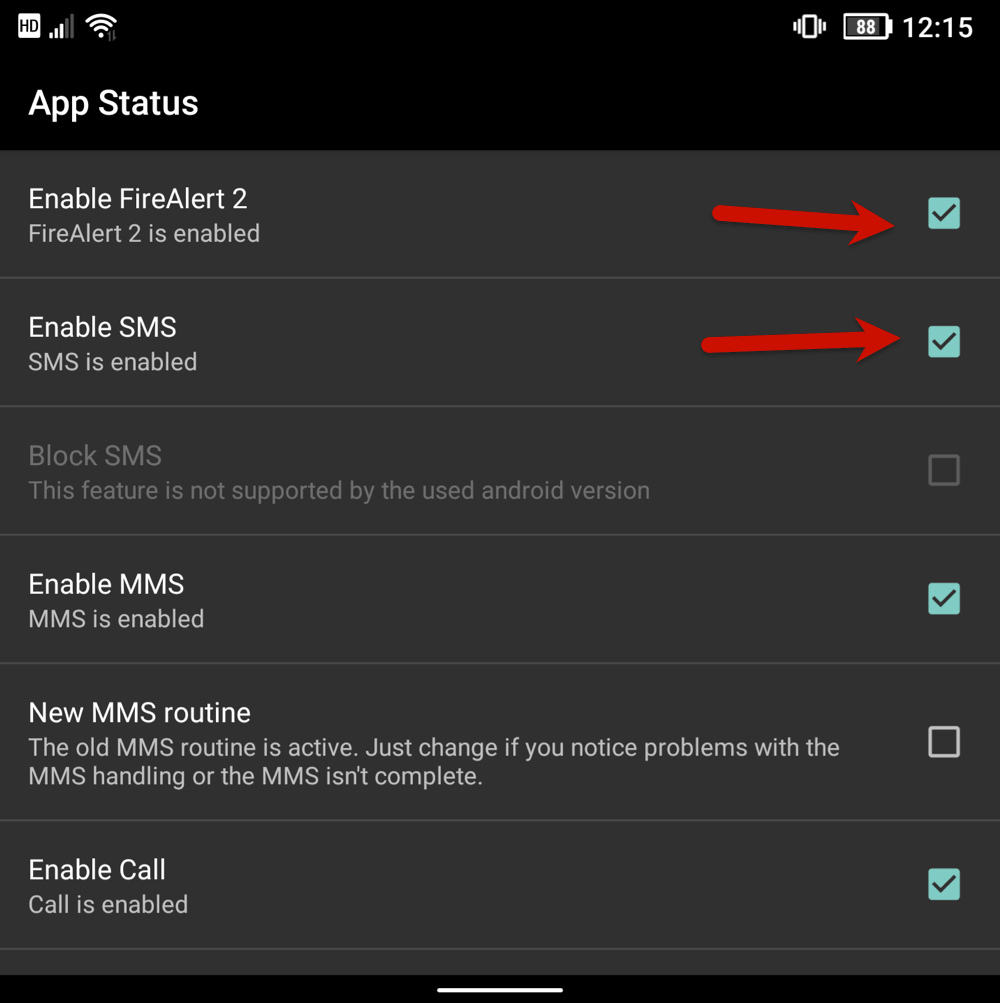
Now go back to the main menu and choose General Settings, then App Status.
You need to make sure Enable FireAlert 2 and Enable SMS are both checked.
Optional, but recommended: Make sure this all works
You’re setting this up so you get critical alerts that wake you up with loud alarms.
So you should probably test it out.
Send an email with a faux alert to your text.email email to SMS address. Watch as it comes through on your phone as a text, then watch (and listen) as FireAlert 2 blasts the message to you.
Are there other ways to set up alarms that must be acknowledged on Android?
So, yes and no.
While there are other ways to set up alarms that must be ACK’d on Android, I still haven’t found anything that works as well as this stack of SMS-to-FireAlert.
A large part of that is that Android now has changed so apps can’t intercept SMS messages or override silent mode.
That’s why we’re using a deprecated Android app — because it’s from a time when apps still had permission to do everything we want and need an app to do.
Here, however, are a handful of less perfect alternatives if you want to try another path.
- Priority Alerts (F-Droid). Also deprecated. It has slightly fewer options than FireAlert 2, but can also do the SMS-to-loud alert thing.
- SMS Popup. Also deprecated. Designed more for frequent vibration alerts (like news alerts) than emergencies. Requires all texts to come from the same number, which sets this up for failure if things change behind the scenes.
- Tasker or MacroDroid. These are both automation apps. I haven’t had any luck getting them to play loud alarms, but if you’re already using one you can try it — maybe the system will be loud enough for your needs. Also, maybe your wife does not sleep with a white noise machine that’s roughly as loud as a jet engine, so you don’t need alerts that are quite so loud.
How to Set Up the Email-to-Alarm System on iOS
iOS is much more locked down than Android (shocker!) when it comes to apps reading messages and overriding silent/DND modes and volume.
It’s also more locked down when it comes to sideloading apps. Not that there are even any apps to sideload, but if there were, that’s more of a Whole Thing than it is on Android.
So for iOS, we’re going to have to use the phone’s built-in emergency bypass system.
Set up email-to-SMS
Much like on Android, we’ll use text.email for our email to SMS conversion.
If you didn’t do this during the Android portion — and, really, why would you — head over to text.email and sign up for an account. You’ll get a special email-to-SMS address (your-number@your-subdomain.text.email).
Any message you email to that address will come through to your phone as a text.
You can also set up a distribution list if you want to send an email that goes out as an SMS to several people.
Either way, you need to actually test it out right now and send that email-to-text. Because we need you to write down the phone number from which text.email sends your SMS message.
Add that phone number as a contact
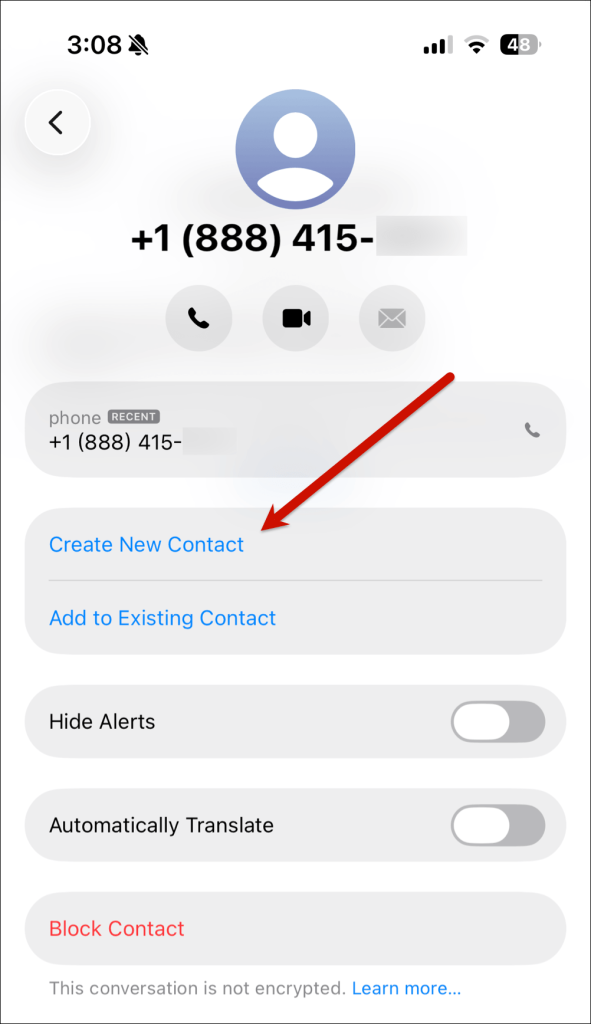
When the text message comes through, tap on the phone number.
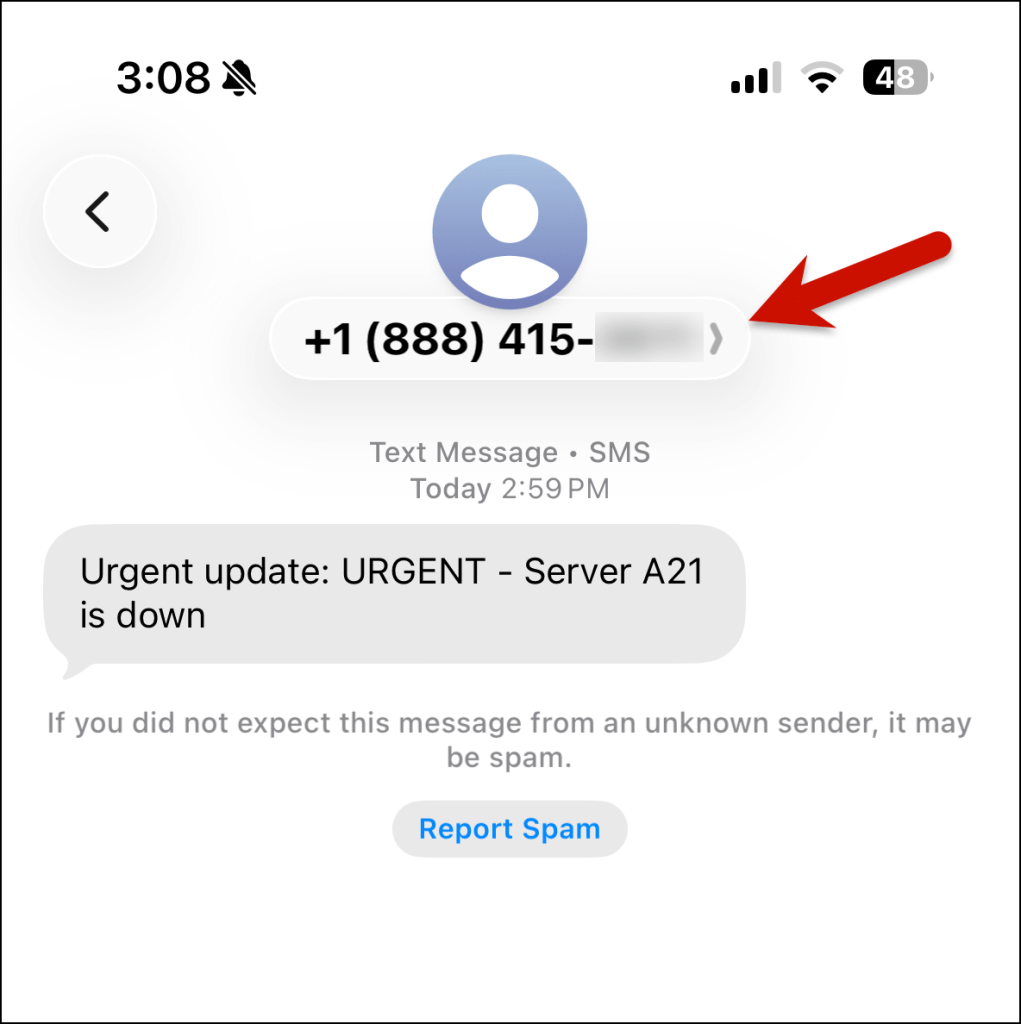
Tap Create New Contact.
In that contact screen, scroll down to Text Tone.
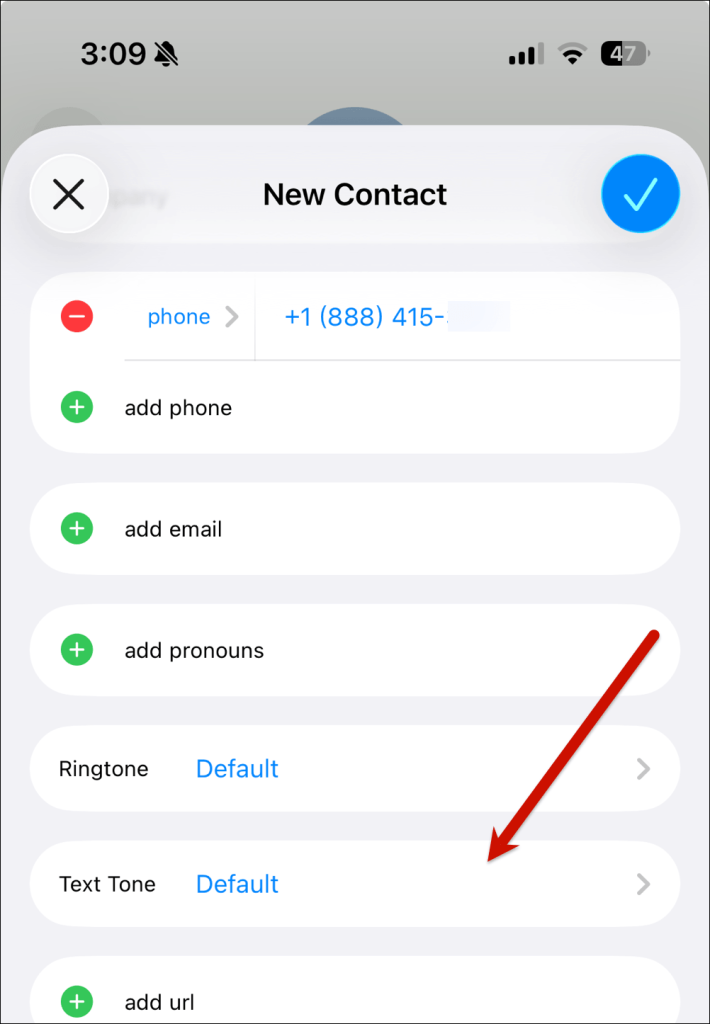
Choose a text tone that will wake you up. I like Classic -> Electronic for this.
Then toggle the switch to turn on Emergency Bypass.
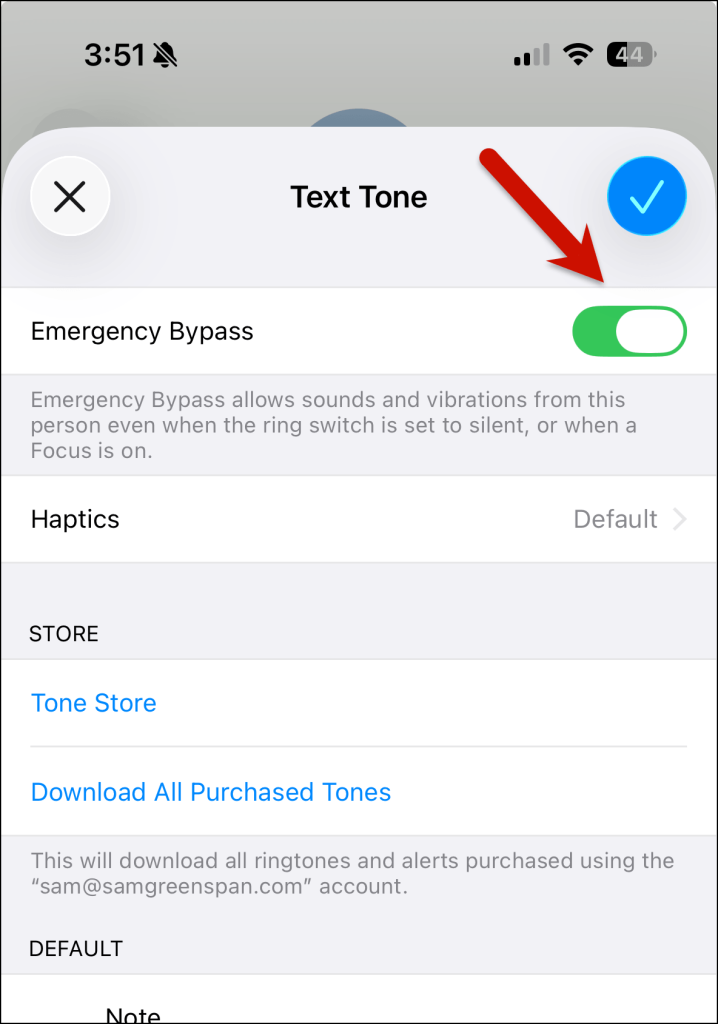
Now, whenever you receive a text from the text.email phone number, it will bypass your silent/focus mode settings and give you an audible alert.
Why, yeah, Android is a better option than iOS for this system
There are four aspects of this system that are flawed compared to the Android version:
- You can’t specify a keyword, meaning all texts from the text.email sending number will trigger that alert.
- This isn’t truly an “alarm that must be acknowledged,” because it won’t keep going off until you stop it.
- If the sending number ever changes, you’ll need to update the contact to keep getting the alerts.
- You can’t change the volume to make it louder, meaning that if your phone’s volume is low, this alert won’t be that loud.
But… if you need to make this work in iOS, this is your best (and likely only) option.
Ready to Set Up Your Email to Alarms Pipeline (in 10 Minutes or Less)?
Yes, you can set up a system where a person or system sends an email about an urgent and critical problem… that email turns into a text… and that text triggers a loud alarm on your phone.
And with text.email and your Android phone, you can get those super loud alerts. With text.email and your iOS phone, you can get alerts (even if they might not be quite as loud).
Either way, you can get the email to SMS to alert system set up on your phone in 10 minutes or less.
Sign up at text.email, follow the instructions above, and you’ll be all set to go.
So the next time something at work is metaphorically on fire, you can get an alert that will wake you up as if something were literally on fire.
Send an email to
your-number@text.email
and receive it as a text in seconds. No signup required.