
Stop Duplicate Text Messages from Repeated Emails
Your system sends an email alert. text.email turns it into a text message. Then the same email arrives again — and you (or whoever’s receiving it) get the same alert again.
Accidental or unnecessary duplicate emails can be difficult to track down, especially when they come from software you don’t control. Meanwhile, repeated texts keep interrupting you, using up your messages, and making you start to grow blind to critical alerts.
So we built the easiest and quickest universal fix for this issue.
Duplicate Prevention tells text.email to skip identical texts sent to the same phone number within a time window you choose.
Here’s how to get it going.
Duplicate Prevention: Table of Contents
- How to Prevent Duplicate Texts in text.email
- What Counts As a Duplicate Text?
- Time to Get Started with Duplicate Prevention in text.email
How to Prevent Duplicate Texts in text.email
Setting up Duplicate Prevention is just a matter of tweaking a single text.email setting.
Step 1: Open Duplicate Prevention in your settings
Sign in to text.email, open Settings, and select Duplicate Prevention. You’ll find a field labeled Duplicate window (minutes).
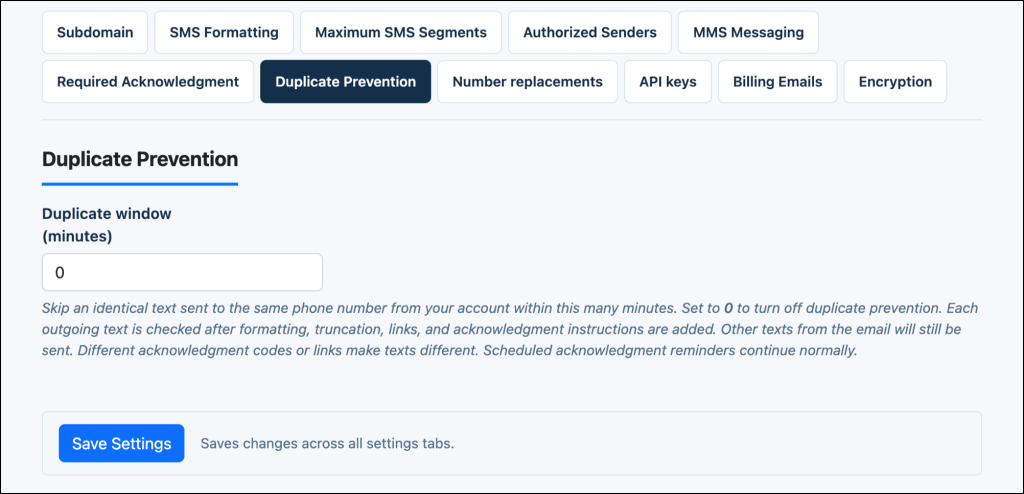
The default is 0, which means Duplicate Prevention is off.
Step 2: Choose how many minutes to check for duplicates
Enter a positive whole number of minutes.
For example, entering 5 tells text.email to skip a text if the same text was already submitted to the same number from your account within the previous five minutes.
You’ll want to choose a window that’s long enough to catch your system’s accidental repeats, but short enough to allow legitimate recurring alerts.
Step 3: Save your Duplicate Prevention setting
Click Save Settings.
You can always come back to change the time window whenever you need to. To turn Duplicate Prevention off, come back to these settings, set the minutes back to 0, and save again.
Step 4: Send the same test alert twice
Send a short email to your email-to-SMS address. Then send an identical copy within your time window.
Keep the sender, subject, and body the same, and use plain text without attachments. (For this basic test, use a message that doesn’t trigger required acknowledgment, as that also adds content to texts.)
The first text will go out normally. The identical repeat will be skipped. Your send log will record the skipped text as “not sent,” with the explanation that it’s a duplicate.
What Counts As a Duplicate Text?
A text is a duplicate when four things are true:
- The text content is identical
- The destination phone number is identical
- It’s sent from the same text.email account
- It’s sent within your Duplicate Prevention time window
That means the same text sent to a different number is allowed, and the same text sent from separate text.email accounts are checked independently and allowed.
When are those comparisons made?
The comparison happens after text.email processes the email and assembles the outgoing message.
That means the comparison includes your formatting settings, truncation, splitting a long message into multiple texts, attachments, important links, and any required acknowledgment instructions. (See more detail on many of these later.)
As a result, two different emails can produce the same text. An email might contain different content beyond your truncation limit, for example, while the portion sent to the phone remains identical.
Matching is exact, not a judgment about whether two alerts mean the same thing. Changes to capitalization, punctuation, or spacing within the final text make it a different message.
What about duplicates arriving at the same time?
One incident that helped motivate this feature involved a recipient getting the same pair of texts four times in roughly four minutes. Some were only a few seconds apart.
Simply checking completed send logs isn’t enough to prevent duplicates. Two emails could both reach the sending stage before either has finished writing its log, and both could appear to be new.
To close that gap, text.email coordinates sending for the same account and phone number through the database. It records a pending attempt in the SMS log before contacting the messaging provider.
Another delivery for that account and number waits while the first is being processed, then checks the updated history.
The check runs at the sending stage, so an email already waiting in the SMTP queue still gets checked before its texts go out.
In our concurrency test, we recreated that “four times in four minutes” issue. The four overlapping copies of the two-text message produced two provider submissions and six skipped duplicates.
If every text from an email is skipped as a duplicate while text.email is processing it in real time, the email gets rejected the same way any failed send would, and the SMTP error explains that it was a duplicate. If the email was queued for processing instead, its duplicates are skipped later, when it reaches the sending stage.
When an email becomes several texts, only the duplicates are skipped
Duplicate Prevention checks each outgoing text separately. Suppose an email is longer than the single SMS character limit, so it’s automatically divided into two texts.
For example, this email alert…
ALARM: Walk-in Cooler 2 high temperature. Current temp 46.2F, setpoint 38F, high limit 41F. Alarm active since 2:14 AM. Compressor running, door closed. Defrost off. Please investigate. Last reading 46.8F at 2:19 AM. Next update in 2 minutes.
…would be divided into two texts:
ALARM: Walk-in Cooler 2 high temperature. Current temp 46.2F, setpoint 38F, high limit 41F. Alarm active since 2:14 AM. Compressor running, door closed.
and
Defrost off. Please investigate. Last reading 46.8F at 2:19 AM. Next update in 2 minutes.
Two minutes later, a second email arrives.
ALARM: Walk-in Cooler 2 high temperature. Current temp 46.2F, setpoint 38F, high limit 41F. Alarm active since 2:14 AM. Compressor running, door closed. Defrost off. Please investigate. Last reading 47.5F at 2:21 AM. Next update in 2 minutes.
So now that would get divided into two texts:
ALARM: Walk-in Cooler 2 high temperature. Current temp 46.2F, setpoint 38F, high limit 41F. Alarm active since 2:14 AM. Compressor running, door closed.
and
Defrost off. Please investigate. Last reading 47.5F at 2:21 AM. Next update in 2 minutes.
Notice how the first text is identical from both emails. But the second texts are different.
In this case, text.email Duplicate Prevention skips the identical first text but sends the different second text.
The same principle applies to recipients: a duplicate for one phone number doesn’t stop an eligible text from going to another. A separate text containing an important link is also checked individually.
Skipped duplicates aren’t counted as sent messages. They’re discarded, not held for delivery after the window expires.
Repeated acknowledgment reminders are exempt from Duplicate Prevention
Required acknowledgment is a situation where you want duplicated texts: You’ve set up required ACK so that recipients intentionally get the text over and over until they reply.
So if you have Duplicate Prevention turned on, required acknowledgment takes precedence and will continue sending until the recipient replies with the ACK code.
New acknowledgment codes and URLs can make a text different
With both required acknowledgment and email attachments, text.email adds content to your text. With required ACK, we add a line of text; with attachments, we add a URL that links to the page where the recipient can view the attachments.
So even if you send — or your system sends — a duplicated email, the content that you’ve asked text.email to insert will vary.
A text containing Reply ACK 12345 to acknowledge. differs from one containing Reply ACK 67890 to acknowledge.
A newly generated attachment URL can also make otherwise identical content different. Those texts won’t match exactly, so they will not be suppressed if you have Duplicate Prevention turned on.
MMS and iMessage are checked using their outgoing text
Duplicate Prevention also checks the text when you’re sending MMS texts and iMessages. For MMS, the comparison uses the text, not its media like included images.
That means different images with identical text will be treated as duplicates within the window.
Preventing a second submission isn’t a delivery receipt
Duplicate Prevention stops repeated submissions from incoming emails.
Provider acceptance doesn’t prove that a phone received the text, and this setting can’t prevent duplication that happens farther downstream after a single submission.
How the duplicate window handles repeats and retries
Skipping a duplicate doesn’t restart the clock.
For example: With a five-minute window, a text submitted at 10:00 can have identical copies skipped at 10:02 and 10:04. Those skips don’t restart the clock with a new five-minute window, so a new copy arriving at 10:06 goes out.
If the messaging provider explicitly reports a failed submission, that failed attempt doesn’t block a later retry.
So if one text succeeds and another fails… when your system resends the email, text.email skips the text that succeeded and tries the failed one again.
Occasionally, a connection fails without a clear answer from the provider. The text might already have been accepted. In that case, text.email conservatively treats the pending attempt as a possible duplicate until the window expires. This avoids immediately sending a second copy, but it can also suppress a retry of a text whose delivery remains uncertain.
Time to Get Started with Duplicate Prevention in text.email
You shouldn’t have to solve every quirk in an upstream email system just to stop repeated alerts from reaching your phone.
Duplicate Prevention gives you a checkpoint at the moment when an email becomes a text and prevents your phone from getting flooded with the same alert over and over.
Open Settings > Duplicate Prevention, choose a window that fits your alerts, and save.
Duplicate Prevention is just one of the many — many — ways that text.email makes alerting as useful, easy, and smart as possible.
If you aren’t a text.email subscriber yet, you can try text.email without even signing up for an account. Just send an email to your-number@text.email and watch it come through moments later on your phone.
Send an email to
your-number@text.email
and receive it as a text in seconds. No signup required.