
Email to MMS: Send Images and Audio in text.email
Text messages aren’t always, well, just text. I don’t think my mother-in-law has texted me anything but GIFs in about four years.
Before, text.email would automatically convert images, audio files, and other email attachments into links. Click the link in the text and you can get the file on your phone.
But now, text.email can convert your email-to-text messages into MMS. That means an image or audio file can go directly into the text conversation rather than coming as a link.
That should save you time looking at automated (or urgent) reports, listening to voicemails, and so much more. (I have no idea how you’re using attachments, I just know a lot of you are getting emails with attachments.)
Here’s how to set it up, some of the (many) nuances with email to MMS, and everything else you need to know.
Email to MMS: Table of Contents
- The 5 Things You Need to Know About Email to MMS in text.email
- Setting Up MMS Messaging in text.email
- What text.email Can Put in an MMS
- Getting Started with Email to MMS in text.email
The 5 Things You Need to Know About Email to MMS in text.email
- There’s a setting in your account on how to handle MMS messaging: Always, never, or automatically when there’s a supported attachment.
- MMS messages cost an additional 10 cents per message on top of your base subscription price.
- text.email’s MMS messages can handle JPG, PNG, and GIF images as well as WAV audio.
- Any other types of attachments (PDFs, MP3s, et. al.) will still come through as linked files.
- MMS is totally optional and it won’t affect your account if you turn it off.
Setting Up MMS Messaging in text.email
The setup process for email to MMS is pretty simple: It’s just a single list.
Head to your text.email settings page. Scroll to the MMS Messaging section. You’ll see a list there with three choices.
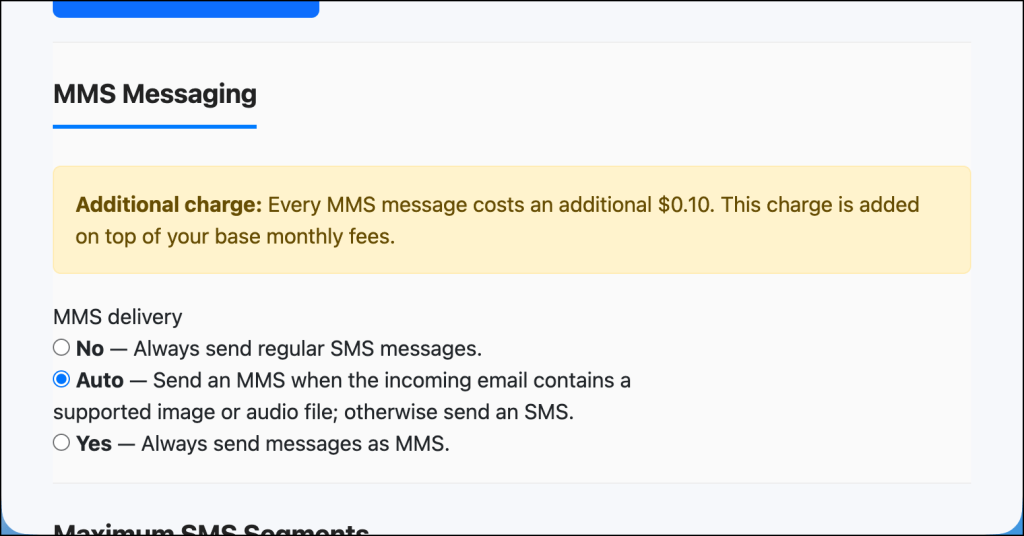
- No. Everything goes out as a regular SMS. This is the default. Attachments will come through as normal links (like they do now).
- Auto. You get an MMS when there’s a valid image or audio file in the email, and a regular SMS when there isn’t.
- Yes. Every message goes out as an MMS whether there’s media in it or not, text-only messages included. (Only choose this if, for whatever reason, you want every message as an MMS, whether it contains an image or not.)
If you’re at all interested in getting images and audio inside your text conversation (rather than at the external link), I recommend choosing Auto.
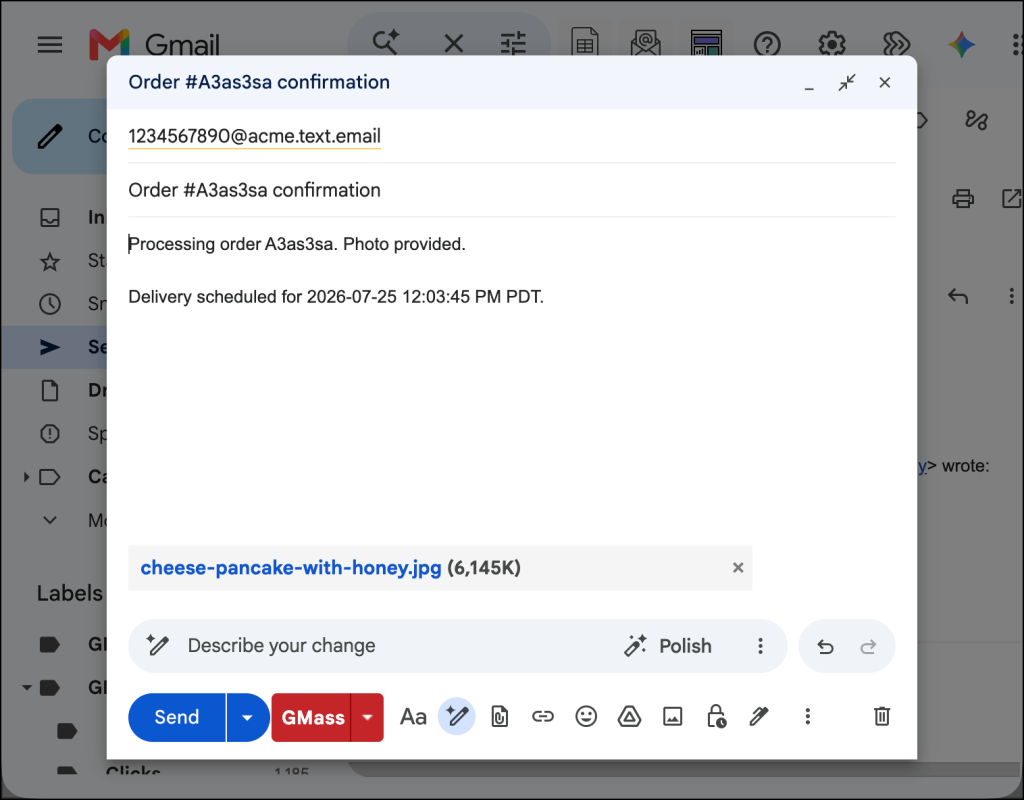
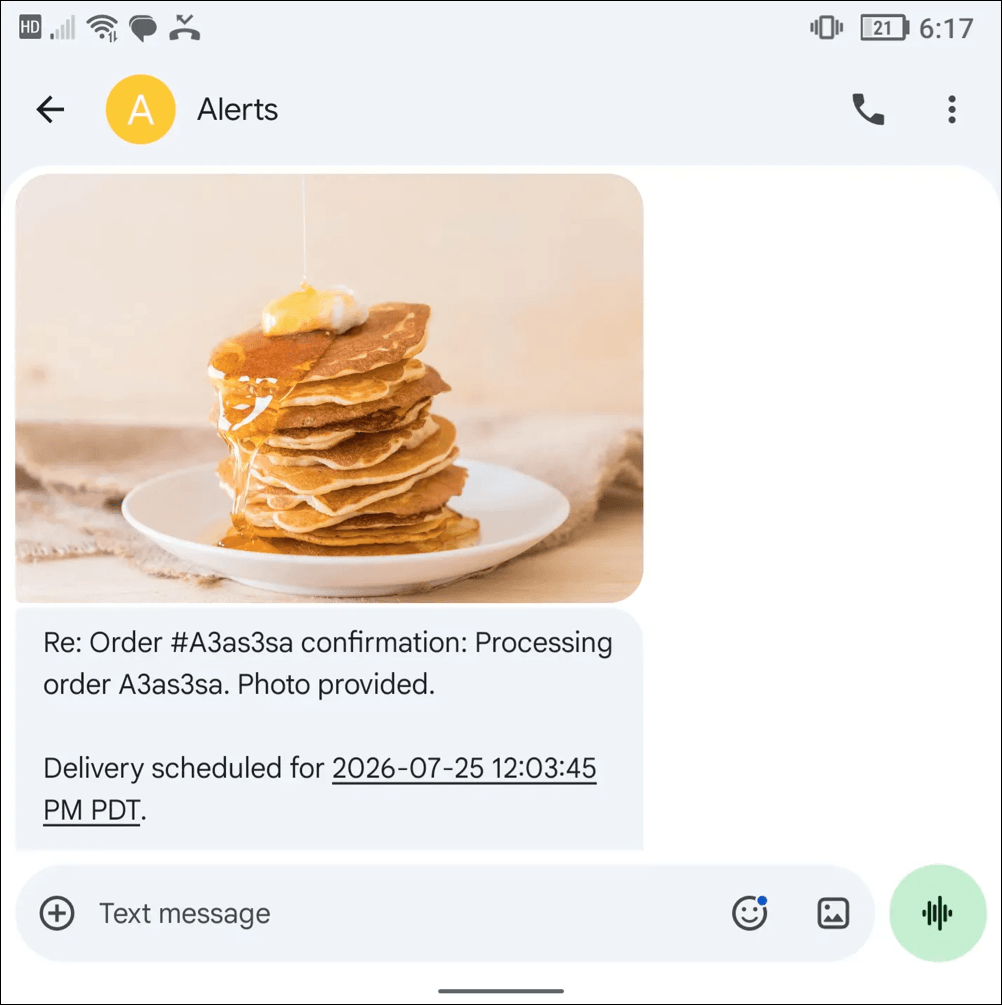
So here’s an example of a food order that comes through as an MMS, with a picture.
This email…
Led to this text…
MMS pricing (10 cents per message)
Every MMS message sent through text.email costs an additional 10 cents per message, added on top of your base subscription price.
(This is because it actually does cost more to send MMS than SMS. It’s not arbitrary.)
What text.email Can Put in an MMS
Our first version of MMS messaging supports four file types:
- JPG images
- PNG images
- GIF images
- WAV audio
Other media files, like PDF, MP3, MOV, and OGG VORBIS (anyone else remember those?), will just come through as linked files.
And for all of them, we need to keep files under 225 KB to make sure we don’t go over the allowed message size.
Attached vs. embedded: Outsized importance to this whole process
Before I jump in, there’s one concept I need to cover because it’s surprisingly relevant.
There are two ways that an email can contain a media file:
- As an attachment
- Embedded inline
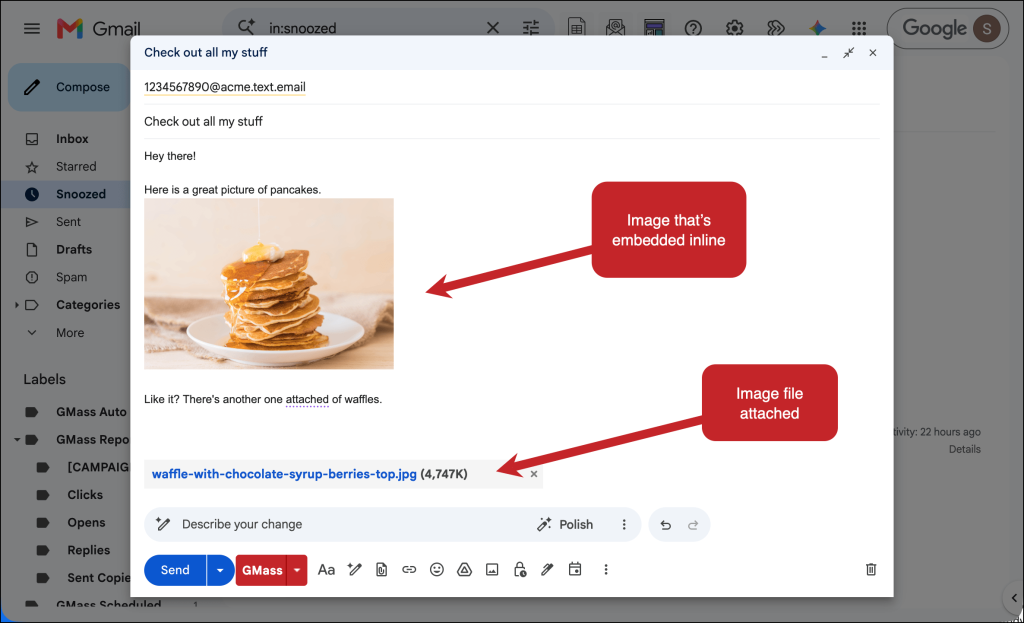
With MMS messages, it’s strongly preferable to use attachments rather than inline embedding.
An attachment is a much stronger signal that you really meant to send that file. (Versus inline images, which can be things like an email signature or tracking pixels.) Attachments also get around a technical issue (not worth covering in depth here, but it’s about how Gmail, Outlook, Apple Mail, and automated systems build inline MIME parts).
And just to be sure, we’ll automatically NOT turn an inline image into an MMS message if:
- It’s smaller than 10 KB.
- Its width or height is less than 200 pixels.
- Its filename contains terms such as
spacer,tracking,pixel,signature,logo, oricon. - It has an extremely wide or tall aspect ratio of more than 8-to-1.
So yeah, if possible, have your systems attach images rather than embedding them.
Images: JPEG, PNG, and GIF
We actually do a little prep work on images before they go out as needed.
When an email has an image attached (or embedded inline), we may need to resize it so it’s not more than 1,280 pixels wide or tall. Basically, we’re reducing the file size while still making sure it looks right on your phone screen.
Also…
- We may need to convert it to a JPG to compress it down to the 225 KB target size.
- PNG transparency will wind up on a white background during that conversion.
- GIFs that are under 225 KB won’t be converted to JPGs (so those animations will still work). But GIFs that are larger than that may come through as static JPGs.
This is our best compromise for dealing with MMS file size limits.
Audio: WAV Files
WAV files are the only audio type currently supported in text.email’s email-to-MMS. And they’re under the same 225 KB restrictions as the images.
That means:
- If the attached WAV is under 225 KB, it will work with an MMS and come through inline.
- If the attached WAV is over 225 KB, you’ll get an SMS message with a link to the audio.
Text: 1,000 Characters in a Single Message
Hey, there’s another hidden benefit of MMS messages: They aren’t beholden to SMS messages’ 154-character limit.
MMS messages can include up to 1,000 characters in a single text rather than splitting the message up into multiple segments.
Note: If you have Maximum SMS Segments set in your text.email account, it won’t affect your MMS length.
And yes, you can still use text.email’s SMS formatting variables in MMS messages — including the {aisummary} option.
What if an email has multiple image and/or audio files?
MMS messages in text.email can have one text part and one attachment.
So if there’s an email that goes to your text.email address with more than one image or audio file, we have to figure out which one to attach.
To do that, we use a scoring system:
- We scan for all the media files.
- We remove the ones that are empty, unreadable, unsupported, or duplicates.
- We skip the ones that look like basic parts of an email (like signatures, logos, icons, and tracking images).
- Then we give the rest of the candidates a significance score.
- Attached images get the strongest base score
- Then attached WAV files
- Followed by inline WAV files
- And followed by inline images
- If there are still multiple media files that are eligible after all that (for instance, two attached images), they’re scored on things like original file size and image resolution. WAVs are also scored by file size.
All of this is our way of figuring out which media file is the most important one — and, therefore, is the one we should include with the MMS.
(The files that didn’t get crowned as the most important will still come through as normal links.)
What if you’ve checked the Ignore Attachments option?
text.email’s attachments settings have an Ignore attachments option. If it’s checked, text.email will not include a link to attached files in your SMS messages.
That doesn’t affect MMS messages though (at least not wholly). If you have MMS messaging set to auto or yes, text.email will send you MMS messages — even if Ignore attachments is on.
But… if an email has multiple attachments, you have MMS turned on, and Ignore Attachments checked, only one file will come through in the MMS and the others will not come through as links.
(One more caveat on this, though it’s getting complicated: If you have Ignore Attachments checked but you use the SMS formatting variable {attachment} or {attachments}, then the extra attachments will come through as links. It will all make sense in practice.)
Getting Started with Email to MMS in text.email
Email to MMS in text.email is pretty simple: Set your MMS messaging settings to Auto or Yes, and you’ll start getting images and WAV files as MMS messages.
There’s nuance (which I’ve covered above) in how we process files, what we do with multiple files, and how we handle attachments versus embedded media — but that’s all secondary to the process. Getting it started is really just choosing an option from a list.
If you’re already a text.email subscriber, MMS messaging is available in your account. (Reminder, though, MMS messages cost an extra 10 cents on top of your subscription.)
And if you’re not a text.email subscriber yet, you can try it out for free. Send an email to your-number@text.email and watch it come through as a text on your phone. MMS won’t work for that free trial, but as soon as you choose a paid plan you can send email to MMS immediately.
Send an email to
your-number@text.email
and receive it as a text in seconds. No signup required.