
How to Get Text Alerts for Proton Mail Emails
If you get critical emails from Proton Mail and you want to make sure you see them — and they don’t fade into the recesses of your inbox or your pile of email notifications on your phone — here’s a good way: Turn them into text messages.
Here at text.email, we see quite a few Proton Mail users who’re taking advantage of our email-to-SMS service to do just that: Transform important Proton Mail emails into text messages.
You can pull this off by using Proton Mail’s email forwarding.
And here at text.email, we’ve added suppoLirt for recognizing Proton’s automatic forwards and delivering its forwarding confirmation link by text. That means you can complete the setup from the phone that will receive your alerts.
Here is how to put it together, including how to choose which emails deserve a text notification.
Proton Mail Text Alerts: Table of Contents
- Step-By-Step Guide to Setting Up Proton Mail Email-to-Text
- Troubleshooting Proton Mail Text Alerts
- Ready to Get Started with Proton Mail-to-SMS?
Step-By-Step Guide to Setting Up Proton Mail Email-to-Text
Step 0: Getting Your Proton Mail Account Ready
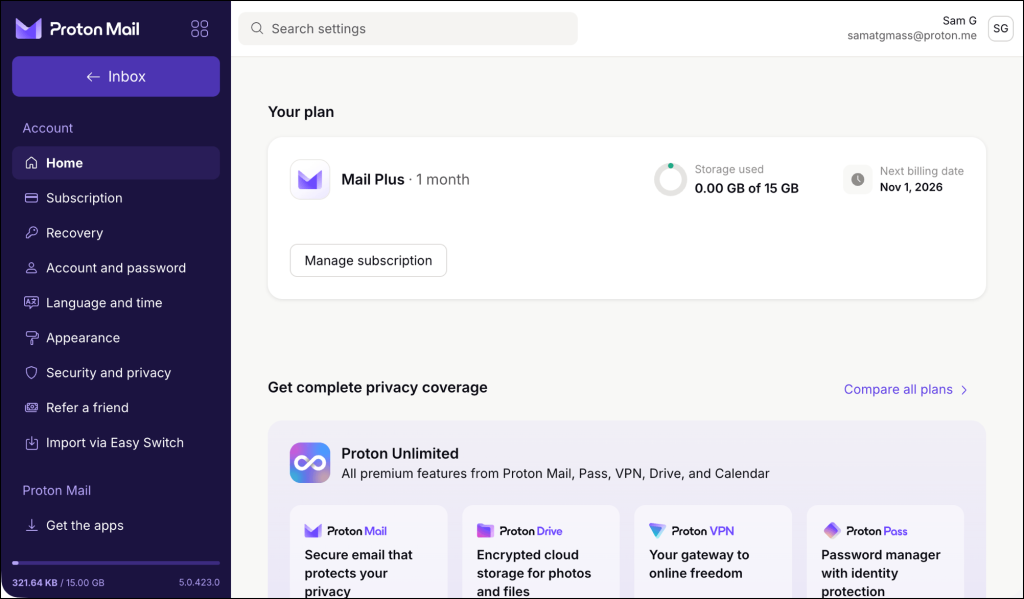
To use automatic forwarding, you’ll need a paid Proton Mail plan, such as Mail Plus or Proton Unlimited. (Proton lists the forwarding requirements in its email forwarding documentation, if you want to read them for whatever reason.)
How forwarding affects Proton encryption
text.email is an external destination. Proton says external forwarding disables end-to-end encryption for emails to and from the forwarding address; other addresses in your Proton account are unaffected.
If you’re really focused on the encryption side of things, consider a dedicated Proton address for these email-to-text messages.
Step 1: Get your text.email address
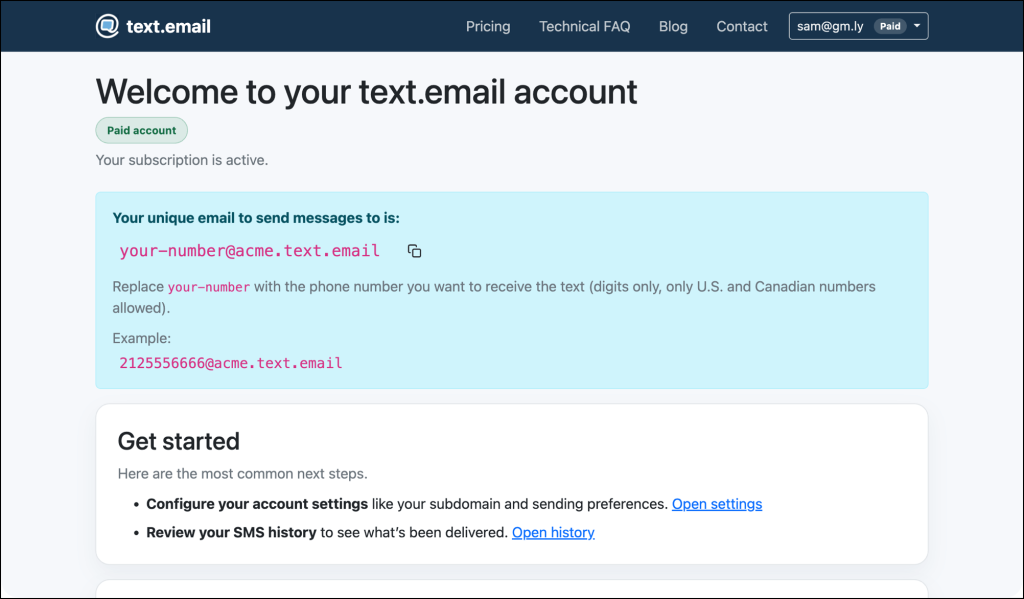
Create your account at text.email. In the settings, you’ll get your email-to-text address; it’s in the form of your-number@your-subdomain.text.email.
That’s all you’ll need for this process; in other words, you won’t need to give Proton an SMS API key or write any code.
Make sure to copy your text.email address to use in the next step.
Step 2: Create a forwarding rule in Proton Mail
Head over to the Proton Mail web app:
- Open Settings → All settings.
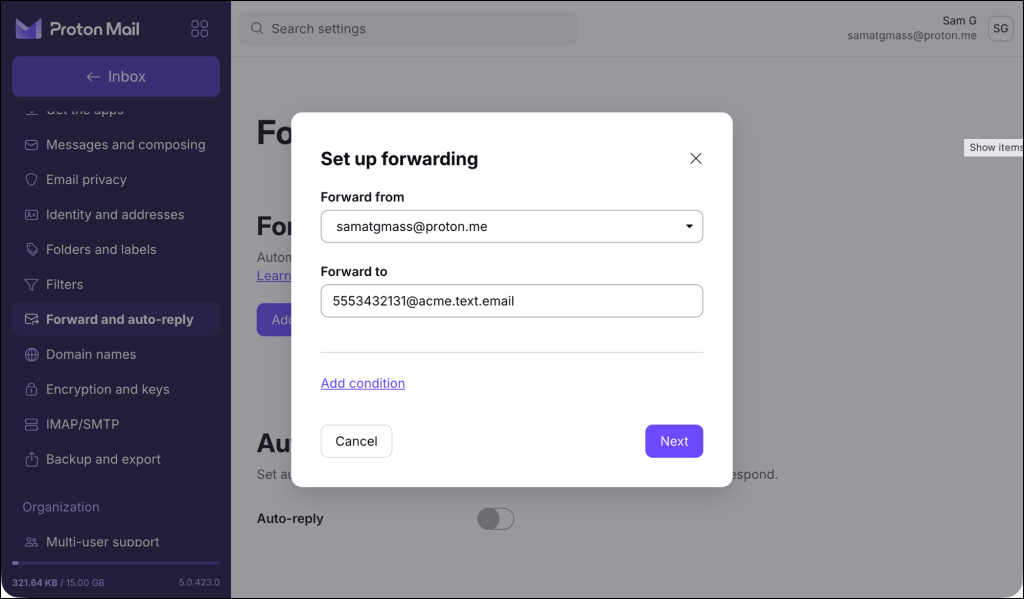
- Choose Forward and auto-reply, then Add forwarding rule.
- Use Forward from to select the Proton address receiving your alerts.
- Put your text.email address in Forward to.
Step 3: Choose which emails become texts
To forward everything arriving at your Proton Mail account, leave the conditions empty and continue by hitting Next.
But we wouldn’t recommend that, unless you’re truly just using this account for a handful of critical emails.
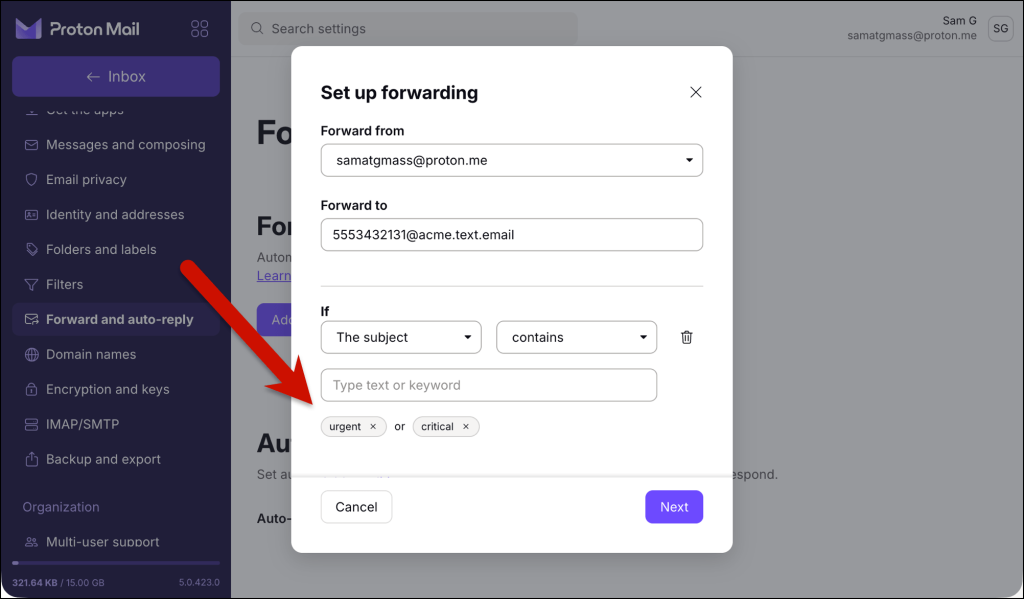
So to be selective about what gets forwarded, click the Add condition link, set your criteria, and save them. (Notice in this example I have any emails where the subject contains “urgent” or “critical.”)
Step 4: Confirm forwarding from your phone
Finish the rule setup with Send confirmation email. (The test isn’t optional. Proton requires the destination to accept forwarding becomes it becomes active.)
In your case, the destination is your text.email address, so the confirmation will come to text.email. We then automatically identify Proton’s acceptance link and sends you a shortened version by SMS. Look for a text labeled “Proton forwarding confirmation link.”
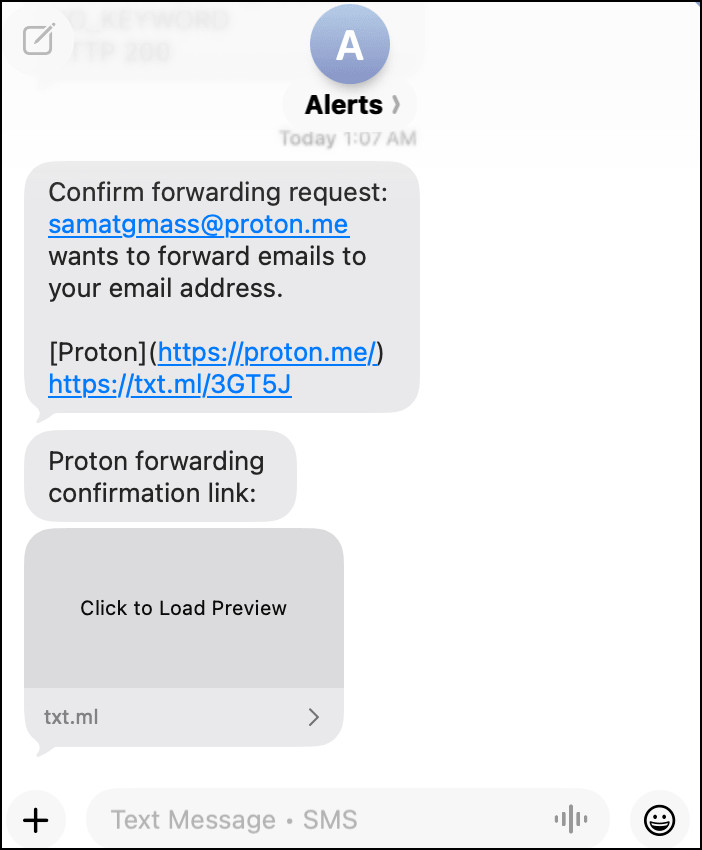
Open that link and complete Proton’s acceptance process. Then return to Proton Mail to check the rule’s status.
This is the part we’ve specifically improved for Proton: its confirmation email can contain both acceptance and rejection links. text.email selects the acceptance link for the confirmation text, so you don’t have to hunt through a long email that has been squeezed into a text.
Step 5 (optional): Customize what appears in the text
Emails may include all sorts of content: A greeting, footer, tracking details, paragraphs of background. The useful part that you want in your text alerts might be one sentence.
You can use text.email’s SMS formatting to control what reaches your phone.
For a short subject-only alert, try: Proton alert: {subject}
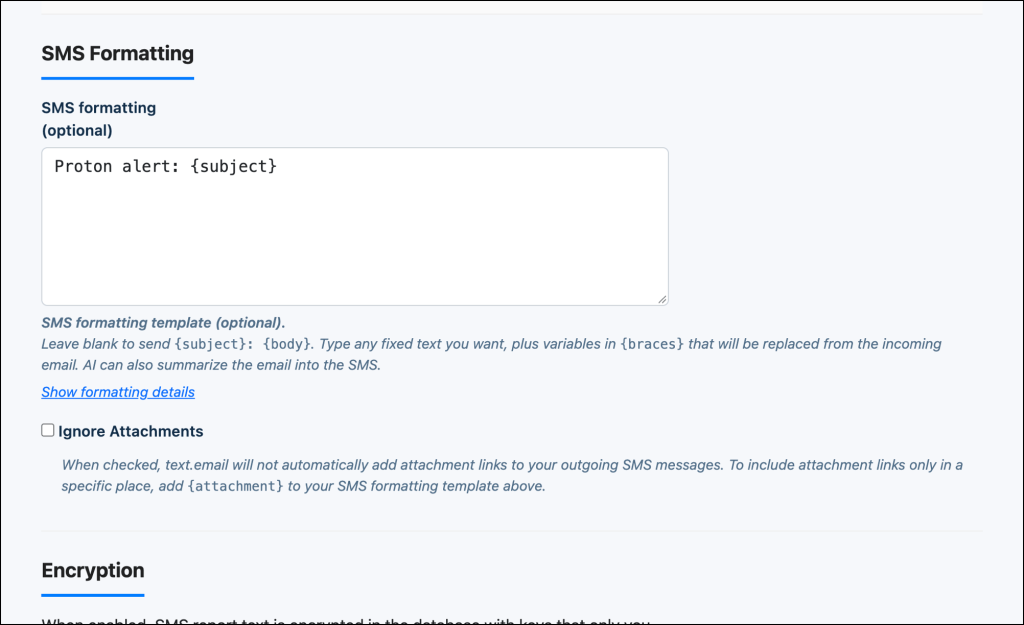
Then the text you get could look like: Proton alert: Backup failed: office server
If the subject needs a little supporting detail, you could use this formatting to include the first 100 characters of the email body: {subject}: {body:100}
For messages that need more space, set Maximum SMS Segments and choose whether to prioritize fewer texts or keeping words together.
Troubleshooting Proton Mail Text Alerts
Here are some issues you might run into and how to take care of them.
The confirmation text didn’t arrive
We’ve set up special handling for Proton Mail’s confirmation message in text.email.
So if you don’t get it, the most common reason is likely going to be a mistake in the text.email address you put into the forwarding box.
Send a short email directly to that text.email address as a separate test. If that also fails, check your text.email account status and sending limits before changing the Proton rule.
The confirmation worked, but my alert didn’t
Start with the message itself: did it reach the Proton address selected in the rule, and does it match every condition you intended? Compare the actual sender and subject with your criteria, then try another new message.
Also avoid a forwarding chain. Proton says messages that were already forwarded to you cannot be forwarded again.
I’m getting too many texts
Texts are only good at getting your attention when they matter every time.
Use conditions in Proton’s forwarding to make sure only the most important messages go through as texts.
Also, if you need to stop alerts temporarily, open the rule’s three-dot menu and choose Pause; choose Delete to remove it.
The text is too long or gets cut off
Shorten the formatting template (that I described earlier), move essential details earlier, or increase the maximum number of SMS segments. Keeping words together can use more texts, and anything beyond the selected maximum is truncated.
Ready to Get Started with Proton Mail-to-SMS?
If you want to make sure you see crucial Proton Mail messages right away, having them come through as text alerts is a fantastic option.
And you can set that up in a matter of a few minutes by using email to SMS from text.email.
Get your text.email address, set up a forwarding rule in Proton, and you’re set.
Once that works, add other alerts as you need them. You can keep reading ordinary email on your schedule while the messages that need attention arrive as texts.
Using another mailbox too? We also have setup guides for Gmail, Outlook, and Yahoo Mail.
Send an email to
your-number@text.email
and receive it as a text in seconds. No signup required.