
Send a Text from a Website to Your Whole Team (No Group Chat Required)
Doesn’t it seem like the ability to text from a website (to one person or to your whole team) should be something that’s available everywhere? And yet you’re here because it’s really not.
Well good news. It’s actually possible. It’s actually really easy.
And I get why you want it (it’s why I’ve hunted for this before too).
Without a website to keep everything organized, you need everyone’s number saved in your phone to send a group text. You need to keep your group there up to date with everyone on the team’s numbers and you have to remember who is and isn’t on duty.
Then, the second the text goes out, the replies start flooding into everyone.
And that gets messy fast when the message is “the alarm system is down” or “I’ve got it, nobody else needs to come in.”
With text.email, you can send a text from a website to your whole team. You can pick one or a few different group lists, type and send your message, and each person gets their own text.
And text.email can also store everyone’s schedules so your message only goes out to people on duty. Plus it can require acknowledgement so you can make sure someone’s handling the issue.
The best part? We’ll have this all set up in like five minutes flat.
So let’s do it.
Text from a Website: Table of Contents
- Why a Text from a Website Beats a Group Text
- How to Send a Group Text From the text.email Website
- So… When Will You Need to Send Texts From the Website?
- Ready to Start Sending Texts From a Website?
Why a Text from a Website Beats a Group Text
I’m on a lot of group texts. Individual texts sent to a group are way better when something is urgent — like a server going down or any other type of emergency.
Here’s why:
- Whoever sends the text has to make sure their group is up to date with everyone’s numbers.
- Whoever sends the text has to remember everyone’s schedules. (Who IS on call right now?)
- On group texts, replies go to everyone. That dulls the urgent effect of text alerts and buries the most important messages.
- A lot of us mute group texts because of the flood of messages. For urgent work emergencies, that’s bad.
- There’s no easy way to find the message log online.
Texting critical messages like “the server is down” from text.email’s website solves all of that.
- You don’t have to remember everyone’s numbers.
- You can just set up different distribution lists with different team members and choose which lists get the message. (And know no duplicates will be sent.)
- You can keep your teams’ on-call schedules in text.email, so only the folks on duty get the message.
- Everyone gets an individual message, so there’s no flooded group text.
- You can require acknowledgement so you know everyone’s seen the message and that the problem is being fixed.
And yes, since text.email is an email-to-text service, you can also drop these distribution lists addresses into your monitoring systems.
(You could also email the list rather than going to the website, but sometimes in a pinch where you need multiple distribution lists, just clicking the button to text everyone from the text.email dashboard is nice and convenient.)
How to Send a Group Text From the text.email Website
We’ll use text.email’s distribution lists to send our text. If you already have an account, jump to step 2. If you already have lists set up, jump to step 3.
Step 1: Sign up for text.email
Head over to text.email and sign up for an account. You’ll need that in order to create your distribution lists and, you know, to send messages.
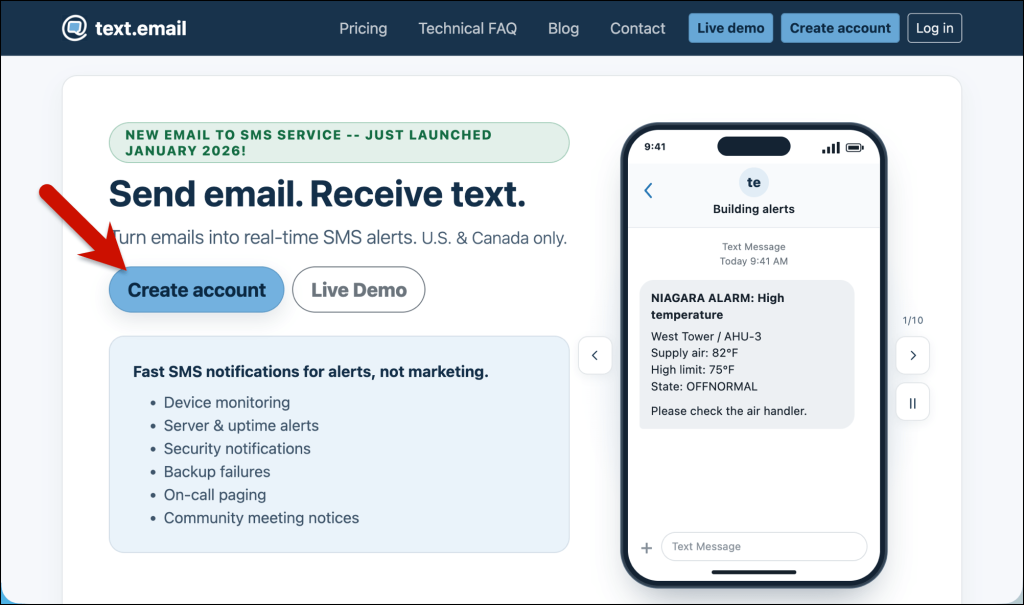
The whole thing should take less than a minute.
Step 2: Create a distribution list
Once you’ve signed up, click on the little arrow in the top right next to your email address and choose Distribution Lists from the menu. Click the Create new button, then give the list a name and an alias.
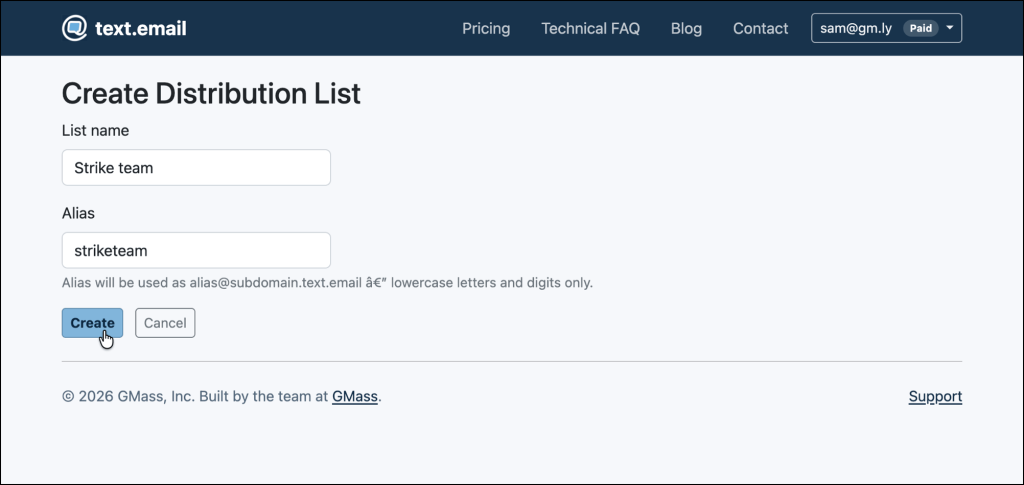
Next, click Manage members. You can add numbers one at a time with Add phone, or paste a whole roster with Bulk paste.
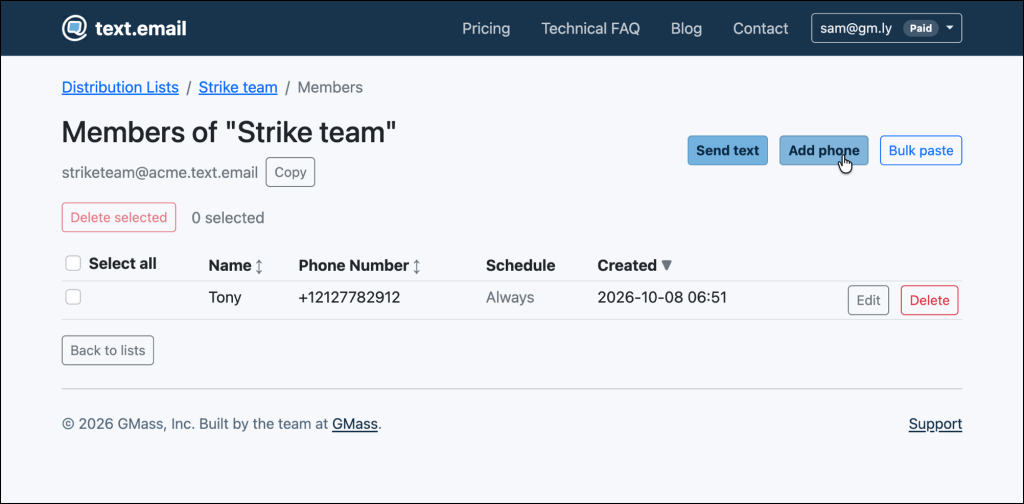
Each list holds up to 200 members.
If you want to add schedules for the members of your list you can do that now as well.
Step 3: Open the Send text form and pick your lists
You can send a text from the main screen with all your distribution lists, or on the management page for a list itself.
Click Send text and it will bring up the texting form.
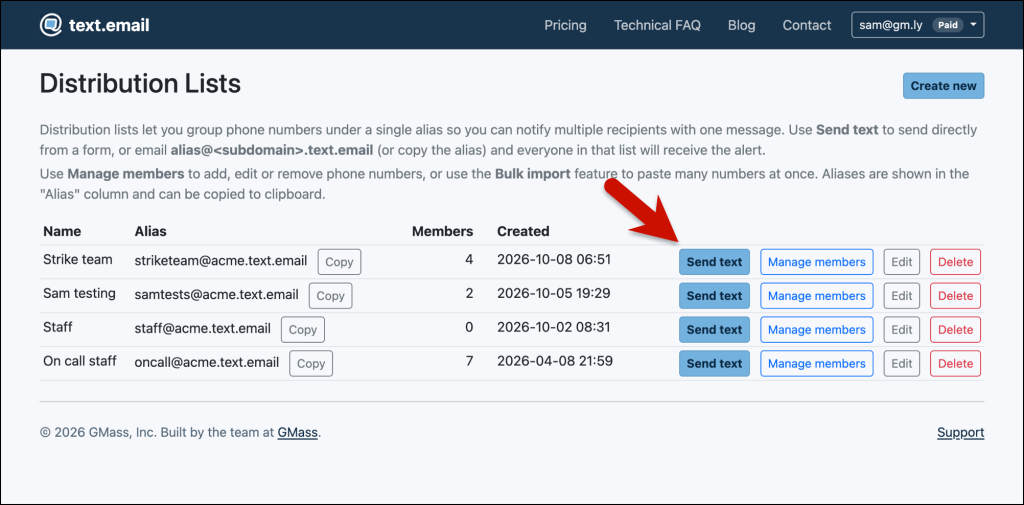
If you want to send to any additional distribution lists, you can add it in the Distribution list addresses field. You’ll see a dropdown with all your available lists, and you can filter by typing in a list name or email address. (If someone’s on multiple lists, they’ll only get the message once.)
Once again, individual schedules still apply here. If you use scheduled SMS routing, anyone outside their scheduled work times gets skipped.
The page shows how many numbers are eligible and how many will be skipped before you send.
Step 4: Write the alert and send it
Type your message in the Text message box. You get up to three texts of 154 characters each, and every text counts as one message per person (so 2 texts to 10 people = 20 total messages sent).
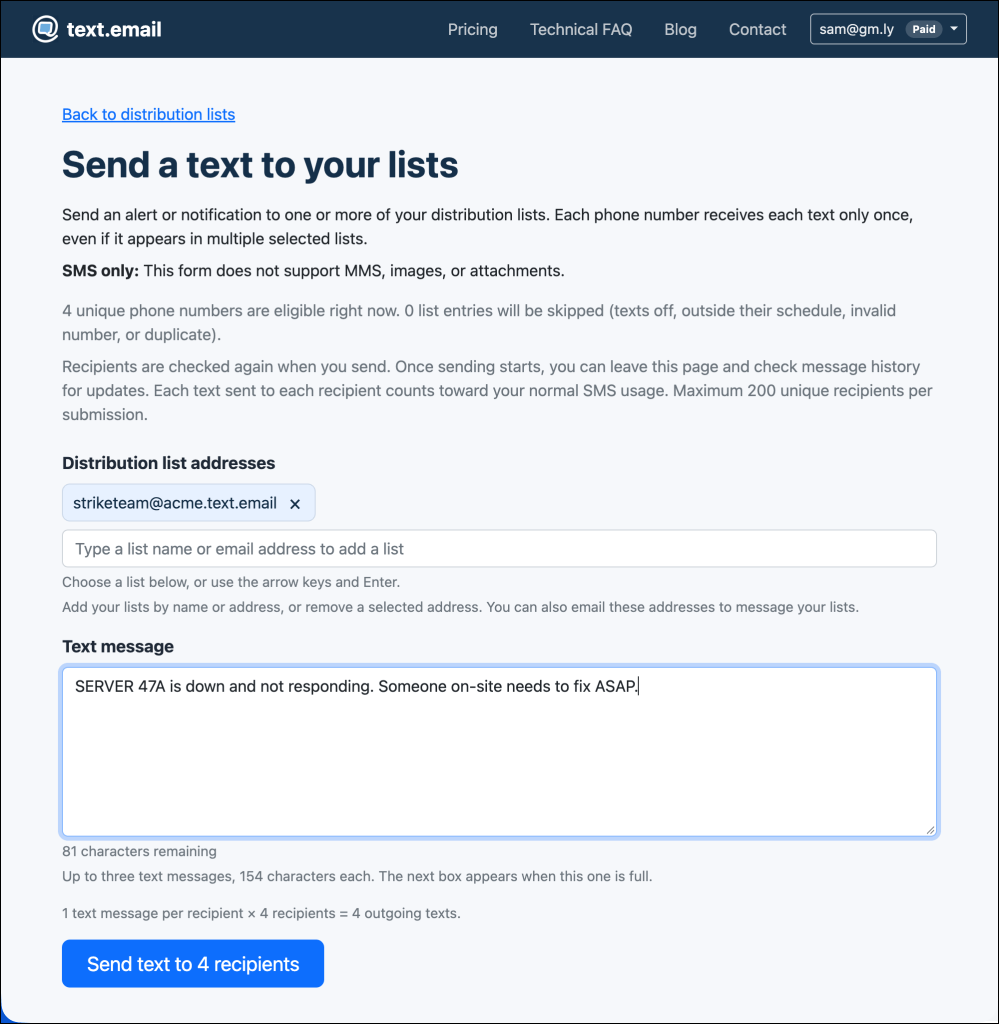
Then click Send text. The confirmation means sending has started, not finished, so check your message history to see how delivery is going.
If you have Required Acknowledgment turned on, it will work for website sends, too. Each person keeps getting the text until they reply with their own ACK code. (One person’s reply doesn’t stop anyone else’s reminders, so you know exactly who’s seen it.)
You can also now see the message history in the History section of text.email (which you can also access from the top right dropdown menu).
So that’s the process. This is a really quick way to send individual texts to everyone on a list or multiple lists without needing a group text or even remembering your list’s text.email address.
So… When Will You Need to Send Texts From the Website?
In this article I’ve gone with the (yes, obvious) “the server is down” example.
But that’s not the only time you’ll need to send texts from your website. Here are some other possibilities.
When the alerting itself is down
If your SCADA alarms or monitoring stack go offline, they can’t send you an alert. Because, naturally, they’re offline.
So as soon as someone sees the outage, they can use the text.email website to send something like: “Alarm system at the north plant is offline, no automated alerts until it’s back.” That also tells everyone to keep an eye on things the old-fashioned way for a while.
After an automated alert, when someone’s on it
An alarm hits the whole on-call list, one tech handles it, and everyone else is left wondering if they need to get into their car and speed on over to fix it.
A follow-up to that same list (“Freezer 3 back in range, I’ve got it”) saves all that panic and lets them go back to sleep.
When something happens that no system emails about
As much as you’ll try to set up preemptive alerting for every critical problem, things can happen that no one prepared for. Say: a utility power outage or a gas smell in the building.
Those used to mean a phone tree. Now they can go to the same list that gets every other alert.
Ready to Start Sending Texts From a Website?
We built text.email so anyone or any system can easily send texts via email-to-text, with no APIs or code or phone carrier regulatory work involved.
And yes, pretty much everyone who uses text.email has their email to SMS address in at least some system that can send them an alert when something big goes wrong.
From there, it grows with your team. A distribution list sends critical alarms to your whole crew, and schedules make sure the right people get texts at the right time.
But when something really breaks the pattern and you need to text a group ASAP, sending a text from the website is a great way to quickly, efficiently make that happen.
You can get started in a matter of minutes at text.email. Sign up for your account, create your lists, and you’ll be ready to send group messages whenever something goes sideways.
Send an email to
your-number@text.email
and receive it as a text in seconds. No signup required.