
text.email Claude Connector: Texting and Account Management Inside Claude (MCP)
Claude and Claude Code can now send you texts and manage your text.email account.
With the text.email connector, you can now use Claude to send SMS texts, MMS messages, and iMessages in any chat, from Claude Code, or on a schedule.
It’s built on our new MCP server (mcp.text.email), which also gives Claude the ability to manage your text.email settings.
In this guide, I’ll cover the quick setup process for the connector in Claude and Claude Code, as well as how to use the connector for texting and managing your account. Plus I’ll throw out a whole mess of ideas here to help you come up with all the ways you can put this to work.
text.email Claude Connector: Table of Contents
- Installing the text.email Connector in Claude
- Texting From Claude Chats, Claude Code, and Scheduled Tasks
- Letting Claude Handle Your text.email Settings
- Time to Get Started with the text.email Claude Connector
- Reference: Every Tool in the text.email Connector
Installing the text.email Connector in Claude
You’ll find text.email in Claude’s connector directory, so this is a matter of a few clicks.
Adding the text.email Claude Connector to your account
On the Claude website or in the desktop app, click on Customize in the left sidebar. Then click on the Connectors tab, and click on the Discover toggle.
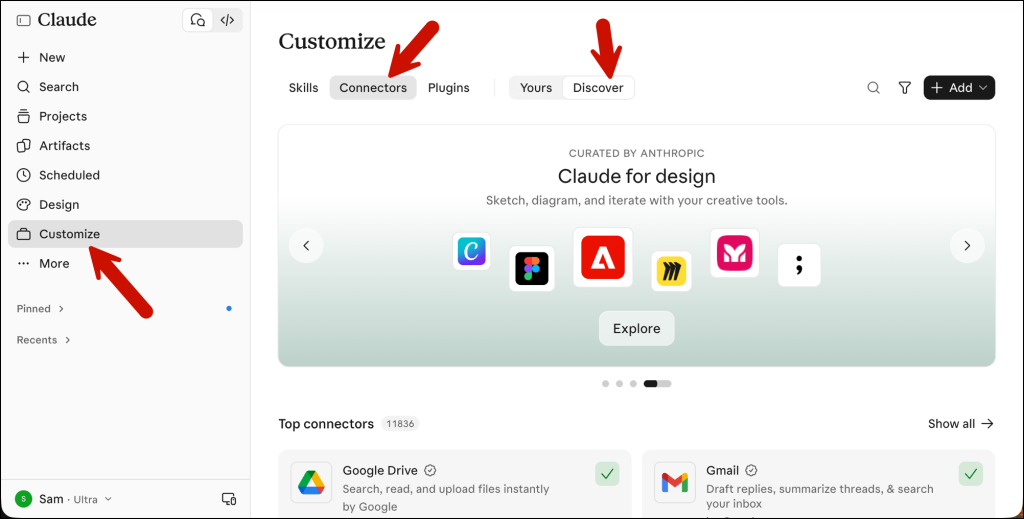
Then click on the magnifying glass icon to search and type in text.email. The connector should be first on the list. Click on the plus sign next to it.
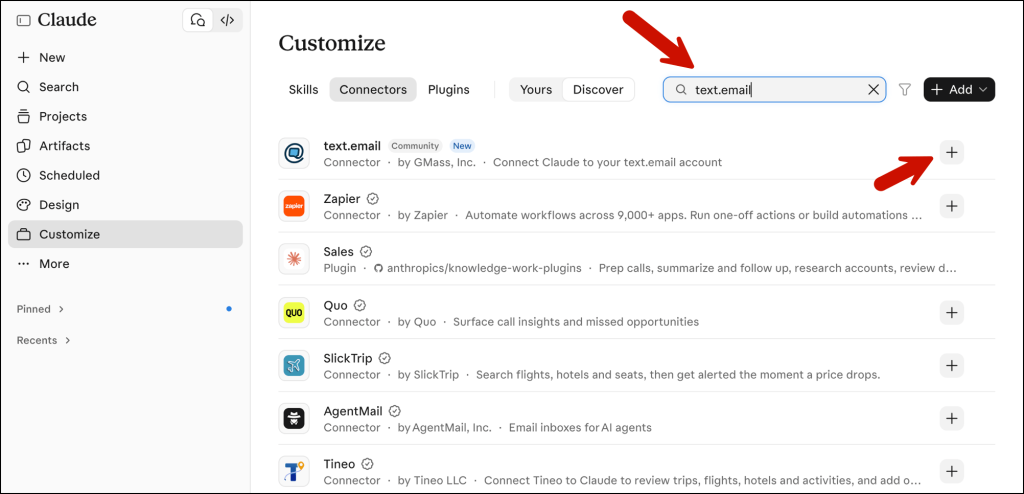
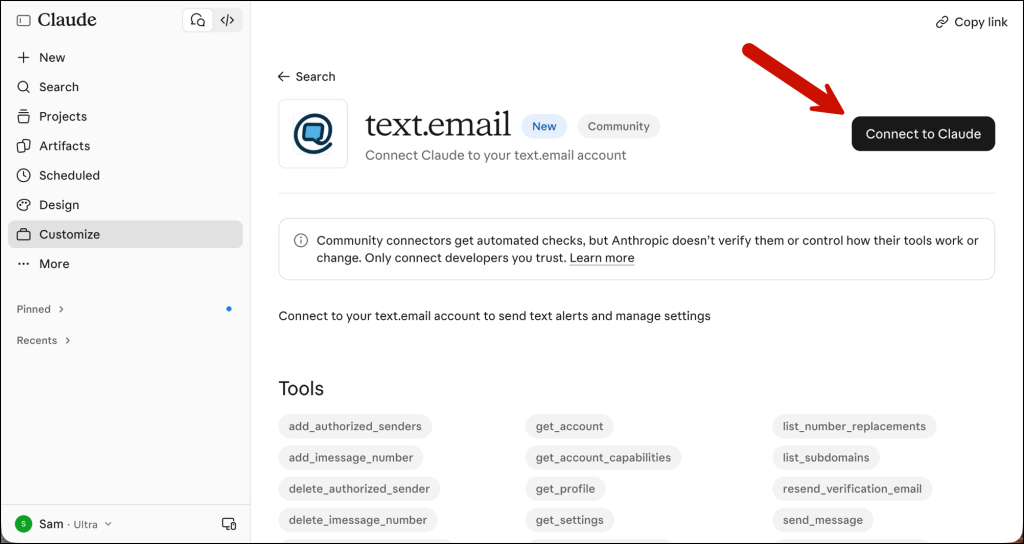
On the next screen, click the Connect to Claude button.
If you’re not logged into text.email in your browser, you’ll go to the login screen. And from there, you’ll see Connect your account to Claude. Click the blue button.
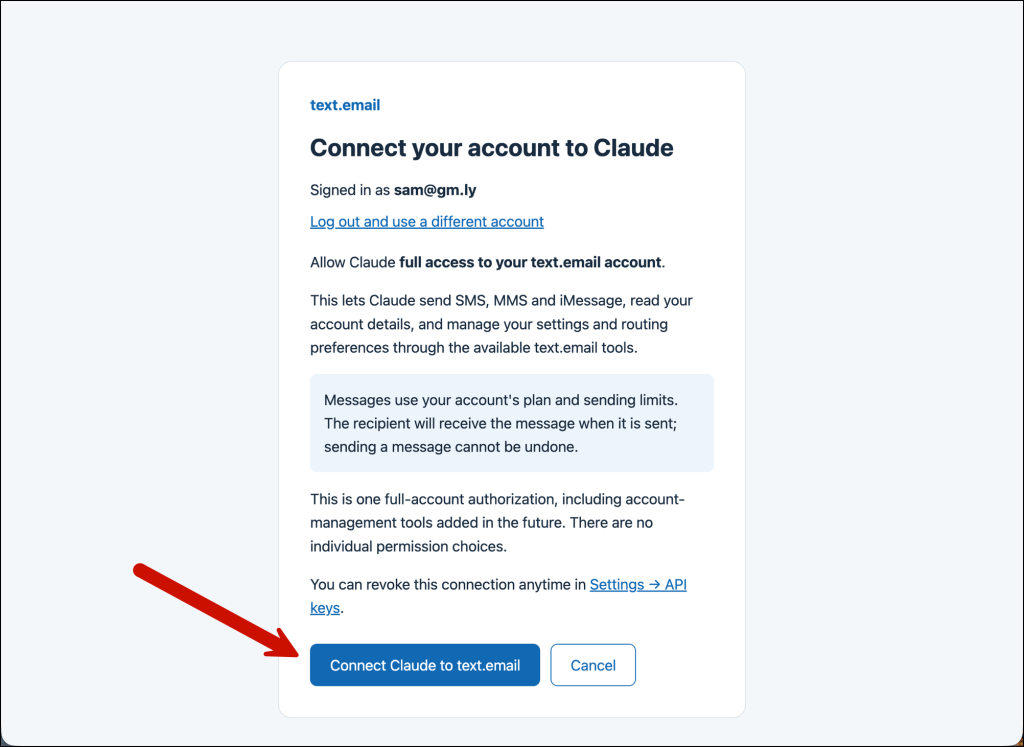
You can now use text.email inside Claude and Claude Code.
If you’re a “CLI only” type, you can also install this in Claude Code by running claude mcp add --transport http text-email https://mcp.text.email and then run /mcp in Claude Code and choose Authenticate to sign in.
Choosing the permissions for the connector
Unless you’re ready to click “allow” a bunch of times, you’ll want to give the text.email connector permissions to do some basic things.
Click text.email in your list of connectors. Then decide on the permissions for the various text.email connector actions.
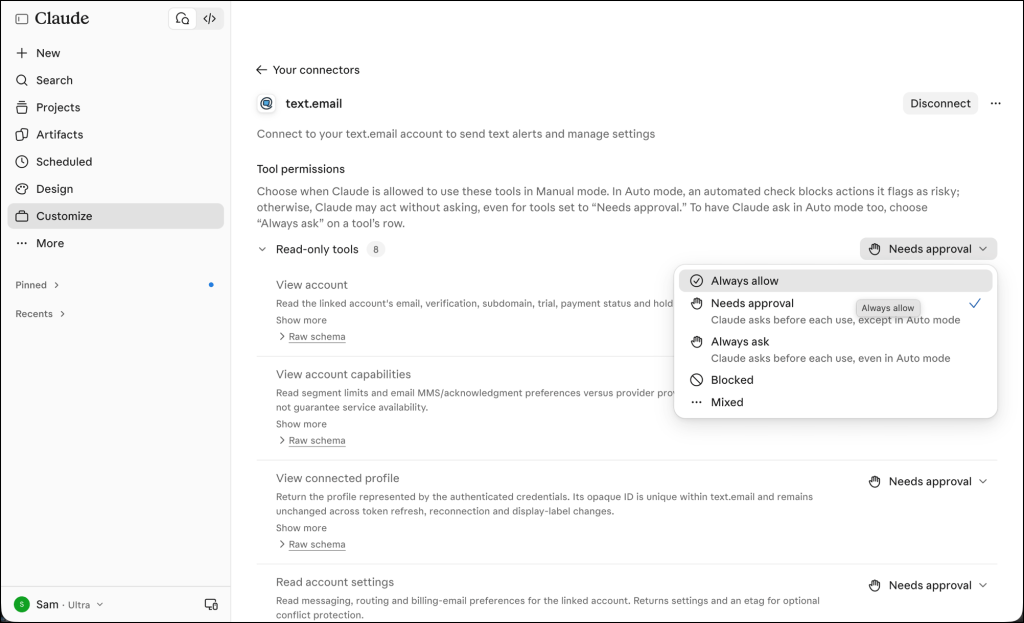
You may want to leave Send a text message on Needs approval. (I set everything else to Always allow; your permission preferences are your own. You also may even want to block some actions altogether, like if you don’t ever want it messing with your account settings.)
Texting From Claude Chats, Claude Code, and Scheduled Tasks
Now that the connector is set up, here’s how to use it.
In a regular Claude chat
You don’t need to mention text.email or the connector to send a text message from a chat.
Claude pulls in relevant connected apps on its own when a request needs one, so “text me that” should do it.
You can also tack a text onto the end of something Claude just did for you. For example…
- Text me the rollback steps for this firewall change so I have them in the server room.
- Text Mike the three commands to restart the queue worker.
- Send the whole itinerary to me as an iMessage.
(The last one is an iMessage because those allow more characters than SMS, so a long message won’t be cut off.)
In Claude Code
With Claude Code, you can start something long and walk away:
“Run the full test suite. If it passes, text me ‘green.’ If anything fails, iMessage me the stack trace.”
There’s plenty more you can do with Claude Code too… but man, those “I’m finally done” text alerts are what I’ve been using it for.
On a schedule
Claude’s scheduled tasks can use your connectors, so text.email works there too. Open Scheduled in the left sidebar and create something like “every weekday at 7 a.m., check the AWS and Cloudflare status pages and text me if either one reports an incident.”
Letting Claude Handle Your text.email Settings
Let’s now cover the other side of what the connector can do, which is read and change your text.email settings. That way you can use Claude as your account admin.
A few possibilities:
- Which email addresses are allowed to send through my text.email account?
- Authorize everything from @alerts.ourcompany.com.
- Make any alert with DOWN in it require an acknowledgment, and remind me every 10 minutes until I reply.
- My number changed to 4155550198. Move my alerts over from the old one.
The Claude connector can handle most of what you might want to set up or tweak in your account. For what it’s worth, since this launched (well, I got exclusive access pre-launch because, you know, I know a guy) I haven’t gone into my text.email settings and have done all my account work in Claude.
Time to Get Started with the text.email Claude Connector
Connecting text.email in Claude takes a couple of minutes (or less, if you’re really fast).
After that, Claude can text you (or anyone else) and handle your account settings, whether you’re in a regular chat or in Claude Code.
If you’re already a text.email subscriber, the connector is included with your account at no extra cost. Find it under Customize → Connectors → Discover or install the MCP in Claude Code in the terminal.
New to text.email? This Claude connector is just one part of what it can do. text.email turns emails into SMS, MMS, or iMessage text alerts for you and your entire team. There’s also the text.email API for building text into your apps.
You can try it without even signing up. Email your-number@text.email from any email address, and the text should reach your phone within a few seconds.
Reference: Every Tool in the text.email Connector
Claude picks the right text.email tools for you, so you’ll rarely see their names outside your connector settings (or if you’re like me and sometimes you like to study what AI is doing so you can make sure it’s not taking over the world).
Sending
send_message: texts a number via SMS, MMS (one image, up to 600 KB), or iMessage. SMS and MMS work for U.S. and Canadian numbers only. As with the standard email-to-text service, every message counts toward your monthly allotment, and MMS has a slight extra cost.
Account
get_profile: shows your account ID, email, and subdomain.get_account: shows verification, trial, payment, and hold status.get_account_capabilities: shows segment limits plus your preferences.resend_verification_email: re-sends your account verification email.
Settings
get_settings: shows your messaging, routing, and billing settings.update_settings: updates any account setting.
Subdomains
list_subdomains: shows your subdomain and its aliases.delete_subdomain_alias: retires an old subdomain alias.
Authorized senders
list_authorized_senders: shows which addresses and domains can send through your account.add_authorized_senders: lets new addresses or domains send through your account.delete_authorized_sender: revokes a sender.
Number replacements
list_number_replacements: shows which old numbers are being replaced, and by what.set_number_replacement: points an old number’s texts to a new number or a distribution list.delete_number_replacement: ends a replacement, so texts go to the original number again.
iMessage routing
list_imessage_numbers: shows which numbers prefer iMessage for email-to-text.add_imessage_number: makes a number prefer iMessage.delete_imessage_number: switches a number back from preferring iMessage.
Send an email to
your-number@text.email
and receive it as a text in seconds. No signup required.