Email-to-iMessage — Send an Email, Get an iMessage (Exclusive)
We did the impossible: We just launched the world’s first and only email-to-iMessage service.
It joins the email-to-SMS alerting service we’re already doing here at text.email. (Which people love, since texts cut through the noise so much better than emails or push notifications.)
Now, any of your servers, apps, controllers, or other systems can send an email and it will be delivered on your iPhone as an iMessage. (It will also be delivered on your other connected Apple devices too, including your Mac, Apple Watch, and/or iPad.)
That means you can receive your email-to-iMessage alerts anywhere in the world. You can also receive them in places where you only have data, not cellular, service, like a plane or when you’re traveling abroad.
And you can get this going in less than five minutes. Here’s how.
Email-to-iMessage: Table of Contents
- How to Set Up Email-to-iMessage, Step by Step
- What Email-to-iMessage Alerts Can Do That Regular Texts Can’t
- Other Cool Features With text.email’s Email-to-iMessage
- Ready to Get Started with Email-to-iMessage Alerts?
- Email-to-iMessage: Frequently Asked Questions
How to Set Up Email-to-iMessage, Step by Step
Let’s get this going.
Step 1: Get a text.email account
You can grab an account at text.email.
Once you’ve subscribed, you’ll get your email-to-text address (it’s your-number@your-subdomain.text.email). You can change the subdomain to whatever private keyword you want.
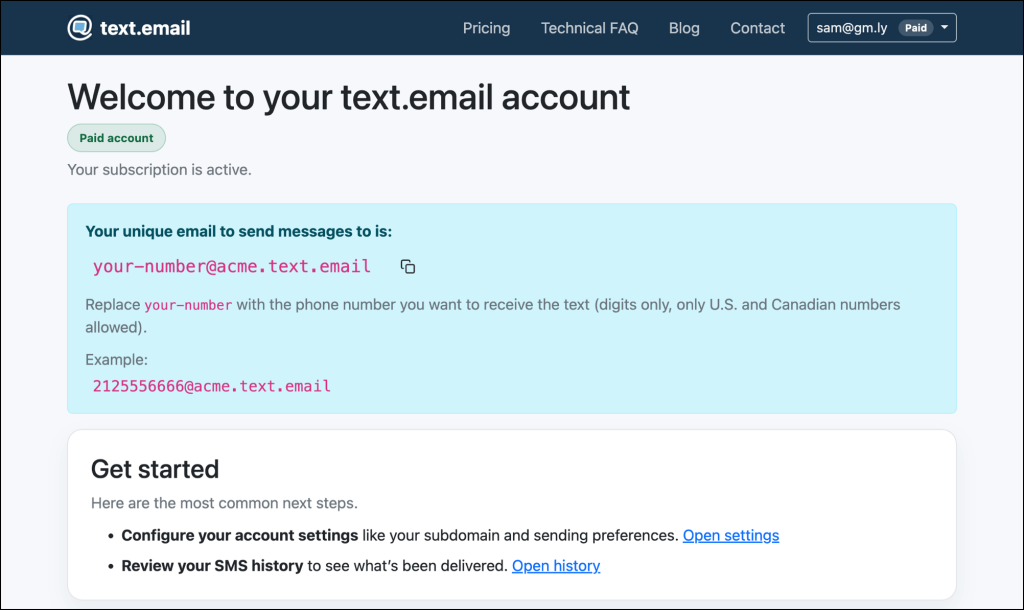
Each iMessage accepted for sending uses one message credit per recipient from your plan, regardless of its length within the 16,000-character limit. Required Acknowledgment reminders count separately.
Step 2: Get your email-to-iMessage address
Your email-to-iMessage address is just a slight variation, adding an i before text.email. So if your phone number is 5553456679 and your chosen subdomain is acme, your email-to-iMessage address would be 5553456679@acme.i.text.email.
Note: U.S. and Canadian phone numbers can use their usual 10-digit format without a country code. For international numbers, include the country code without a plus sign. For instance, a U.K. number would use 447700900123@acme.i.text.email. The recipient’s number must have iMessage enabled to receive an iMessage.
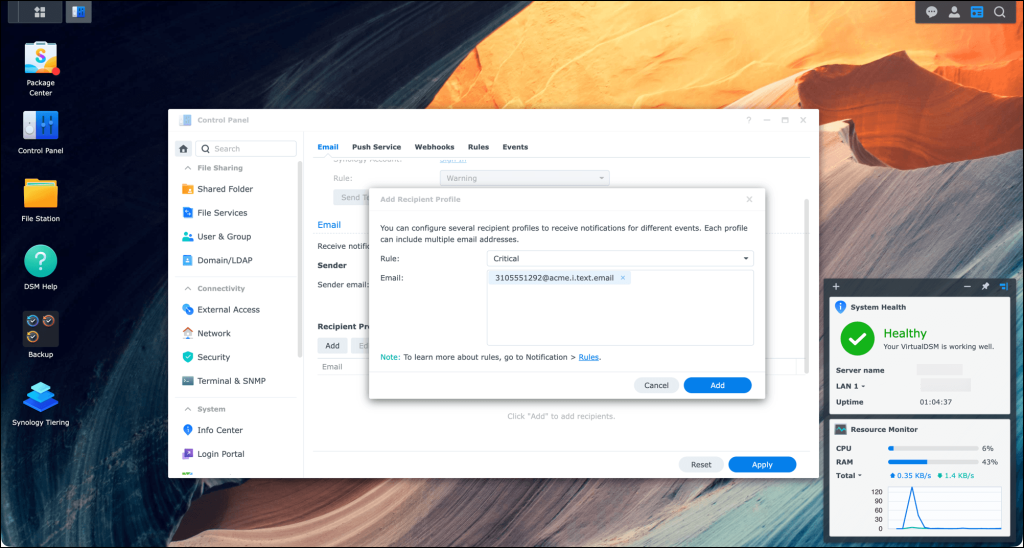
You can now put this email address into any of your systems that send alerts. Maybe it’s the notification field on a Synology NAS (like I did above). Or the alarm contact list in your SCADA controller.
Step 3: Test it out (and make sure Apple’s privacy settings aren’t affecting it)
You’ll almost definitely want to see your new email-to-iMessage address in action.
So head to Gmail or whatever email service you use and send a faux alert message to your-number@your-subdomain.i.text.email.
It should hit your phone momentarily as a new iMessage. Note: I have required acknowledgement turned on, which is visible here.
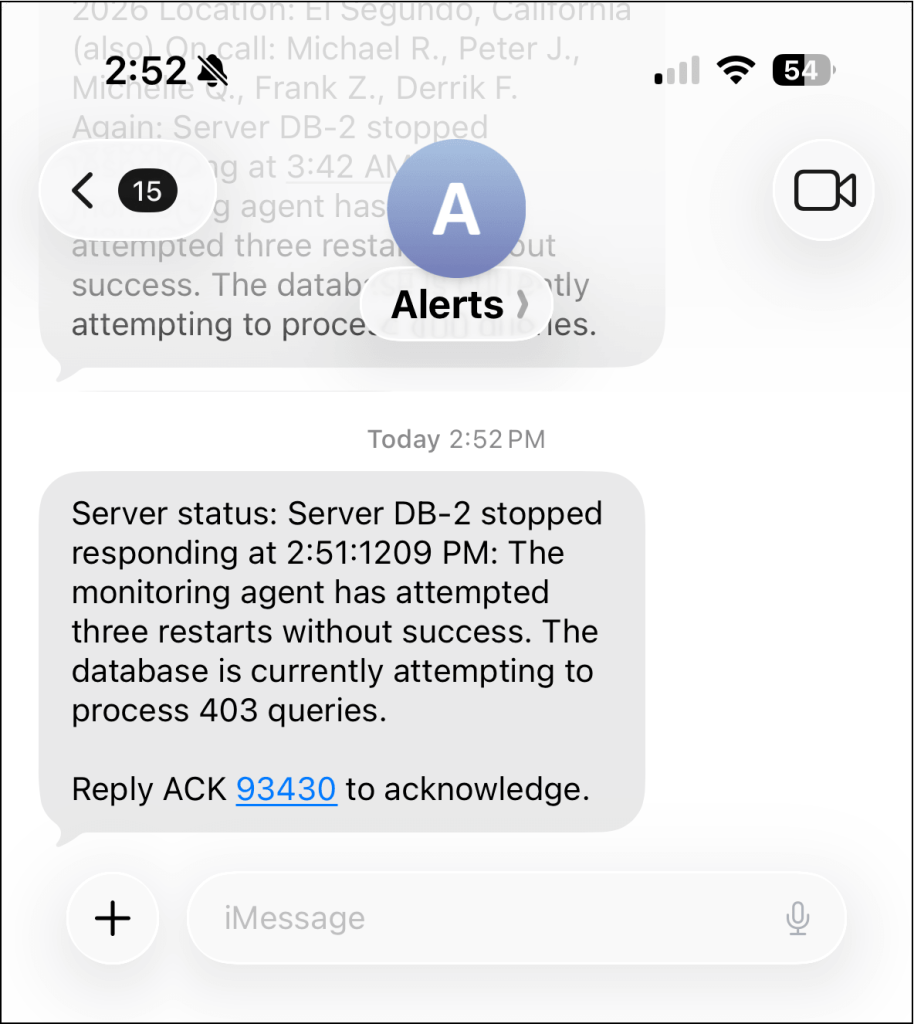
And if you reply to it, that reply will be that sweet blue bubble.
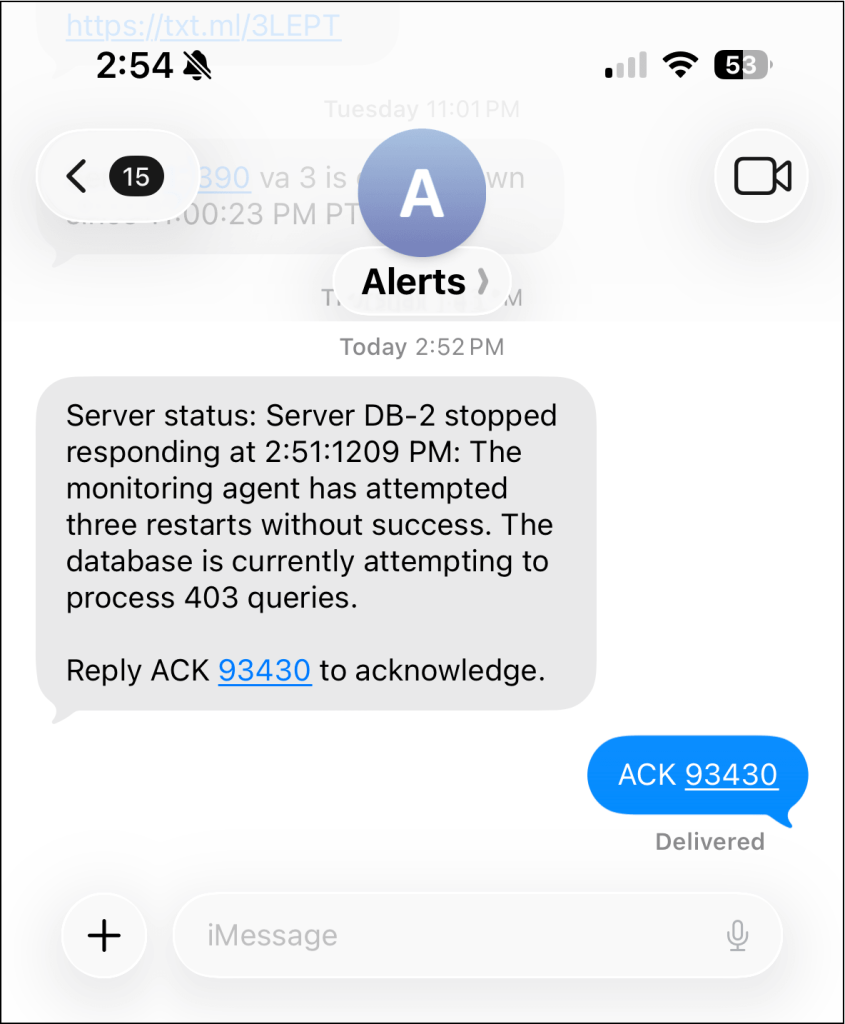
(Also, you’ll receive that reply back in your email; we’ll get into that a bit more later.)
If you don’t receive the iMessage
There are a few things that might happen, and good reasons for all of them.
If the message comes through as an SMS text instead of an iMessage, check that the i is included in your email-to-iMessage address. You can also request iMessage by saving the recipient under Settings → iMessage Numbers.
SMS fallback is another possibility where supported. Check that iMessage is enabled for the recipient’s phone number and that they have an internet connection. Being temporarily offline doesn’t guarantee an immediate switch to SMS.
If the message doesn’t come through at all, and your email-to-iMessage address is correct, there’s an outside chance an Apple privacy setting is swallowing up the message.
Go to Settings > Apps > Messages and scroll down to the Unknown Senders section. If Screen Unknown Senders is turned on, that’s likely the reason. You can turn off that setting, or you can go back to the Messages app, check your Unknown Senders list, and add the sending number as a contact.
What Email-to-iMessage Alerts Can Do That Regular Texts Can’t
Text messages are really useful in a lot of cases. But the reason so many people have asked for email-to-iMessage too is because of all the other benefits it brings…
Alerts for phone numbers outside the U.S. and Canada
Setting up texting in each country is its own obstacle course every time. Every country sets rules for things like sender IDs, consent, and regulation. (Go have a look at India’s DLT system if you want to make yourself nuts.)
Even the U.S., which is usually lax about communications rules compared to the E.U. and other developed countries, has a registration process called A2P 10DLC.
iMessage never touches the carrier networks, so none of that applies. You can send an iMessage from anywhere in the world to anywhere in the world. As long as there’s data, iMessage works.
Alerts on planes (and traveling abroad)
Text messages don’t work on planes or when you’re traveling abroad.
(See above for the reason why. But you’ve certainly had the moment where you get back from an international trip and get flooded with all your missed texts from the prior week.)
But wifi works pretty much everywhere now, including on most planes — many of which offer messaging even if you don’t pay for their… um… often frustrating wifi.
iMessage can also work if you’re totally off the grid. If there’s an alert you simply can’t miss, add the text.email messaging number to your emergency contacts. And when you’re completely off the grid, your iPhone will deliver the message via satellite.
Alerts where you don’t have cell service
If you’re in the sub-basement fixing something and there’s a critical alert about an issue elsewhere in the plant, there’s a chance you won’t get a SMS because cell service doesn’t work where you are.
But as long as you’re connected to the wifi, you’ll get your iMessages.
Alerts on all your devices
SMS can reach your other Apple devices by relaying through your iPhone.
But that only works if your iPhone is on and connected.
So if your phone is dead or lost or you left it somewhere, you’ll still get iMessage alerts on your Mac, iPad, and elsewhere.
Long alerts in one message, not fragments
A single SMS segment holds up to 160 characters of basic text, or fewer with some characters and emoji. Longer SMS alerts use multiple segments, which the recipient’s phone may display together.
With text.email, an iMessage can contain up to 16,000 characters in one message. That limit includes the final message’s subject line, sender details, attachment links, and acknowledgment instructions, if included. Your Maximum SMS Segments setting doesn’t apply. Messages exceeding the limit won’t be sent as iMessages, so shorten the alert or adjust your message format first.
Other Cool Features With text.email’s Email-to-iMessage
Yes, you can send an email and it becomes an iMessage. But that’s not all you can do with text.email’s email-to-iMessage service.
iMessage alerts that repeat until acknowledgement
Want to make sure the issue in your alert is getting handled? With required acknowledgement (ACK), iMessages will keep sending until the person receiving it replies with the ACK code.
That way you know the alert was seen, not just sent.
Reply to an iMessage alert and it comes back as email
Email-to-iMessage isn’t just one-way messaging — we’ve set it up for two-way communications.
Someone can reply to an alert and that reply will go to your email inbox. Respond to that email, and that goes back to them as an iMessage.
SMS fallback when iMessage isn’t available
To receive an iMessage alert, the recipient’s phone number must have iMessage enabled, and their receiving Apple device needs a connection that supports iMessage, such as Wi-Fi or cellular data. An Android phone can’t receive an iMessage.
The message can fall back to a regular SMS where SMS delivery is available. text.email supports SMS to U.S. and Canadian numbers; international recipients need an iMessage-enabled number. Being temporarily offline doesn’t guarantee an immediate switch to SMS.
Fallback isn’t a guarantee of delivery. If neither iMessage nor SMS is available, the alert may not arrive. Long messages sent as SMS are subject to SMS segmentation and carrier limits; see the FAQ below for how that affects delivery and credits.
Send attachments with your iMessages
You aren’t only limited to text with your email-to-iMessage alerts. With text.email’s attachments feature, your email attachments (like images or PDFs) are sent in the iMessage as a link.
The recipient can click the link to view the attachments you included.
Ready to Get Started with Email-to-iMessage Alerts?
Email-to-iMessage has never been done before — but here at text.email, we cracked it and now it’s available to everyone worldwide.
That means your alerts can reach your Mac when your phone is dead, a flight’s Wi-Fi, or a number outside the U.S. and Canada.
SMS fallback may help where supported, but isn’t guaranteed. With Required Acknowledgment on, the recipient can confirm they’ve seen the alert by replying with its ACK code.
Want to try it before signing up? Send an email to yournumber@i.text.email and it’ll show up on your phone in a few seconds.
Email-to-iMessage: Frequently Asked Questions
How long can an iMessage be?
With text.email, you can send up to 16,000 characters in one iMessage. That’s the length of the final message, including any subject line, sender details, attachment links, or acknowledgment instructions included in it. Your account’s Maximum SMS Segments setting doesn’t apply to iMessages.
If the finished message exceeds that limit, it won’t be sent as an iMessage. Shorten the alert or adjust your message format to include only the details you need.
How does an iMessage count toward my plan’s credits?
One iMessage to one recipient uses one message credit from your plan. A 5,000-character iMessage counts the same as a 50-character iMessage. It isn’t charged in 160-character pieces.
Send the same alert to five recipients, and that uses five credits. If you use Required Acknowledgment, each additional reminder uses another credit per recipient. Usage is counted when text.email accepts the iMessage for sending; it isn’t proof that the recipient received or read it.
What happens if the recipient’s number doesn’t support iMessage?
An Android phone, or a number without iMessage enabled, can’t receive a blue-bubble iMessage. The message can fall back to a regular SMS where SMS delivery is available. text.email supports SMS to U.S. and Canadian numbers; international recipients need an iMessage-enabled number.
Fallback isn’t a guarantee of delivery. If neither iMessage nor SMS is available, the alert may not arrive. Test the destination before relying on it for important alerts.
What happens if a really long iMessage falls back to SMS? Does it get split into segments?
Yes, if it is sent as SMS, a long message uses multiple SMS segments. The recipient’s phone may put those segments back together and display them as one message, so multiple segments don’t necessarily mean multiple bubbles. Emoji and some other characters reduce how much text fits in each segment.
For this iMessage fallback, text.email hands off the whole message to Apple’s Messages system. Your Maximum SMS Segments setting doesn’t split or shorten it. The phone and carrier handle SMS delivery, and a very long message may exceed their limits or fail to arrive in full. The 16,000-character iMessage limit isn’t a promise that the same text will work over SMS.
This fallback still counts as one text.email credit per recipient. text.email counts the original submission and doesn’t add credits for SMS segments created by Apple’s Messages system. That’s different from sending through text.email’s regular SMS route, where each outgoing segment counts separately. For long alerts that may need fallback, keep the essential details in the message and put the rest in an attachment link.
Can I receive iMessages without cell service?
Yes, as long as you have a working Wi-Fi connection that allows iMessage. You can also receive iMessages over cellular data. That makes them useful in buildings with poor cell reception, while traveling, or on flights with compatible Wi-Fi. Being temporarily offline doesn’t guarantee an immediate switch to SMS.
Do I need to install an app or change my alerting software?
No extra app is needed. If your system can send an email, it can send an alert through text.email. Use your-number@your-subdomain.i.text.email as the destination, and receive the alert in Apple’s Messages app.
Can I switch my existing alerts to iMessage without changing every email address?
Yes. Add the recipient’s number under Settings → iMessage Numbers in your text.email account. Alerts to that saved number will use iMessage even when your systems keep sending to your existing text.email addresses. Removing the number restores normal routing; addresses ending in .i.text.email still request iMessage.
Can I send alerts to an international number?
Yes, provided the number has iMessage enabled. Include its country code without a plus sign, for example 447700900123@acme.i.text.email for a U.K. number. U.S. and Canadian numbers can use their usual 10-digit format. The worldwide coverage applies to iMessage; SMS and MMS support U.S. and Canadian numbers.
Can I reply to an alert?
Yes. Reply in Messages, and text.email forwards your reply by email to the original sender. Respond to that email to send an iMessage back. If the alert requires acknowledgment, reply with the ACK code shown in the message to stop the reminders.
Will my email attachments appear inside the iMessage?
With text.email’s attachments feature, files such as images and PDFs are included as links. The recipient taps the link to open the attachment. Files aren’t embedded as native iMessage attachments.
Are images supported in email-to-iMessage alerts?
Yes, as links to image attachments. Attach a photo, screenshot, or other image to your email and use text.email’s attachments feature. The iMessage includes a link the recipient can tap to view the image. text.email doesn’t currently send the image itself as a native photo attachment inside the iMessage conversation.
Why didn’t my iPhone notify me about an alert?
First, check that you used the correct destination address and that iMessage is enabled for your phone number under Settings → Apps → Messages → Send & Receive. Then check your internet connection, Unknown Senders folder, Focus settings, and whether the conversation is muted. Add the sending number to your contacts so the alerts are easier to recognize.
Can I try email-to-iMessage before subscribing?
Yes. Send a simple test email to your-number@i.text.email. Free testing is limited. Anonymous tests can appear in the public demo on our homepage, so use something like “Test alert” instead of sensitive information. For your real alerts, create an account and use your own subdomain.
Send an email to
your-number@text.email
and receive it as a text in seconds. No signup required.