
How to Make Critical Texts Bypass Silent Mode (iPhone & Android)
If your critical text alerts can’t bypass silent mode then they’re not doing their complete job.
Here at text.email, we see people use our email-to-text alerts (and email-to-iMessage alerts) in a huge variety of ways. But there’s one almost universal thread: If something critical happens in the middle of the night, I need the text to wake me up.
Which is great… unless your phone is on silent mode or do-not-disturb mode. Which is something most of us do before we go to sleep.
That, then, leaves you with two bad choices: (1) Leave your phone’s audio on, so every message you get from everyone makes noise throughout the night or (2) Turn your phone’s audio off and potentially miss that one text that you can’t afford to miss.
Instead, in this article, I’ll cover the simple ways you can set up your phone so that crucial text alerts can bypass silent, do-not-disturb, and volume off modes — and wake you up when you need them.
Bypass Silent Mode: Table of Contents
- iPhone: Setting Up Emergency Bypass for SMS and iMessage
- Android: Setting Up Alarm Audio to Bypass Silent Mode
- How to Use Audible Alerts With Your Team
- Time to Get Your Email-to-SMS Messages Set Up to Bypass Silent Mode
iPhone: Setting Up Emergency Bypass for SMS and iMessage
It’s pretty easy to set up a bypass on your iPhone; Apple actually thought of the need for messages breaking through the silence and built it into iOS.
Step 1: Create a new contact
With text.email, you should see your texts come through from a single sender. (Should that change for your account, you can always add another sender to the same contact card.)
Also, if you’re using text.email’s email-to-iMessage feature, you can add that number and the email-to-text number to the same contact.
Find your text.email alerts in your Messages log.
Then tap on the phone number.
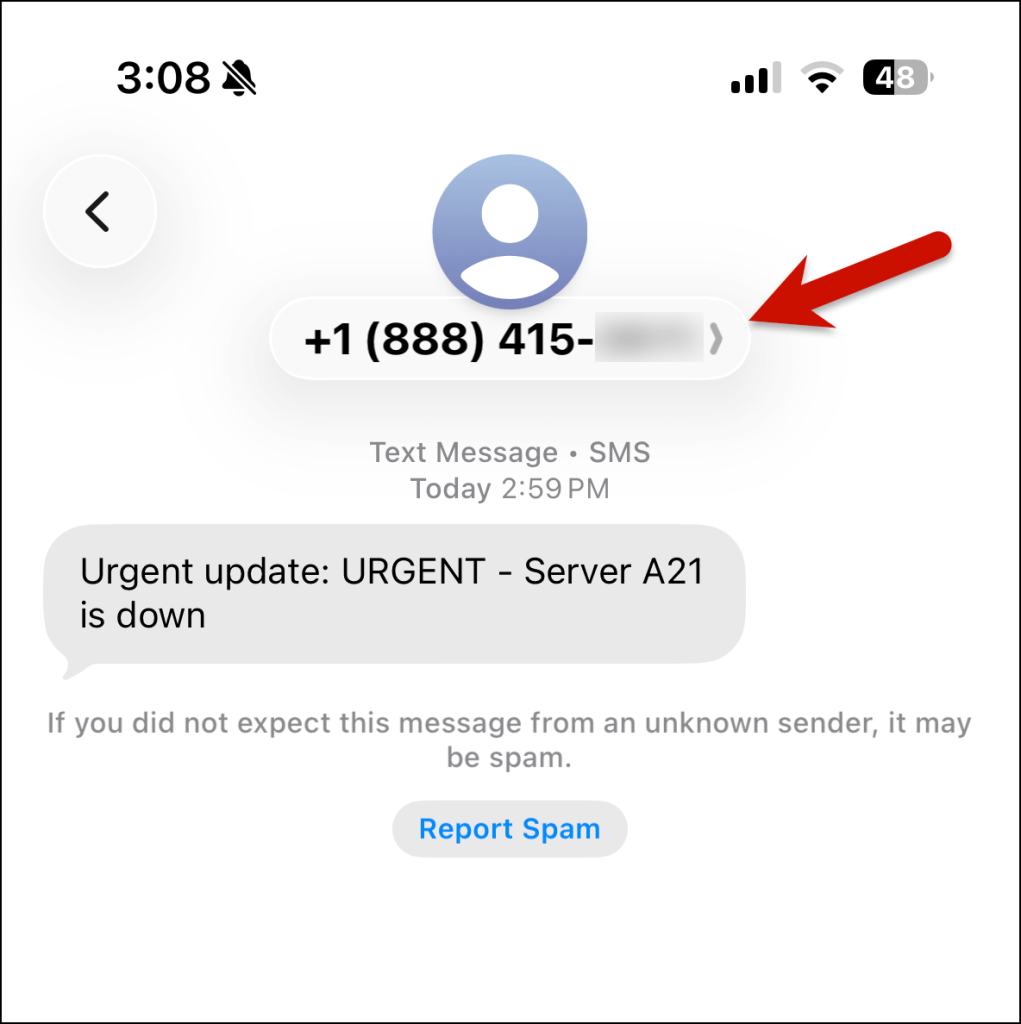
Scroll down to create the new contact.
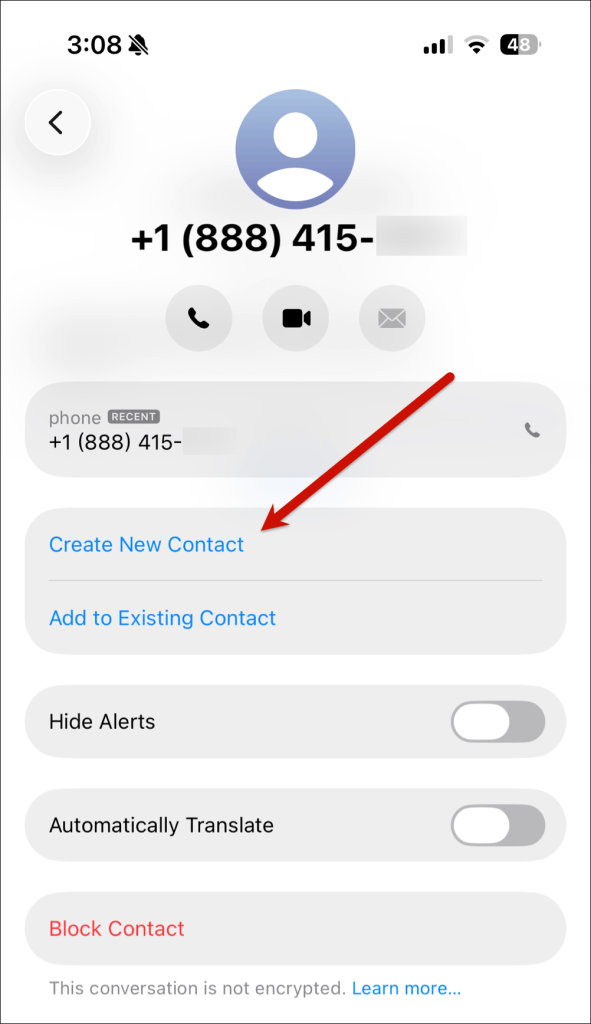
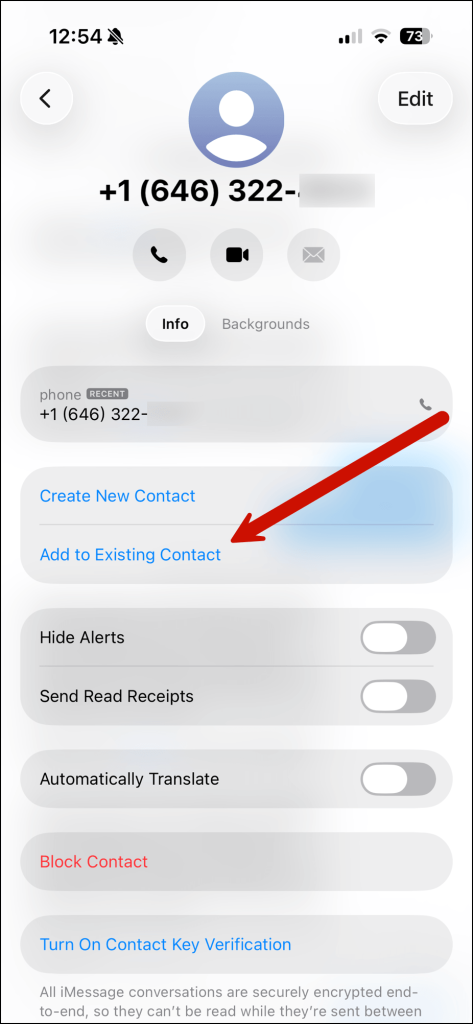
As I noted a couple of paragraphs back, if you’re using text.email’s email-to-iMessage feature, those may come from a different contact.
So go to that contact, tap their phone number, then select Add to Existing Contact.
Step 2: Create the emergency bypass
Open up your text.email contact in the Contacts app.
Tap on the Edit button. Then scroll down and click on Text Tone.
And toggle the switch for Emergency Bypass. That makes the text alerts from this contact cut through Silent or Focus modes.
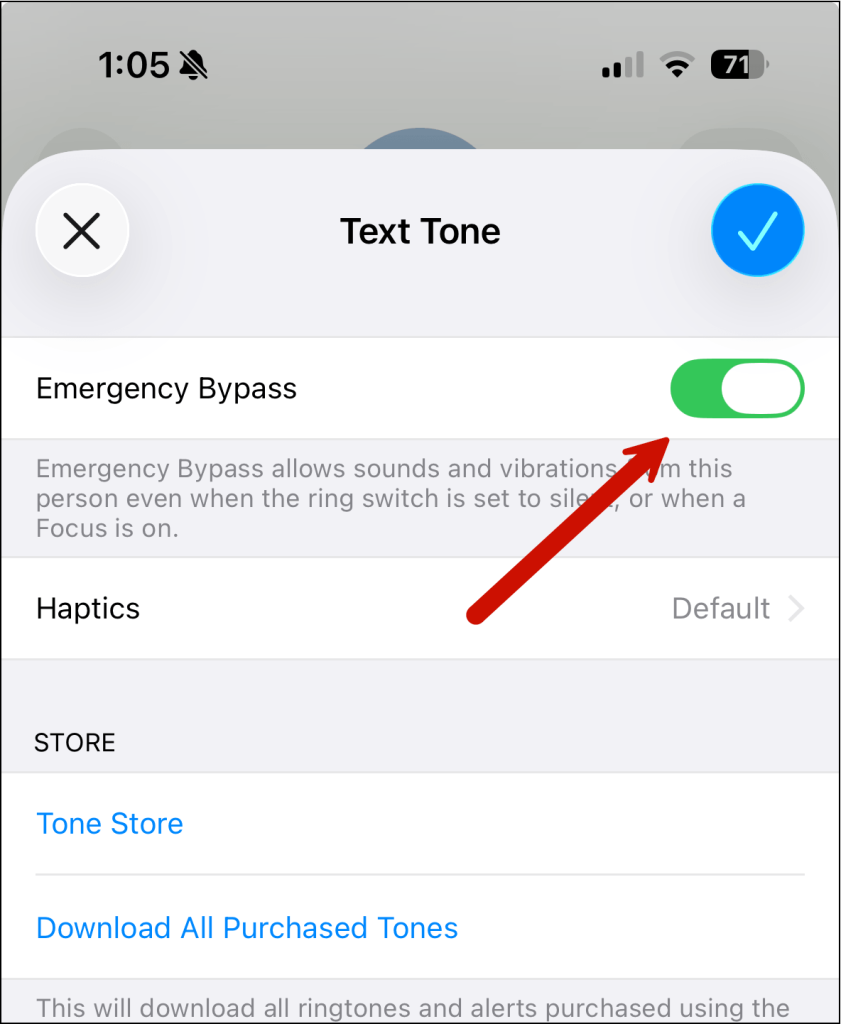
Choose a text tone (I recommend tapping Classic and then choosing Electronic, Update, or one of the more jarring sounds; the default list Apple gives you are all fairly gentle).
Android: Setting Up Alarm Audio to Bypass Silent Mode
Android, unfortunately, does not have a native way to bypass silent mode for a contact. That means we need to use a workaround. A free workaround but still, a workaround.
Step 1: Create a new contact
Just like with iOS, here in Android we need to create a new contact for the bypass system to work.
Go to one of your text alerts. Tap on the phone number, then tap on Add contact.
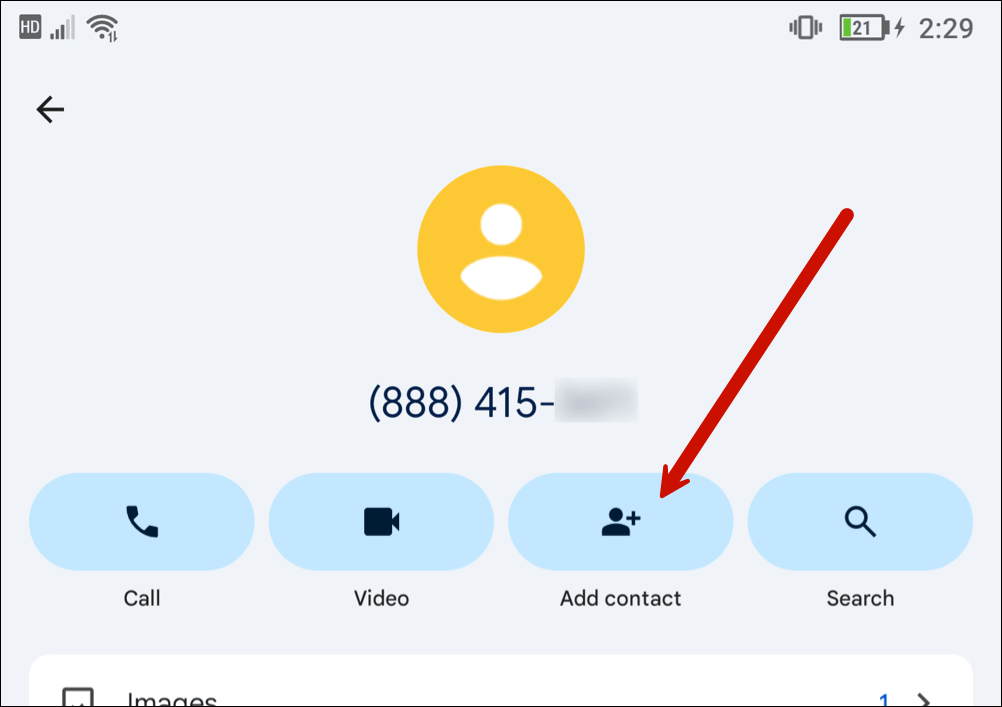
Give the contact a name and tap Save.
Step 2: Install SOS Ring
We need to use a third-party app in order to get around silent, vibrate, and do-not-disturb modes on Android. And our best option is SOS Ring.
It’s a free, open-source app (which is good) and actively maintained (which is very good). You can’t download it from the Google Play store (which is bad) because they don’t allow apps that skirt their call monitoring rules (which is annoying).
If you have F-Droid installed, you can add SOS Ring from there. Otherwise, I just downloaded the APK from the F-Droid website with that link above. (Standard warnings about sideloading apps via direct APK downloads, of course, apply.)
Step 3: Configure SOS Ring to play audio alerts for your contact
Click the plus button in the bottom right to add a VIP Contact.
Then tap the three dots next to that contact and tap on VIP message alerts.
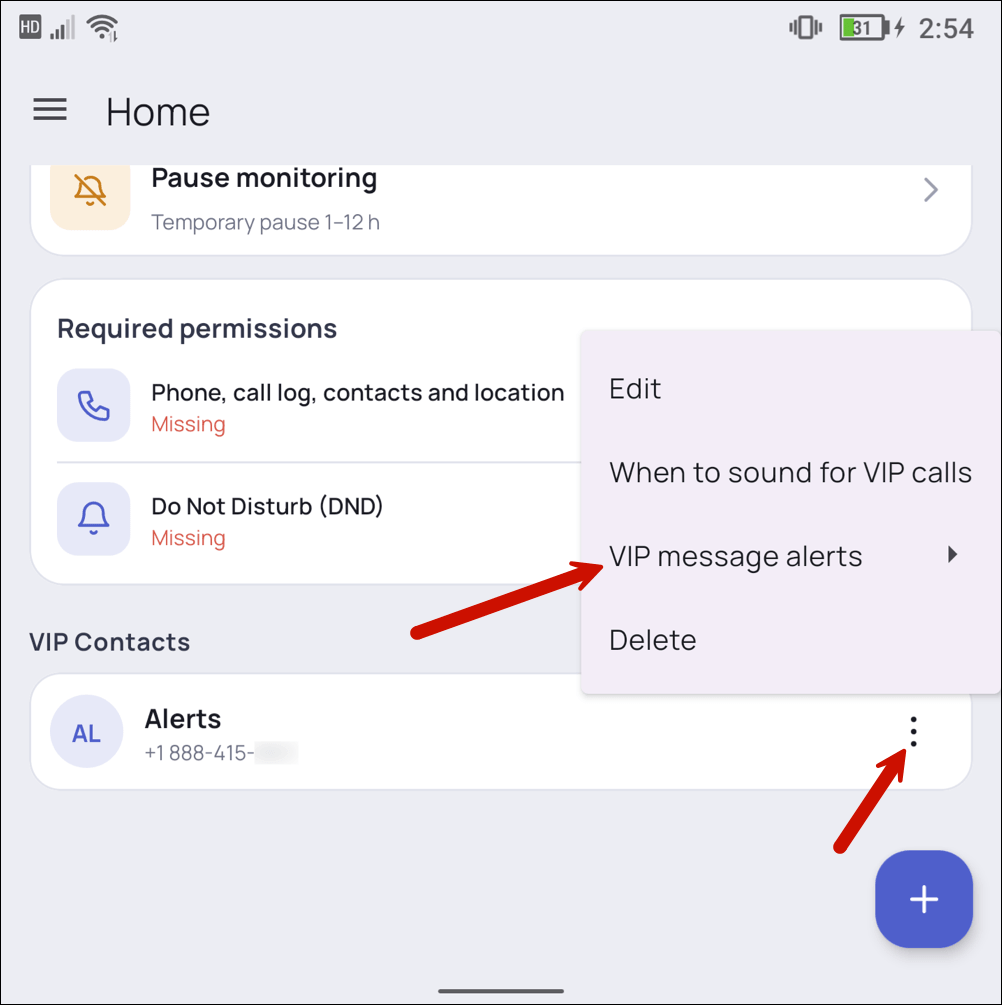
Tap on Pair SMS / RCS.
Now toggle the Monitoring switch at the top of the screen.
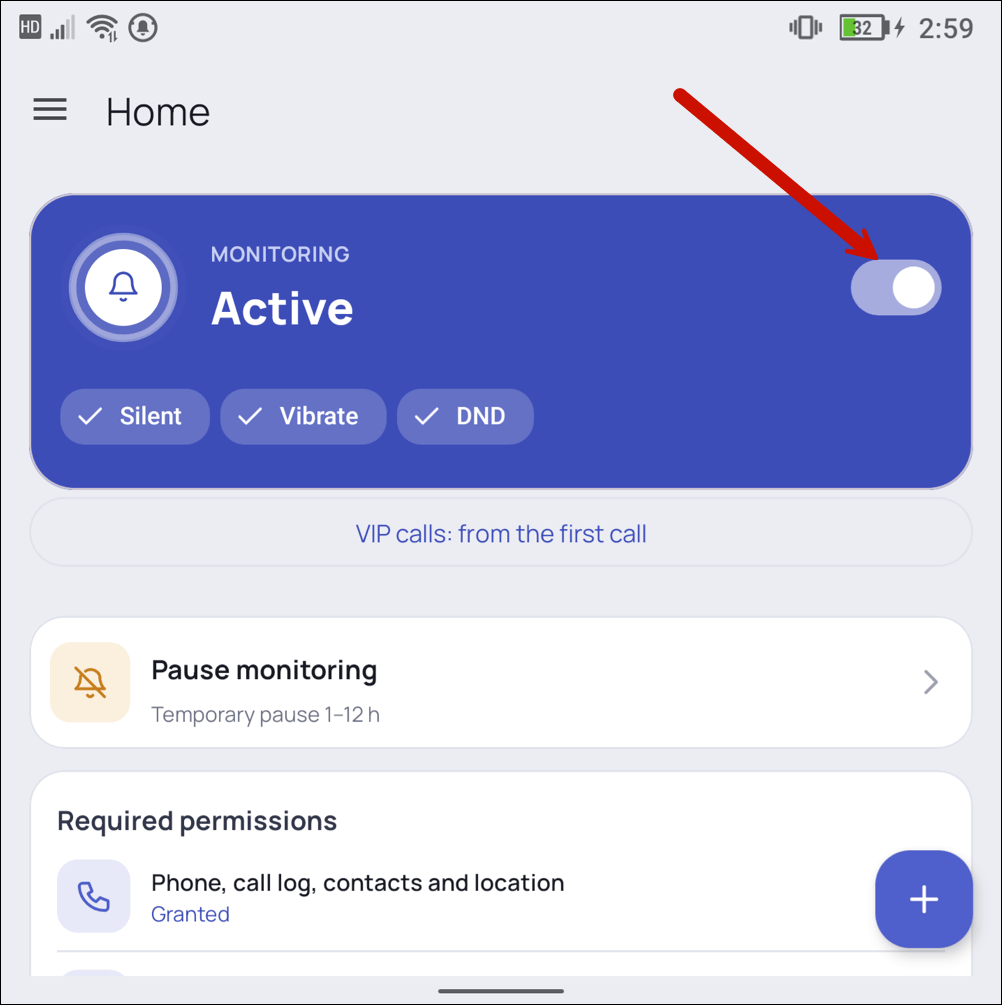
And you’re set — texts from that contact will ring through no matter what mode you’re in.
You can also, optionally, edit the ringtone, hours, and volume in the app Settings, though I found the defaults were just fine. In particular, I’d be careful messing with the hours because the whole point of getting the app was to make sure you got loud alerts 24/7.
How to Use Audible Alerts With Your Team
Maybe you’re not the only person who should get woken up when something goes wrong.
Here are three text.email features you and your team can use to make sure you’re all feeling the middle of the night pain together. Call it team bonding.
Distribution lists
A distribution list gives a group one address (like oncall@your-keyword.text.email), so a single alert email texts everyone on your team.
You’d need everyone on your team to set up the silent mode bypass, but that’s a pretty low-lift ask to make sure everyone gets your most critical alerts.
On-call schedules
Of course, if your entire distribution list is bypassing silent mode, a 2 AM alert wakes up the whole team. Including maybe the CEO.
Scheduled routing handles that on text.email’s side. Each list member gets their own “on call“ hours, and alerts only go to whoever’s inside their window.
So everyone can leave the bypass on permanently. If you’re on call, you’ll get the alert which you’ve set up to bypass silent mode. If you’re not on call, you can stay asleep.
Required Acknowledgment
One tone is still easy to sleep through. Required Acknowledgment resends the alert every few minutes (you pick the interval) until the recipient replies with the ACK code.
With the bypass in place, every one of those resends makes noise.
On a distribution list, each person gets their own ACK code. One person’s ACK doesn’t stop anyone else’s reminders, which is one more reason to pair it with on-call schedules.
Time to Get Your Email-to-SMS Messages Set Up to Bypass Silent Mode
As you can see, it’s really easy on Apple and fairly easy on Android to make sure your critical text alerts make an audible alert — even if you’re on silent, focus, do-not-disturb, or any of the other “quiet” phone modes.
At text.email, we’re here to make sure those critical alerts really do come through.
If your alerts aren’t arriving as texts yet, that’s what we’re here for. Pretty much every system can send an email. text.email has email-to-SMS and email-to-iMessage options to turn those emails into texts, since texts are much harder to miss.
And with the guide here, now you can make sure those alerts wake you up or catch your attention no matter when they arrive.
You can try text.email for free — just send an email to your-number@text.email and watch it come through to your phone as a text. And when you’re ready, there are subscriptions or pay-as-you-go plans so you can make sure your systems can send you alerts you won’t miss.
Especially once you’ve made those alerts cut through silent mode.
Send an email to
your-number@text.email
and receive it as a text in seconds. No signup required.